GCP Dataflow templates
In this tutorial, you’ll learn how to ship logs directly from the Google Cloud Console with the Dataflow template for analyzing GCP Audit Logs in the Elastic Stack.
You’ll learn how to:
- Export GCP audit logs through Pub/Sub topics and subscriptions.
- Ingest logs using Google Dataflow and view those logs in Kibana.
Create an Elastic Cloud Hosted deployment or Elastic Observability Serverless project. Both include an Elasticsearch cluster for storing and searching your data and Kibana for visualizing and managing your data.
This tutorial assumes the Elasticsearch cluster is already running.
For Elastic Cloud Hosted deployments, you need your Cloud ID and an API Key.
To find the Cloud ID of your deployment, go to the deployment’s Overview page.
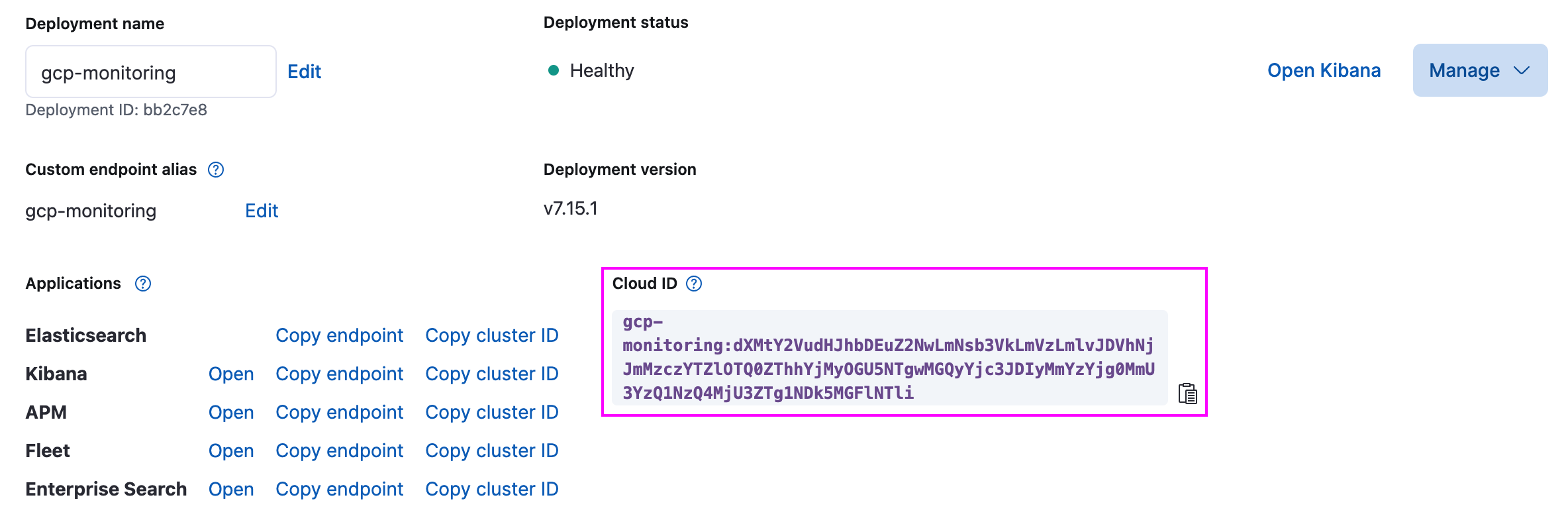
For Elastic Observability Serverless projects, you need your Elasticsearch endpoint URL and an API key.
To find your endpoint URL, select Manage next to your project, then find the Elasticsearch endpoint under Application endpoints, cluster and component IDs. Alternatively, open your project, select the help icon, then select Connection details.
Use Kibana to create a Base64-encoded API key to authenticate on your deployment.
You can optionally restrict the privileges of your API Key; otherwise they’ll be a point in time snapshot of permissions of the authenticated user. For this tutorial the data is written to the logs-gcp.audit-default data streams.
You’ll start with installing the Elastic GCP integration to add pre-built dashboards, ingest node configurations, and other assets that help you get the most of the GCP logs you ingest.
Find Integrations in the main menu or use the global search field.
Search for
gcp.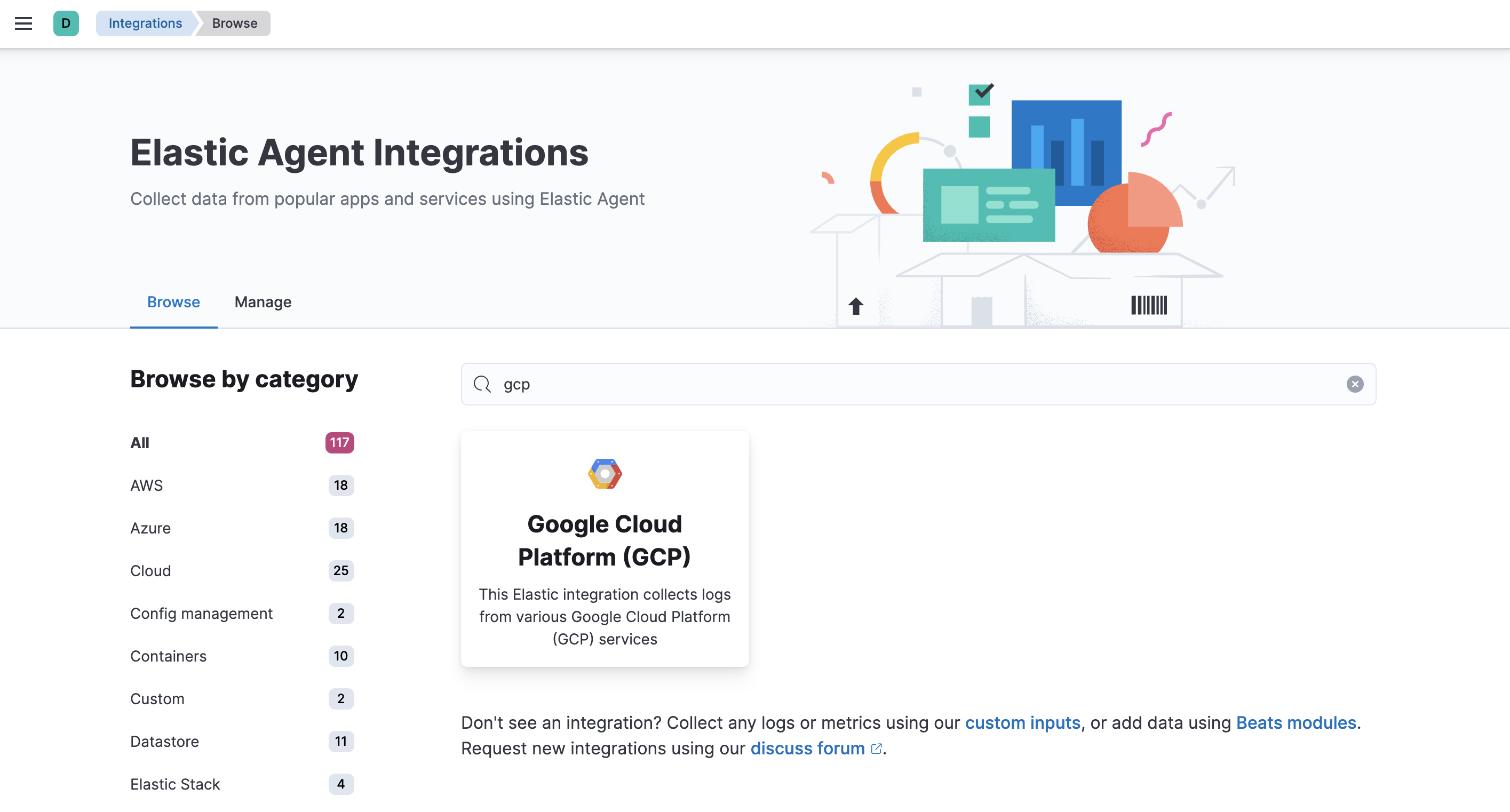
Click the Elastic Google Cloud Platform (GCP) integration to see more details about it, then click Add Google Cloud Platform (GCP).
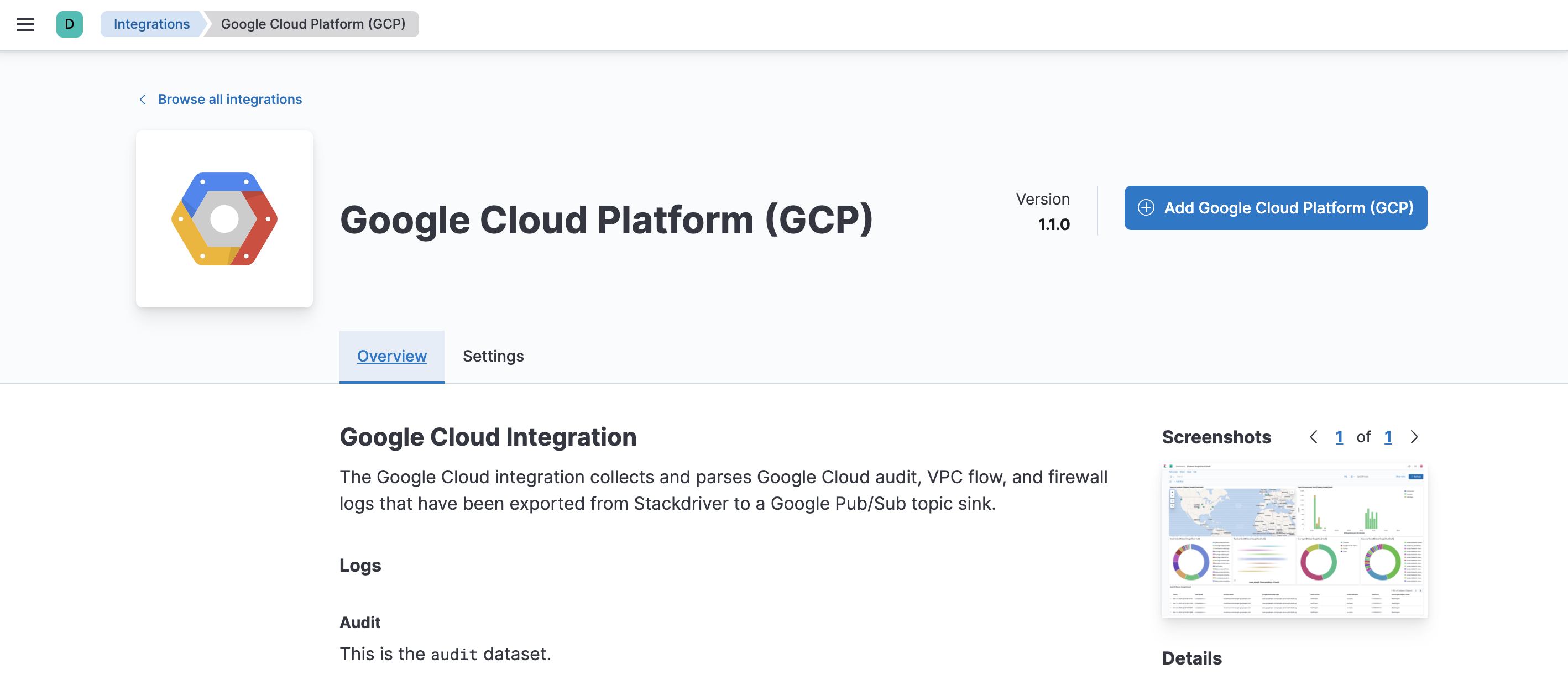
Click Save integration.
Before configuring the Dataflow template, create a Pub/Sub topic and subscription from your Google Cloud Console where you can send your logs from Google Operations Suite. There are three available filesets: audit, vpcflow, firewall. This tutorial covers the audit fileset.
Go to the Logs Router page to configure GCP to export logs to a Pub/Sub topic. Use the search bar to find the page:
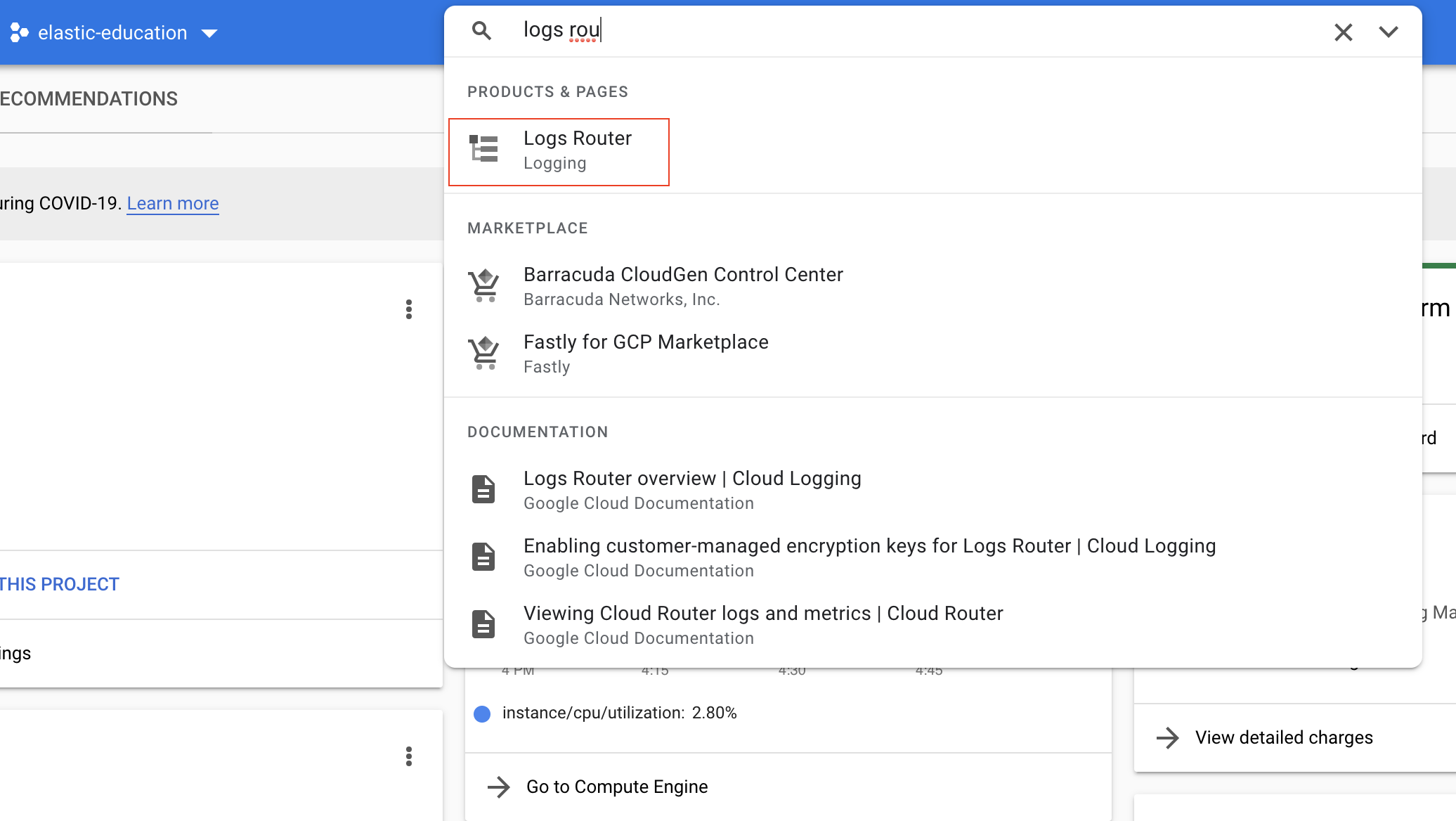
To set up the logs routing sink, click Create sink. Set sink name as
monitor-gcp-audit-sink. Select the Cloud Pub/Sub topic as the sink service and Create new Cloud Pub/Sub topic namedmonitor-gcp-audit: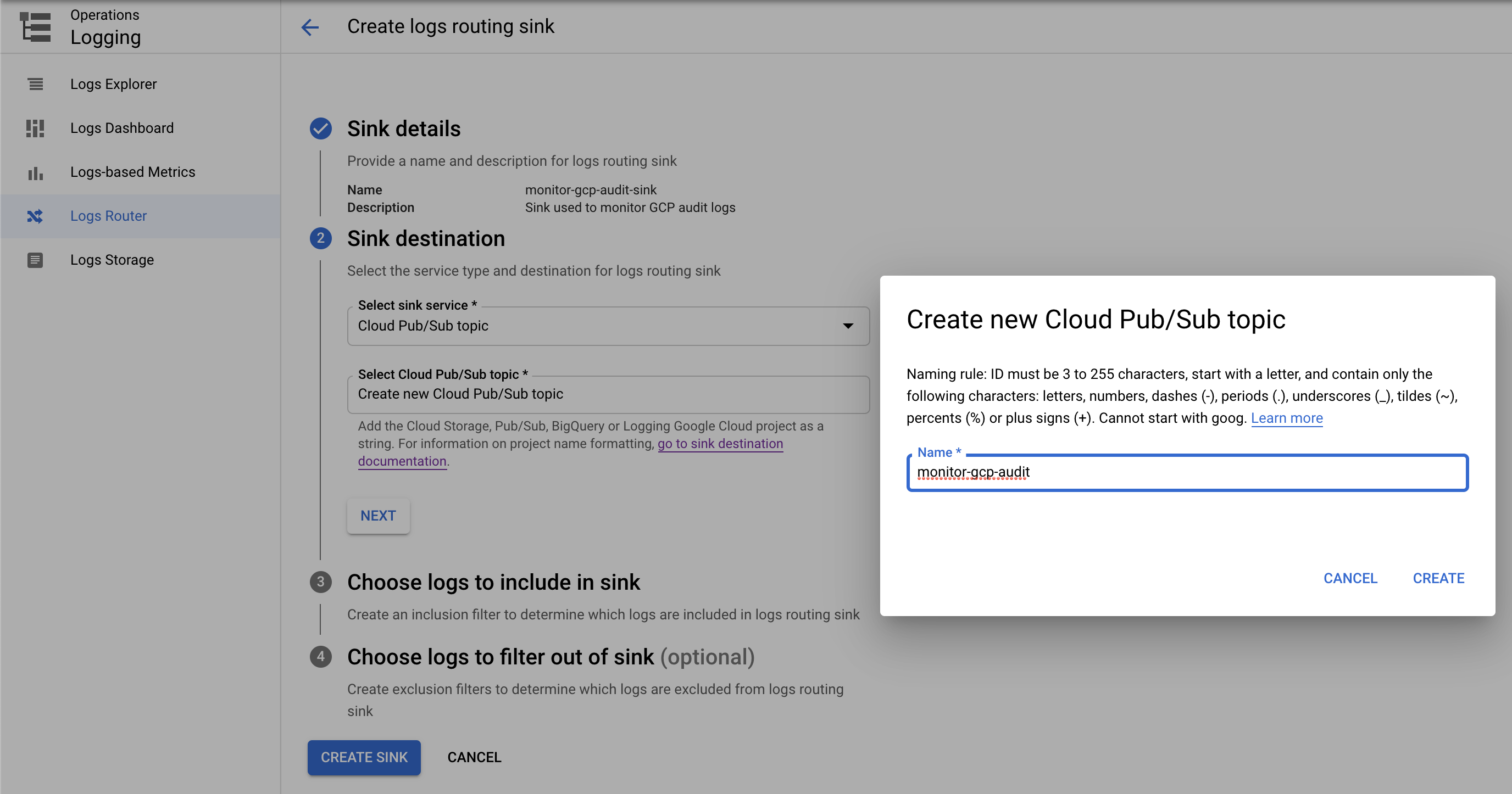
Finally, under Choose logs to include in sink, add
logName:"cloudaudit.googleapis.com"(it includes all audit logs). Click create sink. It will look something like the following: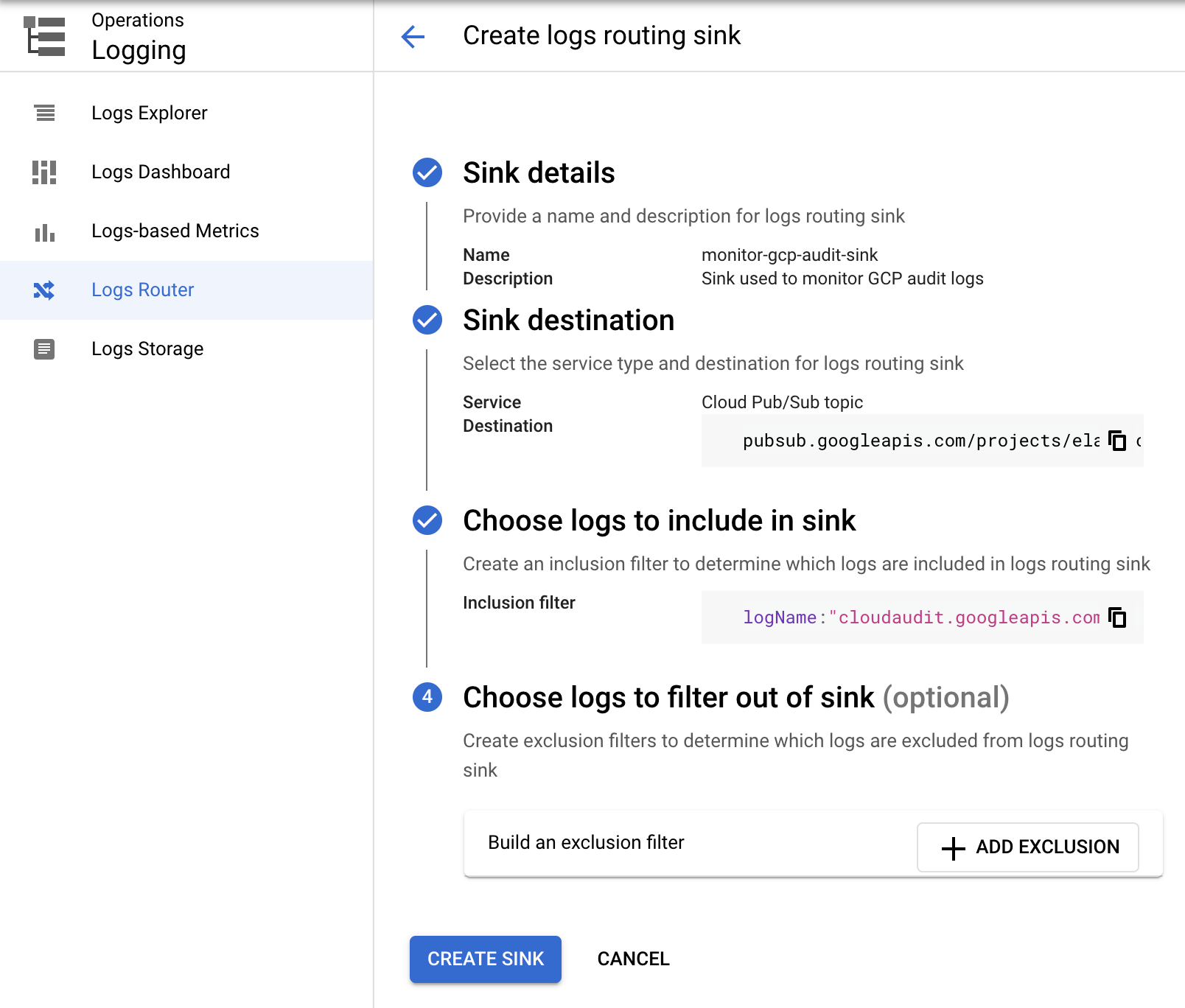
Now go to the Pub/Sub page to add a subscription to the topic you just created. Use the search bar to find the page:
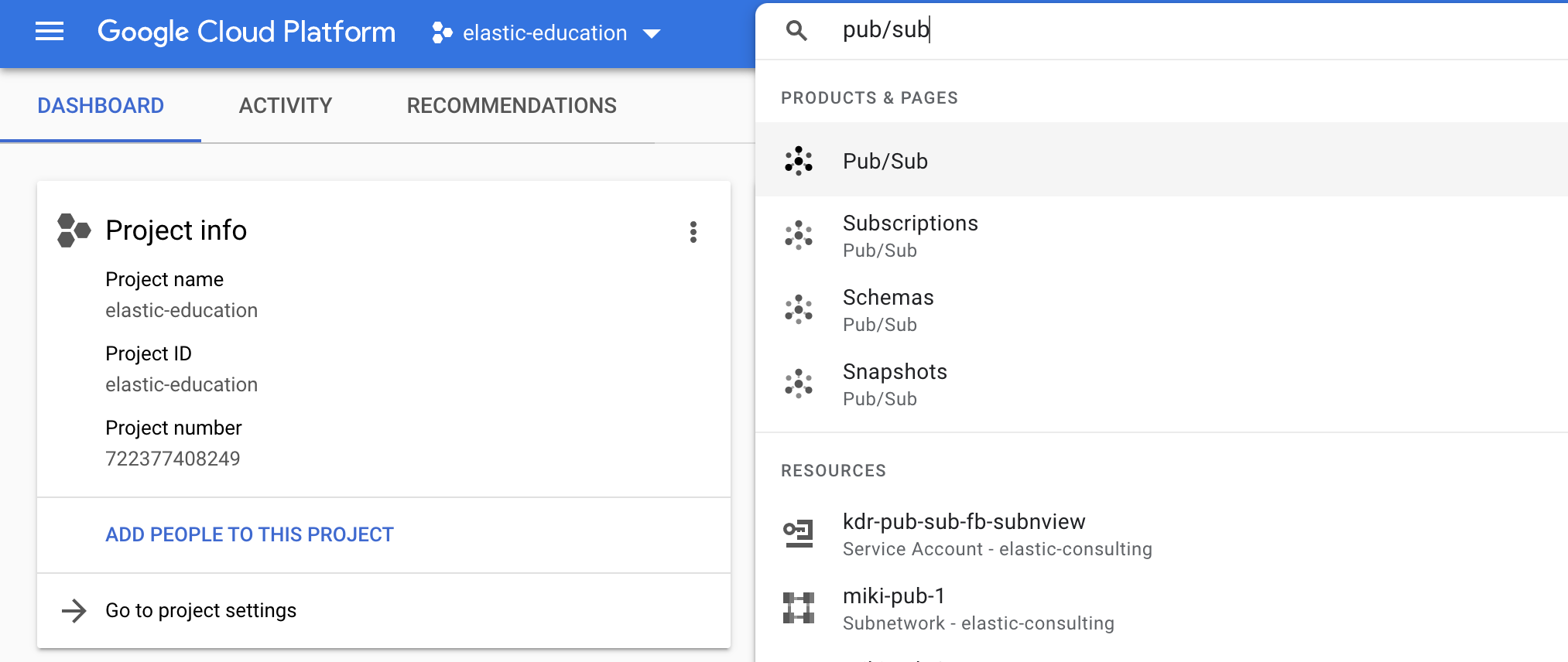
To add a subscription to the
monitor-gcp-audittopic click Create subscription: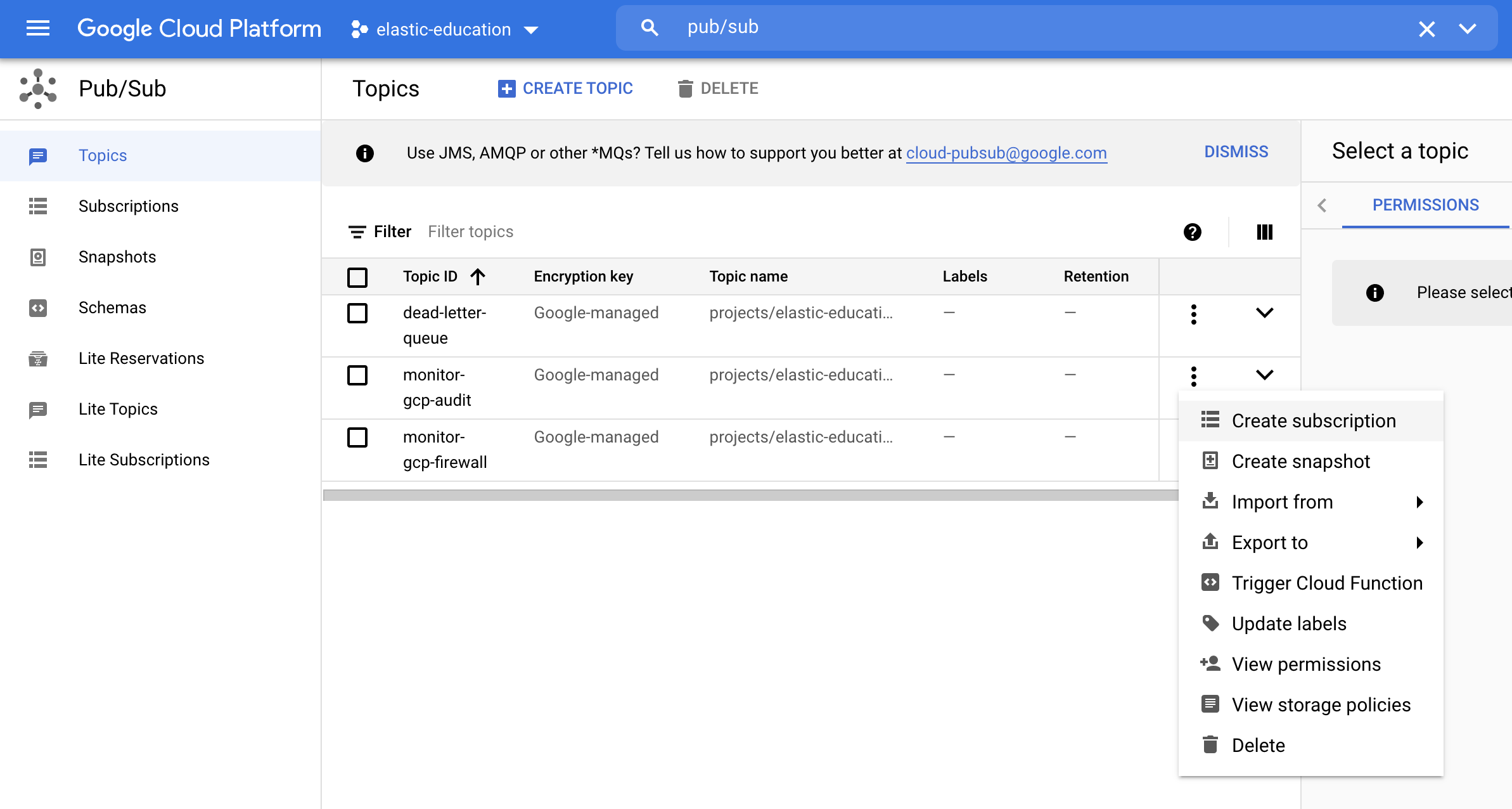
Set
monitor-gcp-audit-subas the Subscription ID and leave the Delivery type as pull: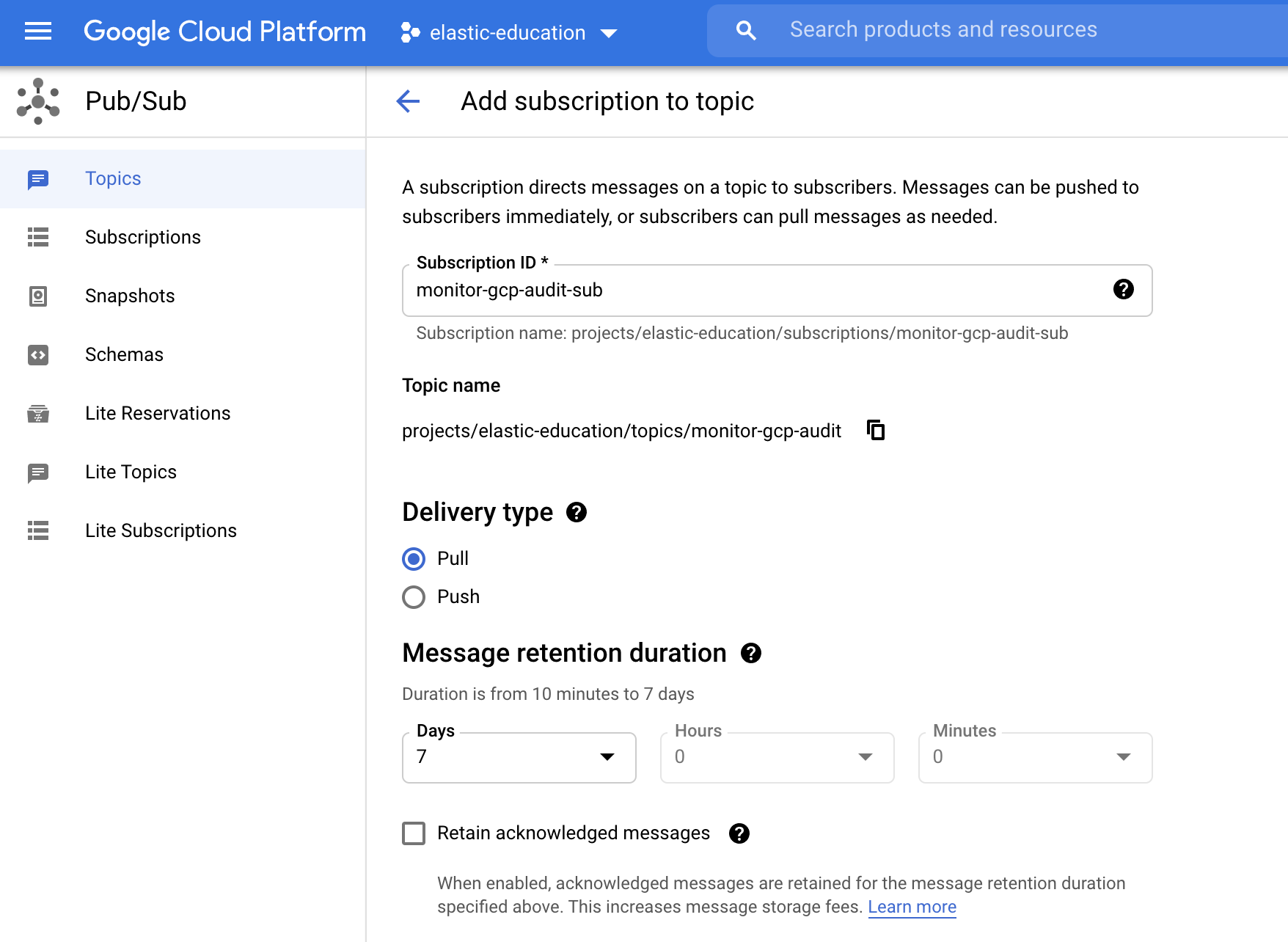
Finally, scroll down and click Create.
After creating a Pub/Sub topic and subscription, go to the Dataflow Jobs page and configure your template to use them. Use the search bar to find the page:
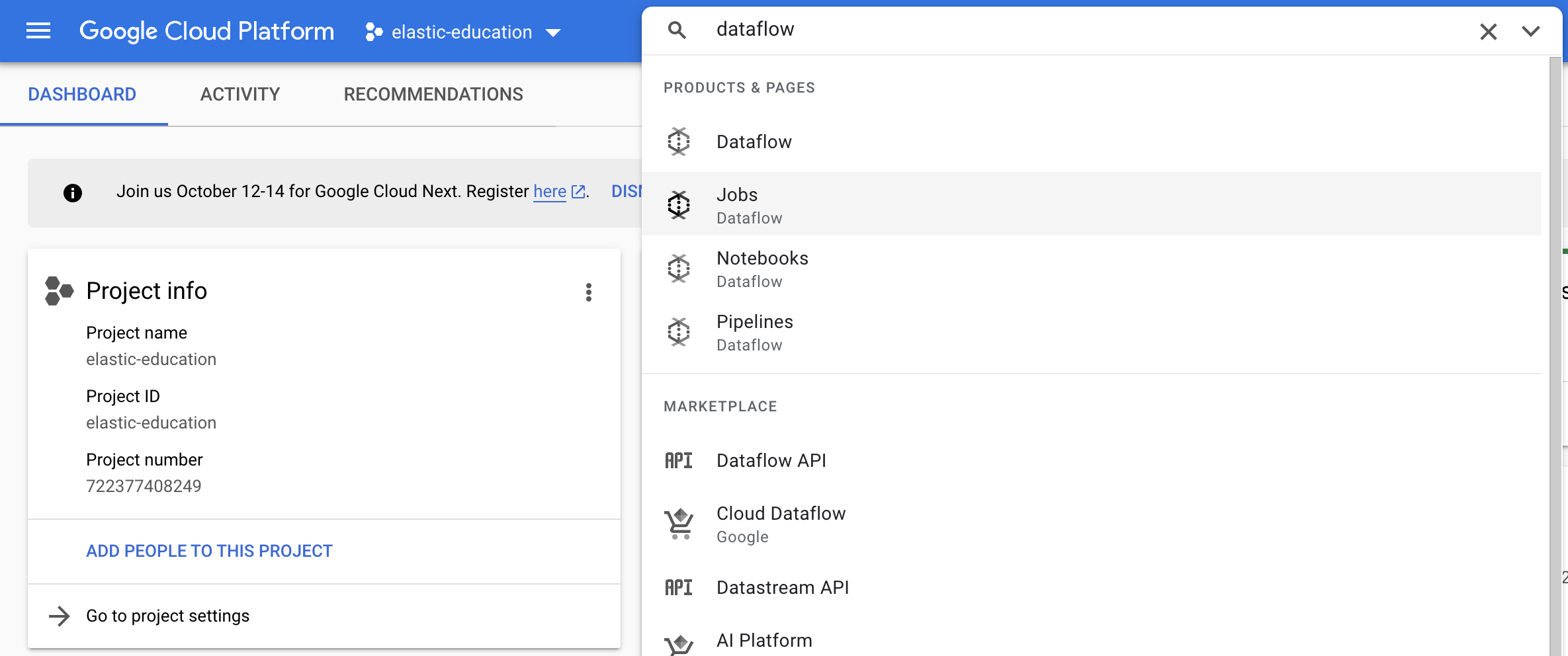
To create a job, click Create Job From Template. Set Job name as auditlogs-stream and select Pub/Sub to Elasticsearch from the Dataflow template dropdown menu:
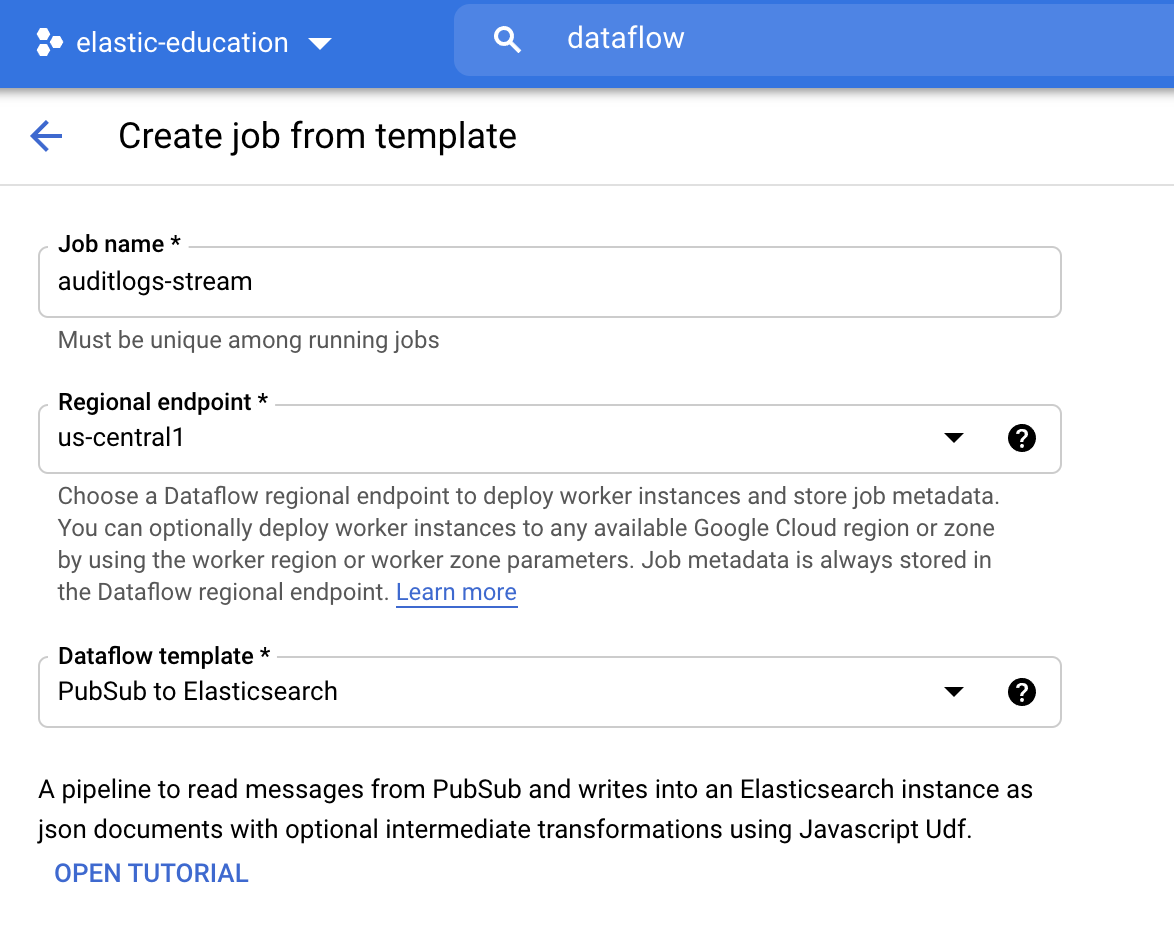
Before running the job, fill in required parameters:
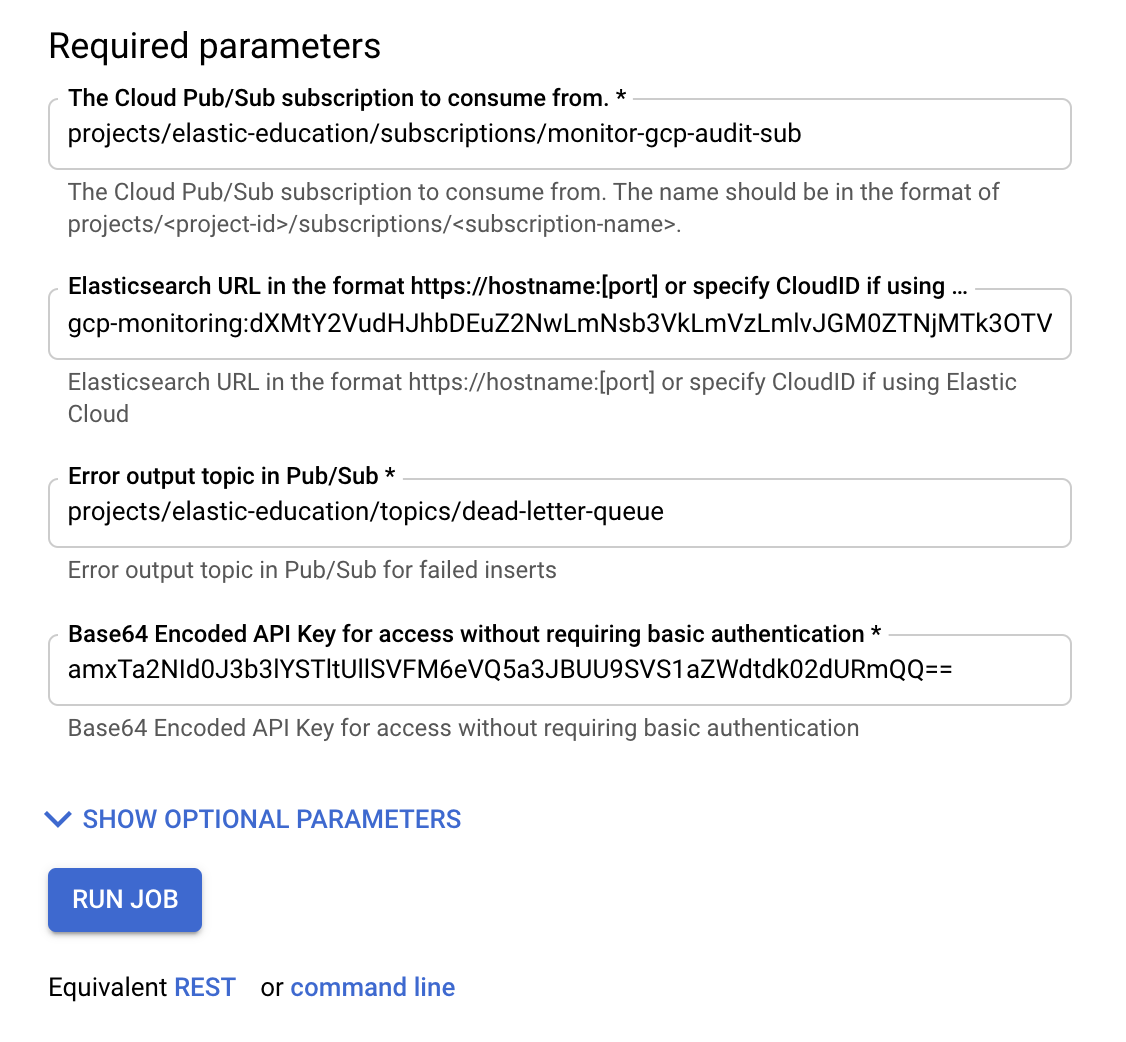
For Cloud Pub/Sub subscription, use the subscription you created in the previous step. Use the values you obtained earlier for the following fields:
- For Elastic Cloud Hosted deployments, your Cloud ID
- For Serverless, your Elasticsearch endpoint URL in the format https://hostname:[port].
- Base64-encoded API Key.
If you don’t have an Error output topic, create one like you did in the previous step.
After filling the required parameters, click Show Optional Parameters and add audit as the log type parameter.
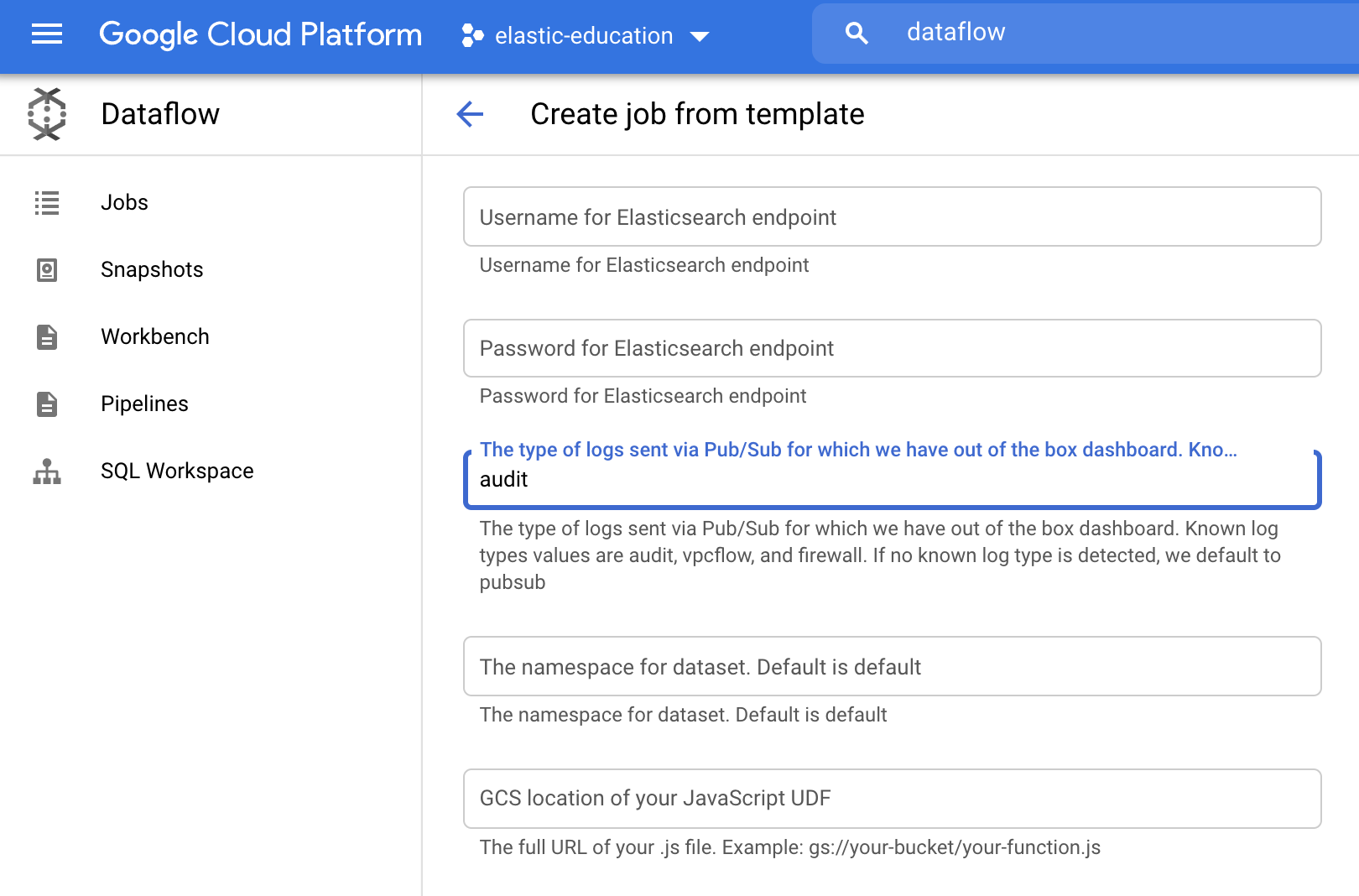
When you are all set, click Run Job and wait for Dataflow to execute the template, which takes a few minutes.
Finally, navigate to Kibana to see your logs parsed and visualized in the [Logs GCP] Audit dashboard.
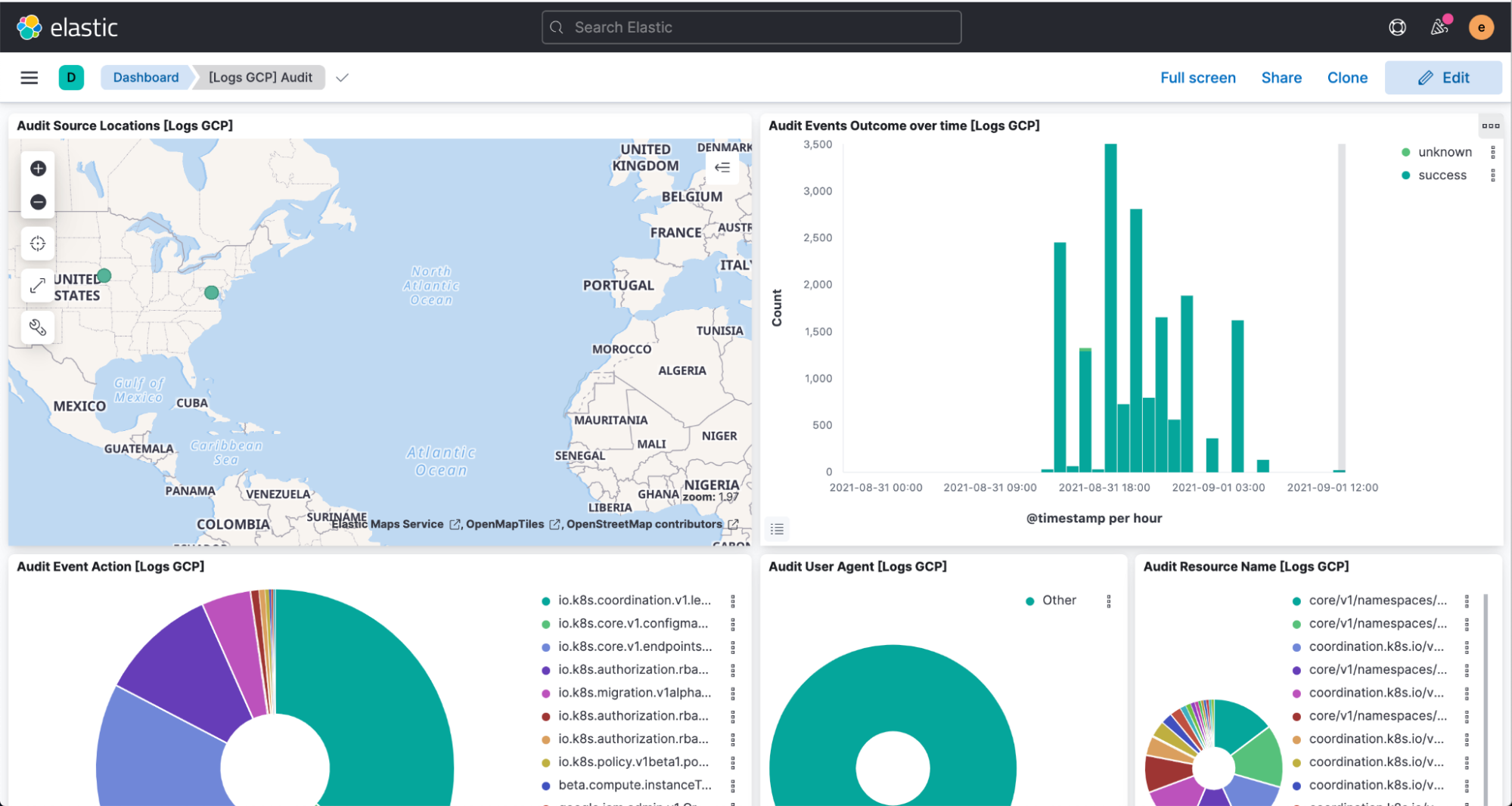
Besides collecting audit logs from your Google Cloud Platform, you can also use Dataflow integrations to ingest data directly into Elastic from Google BigQuery and Google Cloud Storage.