WatchGuard Firebox Integration for Elastic
| Version | 1.6.0 (View all) |
| Subscription level What's this? |
Basic |
| Developed by What's this? |
Elastic |
| Ingestion method(s) | Network Protocol |
| Minimum Kibana version(s) | 9.0.0 8.13.0 |
This AI-assisted guide was validated by our engineers. You may need to adjust the steps to match your environment.
The WatchGuard Firebox integration for Elastic enables you to collect and analyze logs from your WatchGuard Firebox appliances. By ingesting these logs into the Elastic Stack, you gain centralized visibility into your network security posture, traffic patterns, and system health. This integration helps you monitor firewall activity, detect potential security threats, and maintain an audit trail for compliance requirements.
This integration is compatible with the following versions:
- WatchGuard Fireware OS: This integration is tested and verified against Fireware OS v12.10.3. It's generally compatible with Fireware v12.x versions that support standard syslog output.
- Elastic Stack: This integration requires Kibana and Elasticsearch version 8.13.0 or later (8.x and 9.x stacks are supported).
This integration collects data by receiving syslog messages from your WatchGuard Firebox appliances. You configure the Firebox to send its logs using syslog over UDP to the host where the Elastic Agent is running. By default, the integration listens on port 9528.
Once the logs reach the Elastic Agent, they are processed and parsed into a structured format. The integration handles various log types, including firewall traffic logs (permitted and denied connections), security service events (IPS, Gateway AntiVirus, and so on), authentication logs for VPN and UI access, and system event logs. The structured data is then sent to Elasticsearch, where you can visualize it using the included dashboards.
The WatchGuard Firebox integration collects log messages of the following types:
- Firewall traffic logs: Detailed information about permitted and denied connections, including source and destination IP addresses, ports, and protocols.
- Security service events: Logs from security modules such as Gateway AntiVirus, Intrusion Prevention Service (IPS), WebBlocker, and Application Control.
- Authentication logs: Records of user login attempts to the firewall UI, VPN connections, and proxy authentication events.
- System event logs: Internal Firebox messages regarding hardware status, service restarts, configuration updates, and High Availability (HA) failovers.
Integrating WatchGuard Firebox logs with Elastic provides visibility into your network security. You can use this data for the following:
- Network security monitoring: Track allowed and denied traffic to identify potential intrusion attempts or misconfigured rules.
- Threat detection: Monitor logs from security services like Gateway AntiVirus and IPS to respond to malicious activity in real time.
- Compliance auditing: Maintain a record of authentication events and configuration changes to meet compliance requirements.
- Operational troubleshooting: Monitor hardware health and service status to help you resolve connectivity or performance issues quickly.
To use the WatchGuard Firebox integration, you'll need to meet the following vendor and Elastic requirements:
- Administrative credentials for the Fireware Web UI or Policy Manager.
- Network connectivity between the Firebox and the Elastic Agent host. You must ensure that any intermediate firewalls allow traffic on the configured UDP port. The Elastic Agent default is
9528, and the Firebox default is514. - Standard logging enabled on individual firewall policies. Specifically, the Send a log message checkbox must be selected in the policy's logging settings. For more information, refer to Set Logging and Notification Preferences in the WatchGuard documentation.
- A static IP address or DNS name for the Elastic Agent host to prevent connectivity issues if the IP changes.
- Elastic Agent installed on a host and managed through Fleet.
- Kibana version
8.13.0or later (8.x and 9.x stacks are supported). - Elastic Agent successfully enrolled in a Fleet policy.
- The UDP port specified in the integration (default
9528) open on the host's firewall to allow incoming traffic from the Firebox.
Elastic Agent must be installed. For more details, check the Elastic Agent installation instructions. You can install only one Elastic Agent per host.
Elastic Agent is required to stream data from the syslog receiver and ship the data to Elastic, where the events will then be processed using the integration's ingest pipelines.
You can configure your WatchGuard Firebox to send logs to the Elastic Agent using either the Fireware Web UI or the WatchGuard Policy Manager.
To configure your device using the web interface, follow these steps:
- Log in to the Fireware Web UI using your administrative credentials.
- From the left navigation menu, navigate to System > Logging.
- Select the Syslog Server tab.
- Select the check box for Send log messages to these syslog servers.
- Click Add to define a new destination.
- In the IP Address field, enter the IP address of the host where your Elastic Agent is running (replace with your actual value).
- In the Port field, enter the port number configured in your Elastic integration. The Elastic Agent default is
9528, while the Firebox default is514. - For Log Format, ensure you select Syslog.
- Optional: Provide a Description such as
Elastic Agent Syslog. - To ensure complete data, select the check boxes for The time stamp and The serial number of the device.
- Under Syslog Settings, confirm the facility codes for different log types such as Alarm, Traffic, or Event. It's recommended to keep the defaults (Local0 - Local4).
- Click Save on the Logging page to apply the changes to the Firebox Web UI.
To configure your device using the WatchGuard Policy Manager, follow these steps:
- Open the WatchGuard Policy Manager and connect to your Firebox.
- Navigate to Setup > Logging.
- Select the Send log messages to these syslog servers check box.
- Click Add.
- In the configuration dialog, enter the IP Address of the Elastic Agent host (replace with your actual value).
- Enter the Port number. The Elastic Agent default is
9528, while the Firebox default is514. - Select Syslog as the Log Format.
- Enable the check boxes for The time stamp and The serial number of the device to include these in the payload.
- Verify that the Syslog Settings for facilities are correctly assigned, which are typically Local0 through Local4.
- Click OK to close the Syslog dialog, and click OK again to close the Logging Setup window.
- Save the configuration to your device by selecting File > Save > To Firebox.
To add the integration in Kibana, follow these steps:
- In Kibana, navigate to Management > Integrations.
- Search for and select WatchGuard Firebox.
- Click Add WatchGuard Firebox.
- Configure the integration with the settings for the UDP input.
The integration supports the following configuration options:
- Listen Address (
listen_address): The bind address to listen for UDP connections. Set to0.0.0.0to bind to all available interfaces. Default:localhost. - Listen Port (
listen_port): The UDP port number to listen on. Default:9528. - Timezone Offset (
tz_offset): Use this to adjust the timezone offset when importing logs from a host in a different timezone, such asEurope/Amsterdamor-05:00. Default:UTC. - Preserve original event (
preserve_original_event): If checked, a raw copy of the original event's added to the fieldevent.original. Default:false. - Custom UDP Options (
udp_options): Specify custom configuration options such asmax_message_sizeortimeout. - Tags (
tags): Custom tags to append to the logs, for exampleforwardedorwatchguard_firebox-log. - Preserve duplicate custom fields (
preserve_duplicate_custom_fields): If enabled, preserves WatchGuard fields that were also copied to ECS fields. Default:false. - Processors (
processors): Add custom processors to reduce fields or enhance metadata before parsing.
After configuring the input, choose the Agent Policy where you want to add the integration and click Save and continue.
To verify the integration, perform the following actions to generate logs:
- Authentication event: Log out of the Fireware Web UI and log back in to generate an authentication event log.
- Configuration change: Modify a description field in a firewall policy and save the change to the device to generate a configuration event.
- Traffic event: From a network client behind the Firebox, browse several external websites to trigger traffic logs. Ensure "Log this action" is enabled on the policy.
- Diagnostic event: Use the Diagnostic Task tool in the Web UI to run a
pingto an external host, such as8.8.8.8(replace with your actual value).
To confirm the data is in Elasticsearch, follow these steps:
- Navigate to Analytics > Discover.
- Select the
logs-*data view. - Enter the KQL filter:
data_stream.dataset : "watchguard_firebox.log" - Verify logs appear. Expand a log entry and confirm these fields:
event.dataset(should bewatchguard_firebox.log)source.ipordestination.ipevent.actionorevent.outcomemessage(the raw log payload)
- Navigate to Analytics > Dashboards and search for "WatchGuard Firebox" to see if the visualizations are populated with data.
For help with Elastic ingest tools, check the common problems documentation.
You might encounter the following issues when setting up or running the integration:
- No data is being collected: Verify that the
Listen Portin your integration policy (default9528) exactly matches the port configured in the Syslog Server settings on your WatchGuard Firebox. - Elastic Agent is rejecting packets: Ensure the
Listen Addressis set to0.0.0.0or the specific IP of the host interface receiving the logs. If it's set tolocalhostor127.0.0.1, the agent won't accept traffic from external devices. - Network traffic is blocked: Check that the local firewall on the Elastic Agent host (for example,
iptables,ufw, or Windows Firewall) allows incoming UDP traffic on the configured port. - Specific traffic logs are missing: Ensure that individual Firewall Policies on your Firebox have the Send a log message setting enabled. Only logs from policies with this setting will be forwarded using syslog.
- Logs appear with parsing errors: If you see the
_grokparsefailuretag in your events, verify that the Firebox is using the standard Syslog format rather than a legacy or proprietary format. - Timestamps are incorrect: Adjust the
Timezone Offsetin the integration settings to match the timezone configured on your appliance. - Missing custom fields: If you need to view non-ECS fields that are usually dropped, ensure the
Preserve duplicate custom fieldsoption is enabled in the integration configuration. - General ingestion errors: You can filter for the
error.messagefield in Discover to identify specific issues encountered during processing.
For more information on configuring log delivery from your device, refer to the following WatchGuard documentation:
- WatchGuard Syslog Setup Guide
- WatchGuard Set Logging and Notification Preferences
- WatchGuard Fireware v12.10 Log Catalog (PDF)
For more information on architectures that can be used for scaling this integration, check the Ingest Architectures documentation.
To ensure optimal performance in high-volume environments, consider the following:
- Transport and collection considerations: This integration uses
UDPfor log transport. WhileUDPoffers higher throughput and lower overhead compared toTCP, it's a connectionless protocol that doesn't guarantee delivery. In environments where log loss isn't acceptable, make sure the network path between the Firebox and theElastic Agentis stable and high-speed. - Data volume management: WatchGuard Fireboxes can generate significant log volumes, especially in high-traffic environments with "Log this action" enabled on many policies. You should consider filtering logs at the source by selecting only necessary log categories, such as Alarms and Events, or disabling logging for high-volume, low-risk internal traffic policies to reduce the load on the
Elastic Agent. - Elastic Agent scaling: For high-throughput environments like multi-gigabit firewalls, deploy multiple
Elastic Agentsbehind a network load balancer to distribute the incomingUDPsyslog traffic evenly. Make sure the host running theElastic Agenthas sufficientCPUand memory resources to handle the parsing overhead associated with the incoming log stream.
You can find more information about WatchGuard Firebox logging and configuration in the following resources:
- WatchGuard Fireware v12.10 Log Catalog (PDF)
- WatchGuard Syslog Setup Guide
- WatchGuard Set Logging and Notification Preferences
These inputs can be used with this integration:
udp
For more details about the UDP input settings, check the Filebeat documentation.
To collect logs via UDP, select Collect logs via UDP and configure the following parameters:
Required Settings:
- Host
- Port
Common Optional Settings:
- Max Message Size - Maximum size of UDP packets to accept (default: 10KB, max: 64KB)
- Read Buffer - UDP socket read buffer size for handling bursts of messages
- Read Timeout - How long to wait for incoming packets before checking for shutdown
The log data stream provides events from WatchGuard Firebox of the following types: traffic, alarm, event, and system logs.
Exported fields
| Field | Description | Type |
|---|---|---|
| @timestamp | Event timestamp. | date |
| data_stream.dataset | Data stream dataset. | constant_keyword |
| data_stream.namespace | Data stream namespace. | constant_keyword |
| data_stream.type | Data stream type. | constant_keyword |
| event.dataset | Event dataset. | constant_keyword |
| event.module | Event module. | constant_keyword |
| input.type | Type of filebeat input. | keyword |
| log.offset | Log offset. | long |
| log.source.address | Source address from which the log event was read / sent from. | keyword |
| watchguard_firebox.log.action | keyword | |
| watchguard_firebox.log.action_name | keyword | |
| watchguard_firebox.log.address | keyword | |
| watchguard_firebox.log.app_beh_id | keyword | |
| watchguard_firebox.log.app_beh_name | keyword | |
| watchguard_firebox.log.app_cat_id | keyword | |
| watchguard_firebox.log.app_cat_name | keyword | |
| watchguard_firebox.log.app_control_disposition | keyword | |
| watchguard_firebox.log.app_id | keyword | |
| watchguard_firebox.log.app_name | keyword | |
| watchguard_firebox.log.arg | keyword | |
| watchguard_firebox.log.attachment | keyword | |
| watchguard_firebox.log.authenticated_user | keyword | |
| watchguard_firebox.log.authenticated_user_domain | keyword | |
| watchguard_firebox.log.authentication_method | keyword | |
| watchguard_firebox.log.authentication_server | keyword | |
| watchguard_firebox.log.authentication_type | keyword | |
| watchguard_firebox.log.beh_name | keyword | |
| watchguard_firebox.log.blocked_site_limit | long | |
| watchguard_firebox.log.bootup_time | date | |
| watchguard_firebox.log.bounce_ip | ip | |
| watchguard_firebox.log.bytes | long | |
| watchguard_firebox.log.bytes_in | long | |
| watchguard_firebox.log.bytes_out | long | |
| watchguard_firebox.log.call_from | ip | |
| watchguard_firebox.log.call_to | ip | |
| watchguard_firebox.log.category_name | keyword | |
| watchguard_firebox.log.cats | keyword | |
| watchguard_firebox.log.certificate_id | keyword | |
| watchguard_firebox.log.certificate_issuer | keyword | |
| watchguard_firebox.log.certificate_subject | keyword | |
| watchguard_firebox.log.certificate_type | keyword | |
| watchguard_firebox.log.client_name | keyword | |
| watchguard_firebox.log.client_ssl | keyword | |
| watchguard_firebox.log.cluster_id | keyword | |
| watchguard_firebox.log.cluster_role | keyword | |
| watchguard_firebox.log.cn | keyword | |
| watchguard_firebox.log.codec | keyword | |
| watchguard_firebox.log.command | keyword | |
| watchguard_firebox.log.content | keyword | |
| watchguard_firebox.log.content_inspection | keyword | |
| watchguard_firebox.log.content_source | keyword | |
| watchguard_firebox.log.content_type | keyword | |
| watchguard_firebox.log.ctl_dst_ip | ip | |
| watchguard_firebox.log.ctl_dst_port | long | |
| watchguard_firebox.log.ctl_src_ip | ip | |
| watchguard_firebox.log.ctl_src_port | long | |
| watchguard_firebox.log.current_ca_certificate_version | keyword | |
| watchguard_firebox.log.current_connection | long | |
| watchguard_firebox.log.current_session | long | |
| watchguard_firebox.log.data | keyword | |
| watchguard_firebox.log.destination_device | keyword | |
| watchguard_firebox.log.destination_ip | ip | |
| watchguard_firebox.log.destination_ip_geo.city_name | keyword | |
| watchguard_firebox.log.destination_ip_geo.continent_name | keyword | |
| watchguard_firebox.log.destination_ip_geo.country_iso_code | keyword | |
| watchguard_firebox.log.destination_ip_geo.country_name | keyword | |
| watchguard_firebox.log.destination_ip_geo.location | geo_point | |
| watchguard_firebox.log.destination_ip_geo.region_iso_code | keyword | |
| watchguard_firebox.log.destination_ip_geo.region_name | keyword | |
| watchguard_firebox.log.destination_name | keyword | |
| watchguard_firebox.log.destination_port | long | |
| watchguard_firebox.log.destination_user | keyword | |
| watchguard_firebox.log.destination_user_domain | keyword | |
| watchguard_firebox.log.details | keyword | |
| watchguard_firebox.log.dev_name | keyword | |
| watchguard_firebox.log.device | keyword | |
| watchguard_firebox.log.device_id | keyword | |
| watchguard_firebox.log.disposition | keyword | |
| watchguard_firebox.log.dlp_rule | keyword | |
| watchguard_firebox.log.dlp_sensor | keyword | |
| watchguard_firebox.log.dns_ip_address | ip | |
| watchguard_firebox.log.dns_question | keyword | |
| watchguard_firebox.log.domain | keyword | |
| watchguard_firebox.log.duration | long | |
| watchguard_firebox.log.elapsed_time | keyword | |
| watchguard_firebox.log.email_length | long | |
| watchguard_firebox.log.encoding | keyword | |
| watchguard_firebox.log.encoding_type | keyword | |
| watchguard_firebox.log.error | keyword | |
| watchguard_firebox.log.exception_rule | keyword | |
| watchguard_firebox.log.exchange_role | keyword | |
| watchguard_firebox.log.exchange_type | keyword | |
| watchguard_firebox.log.expected | keyword | |
| watchguard_firebox.log.expected_interface | keyword | |
| watchguard_firebox.log.expected_ip | ip | |
| watchguard_firebox.log.expected_protocol | keyword | |
| watchguard_firebox.log.expected_value | long | |
| watchguard_firebox.log.failure_count | long | |
| watchguard_firebox.log.feature_expiration_date | date | |
| watchguard_firebox.log.feature_key | keyword | |
| watchguard_firebox.log.feature_name | keyword | |
| watchguard_firebox.log.file_name | keyword | |
| watchguard_firebox.log.flags | keyword | |
| watchguard_firebox.log.from | keyword | |
| watchguard_firebox.log.from_header | keyword | |
| watchguard_firebox.log.gateway | keyword | |
| watchguard_firebox.log.gateway_endpoint | keyword | |
| watchguard_firebox.log.geo_destination | keyword | |
| watchguard_firebox.log.group_name | keyword | |
| watchguard_firebox.log.header | keyword | |
| watchguard_firebox.log.headers_size | long | |
| watchguard_firebox.log.host_dest_domain | keyword | |
| watchguard_firebox.log.host_dest_ip | ip | |
| watchguard_firebox.log.hostname | keyword | |
| watchguard_firebox.log.http_status | long | |
| watchguard_firebox.log.http_version | keyword | |
| watchguard_firebox.log.ikev2_ikesa_state | keyword | |
| watchguard_firebox.log.image_source | keyword | |
| watchguard_firebox.log.in_interface_name | keyword | |
| watchguard_firebox.log.in_spi | keyword | |
| watchguard_firebox.log.info_msg | keyword | |
| watchguard_firebox.log.inspect_action | keyword | |
| watchguard_firebox.log.interface_id | keyword | |
| watchguard_firebox.log.interface_name | keyword | |
| watchguard_firebox.log.ip_address | ip | |
| watchguard_firebox.log.ip_packet_length | long | |
| watchguard_firebox.log.iph_length | long | |
| watchguard_firebox.log.keyword | keyword | |
| watchguard_firebox.log.length | long | |
| watchguard_firebox.log.limit | long | |
| watchguard_firebox.log.line | keyword | |
| watchguard_firebox.log.line_length | long | |
| watchguard_firebox.log.link | keyword | |
| watchguard_firebox.log.link_state | keyword | |
| watchguard_firebox.log.local | keyword | |
| watchguard_firebox.log.local_address | ip | |
| watchguard_firebox.log.local_address_port | long | |
| watchguard_firebox.log.local_mask_ip | keyword | |
| watchguard_firebox.log.lockout_type | keyword | |
| watchguard_firebox.log.log_type | keyword | |
| watchguard_firebox.log.logical | keyword | |
| watchguard_firebox.log.mac | keyword | |
| watchguard_firebox.log.mac_address | keyword | |
| watchguard_firebox.log.mask | ip | |
| watchguard_firebox.log.master_id | keyword | |
| watchguard_firebox.log.max_user_connection | long | |
| watchguard_firebox.log.mbx | keyword | |
| watchguard_firebox.log.md5 | keyword | |
| watchguard_firebox.log.member_id | keyword | |
| watchguard_firebox.log.member_info | keyword | |
| watchguard_firebox.log.message | keyword | |
| watchguard_firebox.log.method | keyword | |
| watchguard_firebox.log.msg | keyword | |
| watchguard_firebox.log.msg_id | keyword | |
| watchguard_firebox.log.msg_info | keyword | |
| watchguard_firebox.log.negotiation_ip | ip | |
| watchguard_firebox.log.negotiation_mode | keyword | |
| watchguard_firebox.log.negotiation_role | keyword | |
| watchguard_firebox.log.new_action | keyword | |
| watchguard_firebox.log.new_ca_certificate_version | keyword | |
| watchguard_firebox.log.new_interface | keyword | |
| watchguard_firebox.log.new_ip | ip | |
| watchguard_firebox.log.new_ipv6 | keyword | |
| watchguard_firebox.log.new_mask | long | |
| watchguard_firebox.log.new_policy_position | long | |
| watchguard_firebox.log.new_system_time | keyword | |
| watchguard_firebox.log.next_update_time | date | |
| watchguard_firebox.log.notification_gap_duration | long | |
| watchguard_firebox.log.notify_msg | keyword | |
| watchguard_firebox.log.num | long | |
| watchguard_firebox.log.number_of_recipients | long | |
| watchguard_firebox.log.object | keyword | |
| watchguard_firebox.log.offset | long | |
| watchguard_firebox.log.old_policy_position | long | |
| watchguard_firebox.log.op | keyword | |
| watchguard_firebox.log.operation | keyword | |
| watchguard_firebox.log.out_interface_name | keyword | |
| watchguard_firebox.log.out_spi | keyword | |
| watchguard_firebox.log.p1_sa_id | keyword | |
| watchguard_firebox.log.package_release_time | date | |
| watchguard_firebox.log.packets_count | long | |
| watchguard_firebox.log.packets_in | long | |
| watchguard_firebox.log.packets_out | long | |
| watchguard_firebox.log.pad_error | keyword | |
| watchguard_firebox.log.path | keyword | |
| watchguard_firebox.log.pcy_name | keyword | |
| watchguard_firebox.log.peer_address | ip | |
| watchguard_firebox.log.peer_address_port | long | |
| watchguard_firebox.log.physical_name | keyword | |
| watchguard_firebox.log.policy_name | keyword | |
| watchguard_firebox.log.pool_name | keyword | |
| watchguard_firebox.log.port | long | |
| watchguard_firebox.log.previous_interface | keyword | |
| watchguard_firebox.log.previous_ip | ip | |
| watchguard_firebox.log.previous_ipv6 | keyword | |
| watchguard_firebox.log.previous_mask | long | |
| watchguard_firebox.log.previous_system_time | keyword | |
| watchguard_firebox.log.probe_method | keyword | |
| watchguard_firebox.log.property_name | keyword | |
| watchguard_firebox.log.protocol | keyword | |
| watchguard_firebox.log.protocol_flags | keyword | |
| watchguard_firebox.log.proxy_act | keyword | |
| watchguard_firebox.log.proxy_host | keyword | |
| watchguard_firebox.log.proxy_type | keyword | |
| watchguard_firebox.log.query_class | keyword | |
| watchguard_firebox.log.query_opcode | keyword | |
| watchguard_firebox.log.query_type | keyword | |
| watchguard_firebox.log.quota_info | keyword | |
| watchguard_firebox.log.real_ip_address | ip | |
| watchguard_firebox.log.reason | keyword | |
| watchguard_firebox.log.reboot_hour | long | |
| watchguard_firebox.log.reboot_option | keyword | |
| watchguard_firebox.log.reboot_second | long | |
| watchguard_firebox.log.reboot_status | keyword | |
| watchguard_firebox.log.received | keyword | |
| watchguard_firebox.log.received_dh_group | long | |
| watchguard_firebox.log.received_interface | keyword | |
| watchguard_firebox.log.received_interface_index | keyword | |
| watchguard_firebox.log.received_ip | ip | |
| watchguard_firebox.log.received_message_id | keyword | |
| watchguard_firebox.log.received_proto | keyword | |
| watchguard_firebox.log.received_value | long | |
| watchguard_firebox.log.recipients | keyword | |
| watchguard_firebox.log.record_type | keyword | |
| watchguard_firebox.log.redirect_action | keyword | |
| watchguard_firebox.log.remote | keyword | |
| watchguard_firebox.log.remote_mask_ip | keyword | |
| watchguard_firebox.log.reply | keyword | |
| watchguard_firebox.log.reply_ip | ip | |
| watchguard_firebox.log.reply_protocol | keyword | |
| watchguard_firebox.log.reply_time | date | |
| watchguard_firebox.log.reputation | long | |
| watchguard_firebox.log.req_or_resp | keyword | |
| watchguard_firebox.log.response | keyword | |
| watchguard_firebox.log.response_code | long | |
| watchguard_firebox.log.response_size | long | |
| watchguard_firebox.log.restore_type | keyword | |
| watchguard_firebox.log.result | keyword | |
| watchguard_firebox.log.retry_count | long | |
| watchguard_firebox.log.return_code | long | |
| watchguard_firebox.log.role | keyword | |
| watchguard_firebox.log.route_type | keyword | |
| watchguard_firebox.log.rule_name | keyword | |
| watchguard_firebox.log.ruleset_name | keyword | |
| watchguard_firebox.log.sa_id | keyword | |
| watchguard_firebox.log.scan_stage | keyword | |
| watchguard_firebox.log.scan_type | keyword | |
| watchguard_firebox.log.scheme | keyword | |
| watchguard_firebox.log.selected_dh_group | long | |
| watchguard_firebox.log.sender | keyword | |
| watchguard_firebox.log.sequence_number | long | |
| watchguard_firebox.log.serial_number | keyword | |
| watchguard_firebox.log.server_ip | ip | |
| watchguard_firebox.log.server_name | keyword | |
| watchguard_firebox.log.server_ssl | keyword | |
| watchguard_firebox.log.service | keyword | |
| watchguard_firebox.log.session_id | keyword | |
| watchguard_firebox.log.severity | long | |
| watchguard_firebox.log.signature_category | keyword | |
| watchguard_firebox.log.signature_id | keyword | |
| watchguard_firebox.log.signature_name | keyword | |
| watchguard_firebox.log.signature_version | keyword | |
| watchguard_firebox.log.size | long | |
| watchguard_firebox.log.sni | keyword | |
| watchguard_firebox.log.software_version | keyword | |
| watchguard_firebox.log.source_ip | ip | |
| watchguard_firebox.log.source_ip_geo.city_name | keyword | |
| watchguard_firebox.log.source_ip_geo.continent_name | keyword | |
| watchguard_firebox.log.source_ip_geo.country_iso_code | keyword | |
| watchguard_firebox.log.source_ip_geo.country_name | keyword | |
| watchguard_firebox.log.source_ip_geo.location | geo_point | |
| watchguard_firebox.log.source_ip_geo.region_iso_code | keyword | |
| watchguard_firebox.log.source_ip_geo.region_name | keyword | |
| watchguard_firebox.log.source_port | long | |
| watchguard_firebox.log.source_user | keyword | |
| watchguard_firebox.log.source_user_domain | keyword | |
| watchguard_firebox.log.spi | keyword | |
| watchguard_firebox.log.srv_ip | ip | |
| watchguard_firebox.log.srv_port | long | |
| watchguard_firebox.log.ssl_offload | keyword | |
| watchguard_firebox.log.state | keyword | |
| watchguard_firebox.log.static_ip | ip | |
| watchguard_firebox.log.status | keyword | |
| watchguard_firebox.log.subsystem | keyword | |
| watchguard_firebox.log.syslog_timestamp | date | |
| watchguard_firebox.log.tag | keyword | |
| watchguard_firebox.log.target | keyword | |
| watchguard_firebox.log.task_uuid | keyword | |
| watchguard_firebox.log.threat_level | keyword | |
| watchguard_firebox.log.timeout | long | |
| watchguard_firebox.log.timestamp | date | |
| watchguard_firebox.log.tls_profile | keyword | |
| watchguard_firebox.log.tls_version | keyword | |
| watchguard_firebox.log.to | keyword | |
| watchguard_firebox.log.to_header | keyword | |
| watchguard_firebox.log.tr_local | keyword | |
| watchguard_firebox.log.tr_remote | keyword | |
| watchguard_firebox.log.transport | keyword | |
| watchguard_firebox.log.ttl | long | |
| watchguard_firebox.log.tunnel_name | keyword | |
| watchguard_firebox.log.tunnel_type | keyword | |
| watchguard_firebox.log.ui_type | keyword | |
| watchguard_firebox.log.unit | keyword | |
| watchguard_firebox.log.unlocked_by | keyword | |
| watchguard_firebox.log.update | keyword | |
| watchguard_firebox.log.updated_role | keyword | |
| watchguard_firebox.log.user_auth_protocol | keyword | |
| watchguard_firebox.log.user_domain | keyword | |
| watchguard_firebox.log.user_email | keyword | |
| watchguard_firebox.log.user_name | keyword | |
| watchguard_firebox.log.user_response_time | date | |
| watchguard_firebox.log.user_type | keyword | |
| watchguard_firebox.log.version | keyword | |
| watchguard_firebox.log.version_number | keyword | |
| watchguard_firebox.log.virtual_ip_address | ip | |
| watchguard_firebox.log.virus | keyword | |
| watchguard_firebox.log.vlan_id | keyword | |
| watchguard_firebox.log.vpn_connection_type | keyword | |
| watchguard_firebox.log.vpn_user_type | keyword | |
| watchguard_firebox.log.wgrd_spam_id | keyword | |
| watchguard_firebox.log.window_size | long |
Example
{
    "@timestamp": "2025-01-16T15:19:05.000Z",
    "agent": {
        "ephemeral_id": "96a8c968-14ac-4c14-914b-de67b87c7def",
        "id": "d811f632-f6fa-4ece-aea0-2994fed2ba01",
        "name": "elastic-agent-15441",
        "type": "filebeat",
        "version": "8.17.4"
    },
    "data_stream": {
        "dataset": "watchguard_firebox.log",
        "namespace": "63995",
        "type": "logs"
    },
    "destination": {
        "bytes": 282,
        "geo": {
            "city_name": "Changchun",
            "continent_name": "Asia",
            "country_iso_code": "CN",
            "country_name": "China",
            "location": {
                "lat": 43.88,
                "lon": 125.3228
            },
            "region_iso_code": "CN-22",
            "region_name": "Jilin Sheng"
        },
        "ip": "175.16.199.1",
        "port": 25
    },
    "ecs": {
        "version": "8.17.0"
    },
    "elastic_agent": {
        "id": "d811f632-f6fa-4ece-aea0-2994fed2ba01",
        "snapshot": false,
        "version": "8.17.4"
    },
    "email": {
        "sender": {
            "address": "tester@testnet.com"
        },
        "to": {
            "address": [
                "wg@localhost"
            ]
        }
    },
    "event": {
        "agent_id_status": "verified",
        "category": [
            "email"
        ],
        "dataset": "watchguard_firebox.log",
        "ingested": "2025-04-24T22:19:44Z",
        "kind": "event",
        "original": "<139>Jan 16 15:19:05 WatchGuard-Firebox FVE6035FD3AE3 (2024-01-19T08:48:15) firewall: msg_id=\"1BFF-000F\" Allow 1-Trusted 0-External tcp 10.0.1.2 175.16.199.1 39398 25 msg=\"SMTP request\" proxy_act=\"SMTP-Outgoing.1\" rcvd_bytes=\"272\" sent_bytes=\"282\" sender=\"tester@testnet.com\" recipients=\"wg@localhost\" server_ssl=\"ECDHE-RSA-AES256-GCMSHA384\" client_ssl=\"AES128-SHA256\" tls_profile=\"TLS-Client.Standard\" (SMTP-proxy-00)",
        "outcome": "success",
        "timezone": "UTC",
        "type": [
            "info"
        ]
    },
    "input": {
        "type": "udp"
    },
    "log": {
        "source": {
            "address": "172.19.0.3:48129"
        },
        "syslog": {
            "appname": "firewall",
            "hostname": "WatchGuard-Firebox",
            "priority": 139
        }
    },
    "network": {
        "bytes": 554,
        "community_id": "1:jKtS0CPHMiYL+rYXXHskx9Y4Gig=",
        "transport": "tcp"
    },
    "observer": {
        "egress": {
            "interface": {
                "alias": "0-External"
            }
        },
        "hostname": "WatchGuard-Firebox",
        "ingress": {
            "interface": {
                "alias": "1-Trusted"
            }
        },
        "product": "Firebox",
        "serial_number": "FVE6035FD3AE3",
        "type": "firewall",
        "vendor": "WatchGuard"
    },
    "related": {
        "hosts": [
            "WatchGuard-Firebox"
        ],
        "ip": [
            "10.0.1.2",
            "175.16.199.1"
        ],
        "user": [
            "wg@localhost",
            "tester@testnet.com"
        ]
    },
    "rule": {
        "name": [
            "SMTP-proxy-00"
        ]
    },
    "source": {
        "bytes": 272,
        "ip": "10.0.1.2",
        "port": 39398
    },
    "tags": [
        "preserve_original_event",
        "preserve_duplicate_custom_fields",
        "forwarded",
        "watchguard_firebox-log"
    ],
    "tls": {
        "client": {
            "supported_ciphers": [
                "AES128-SHA256"
            ]
        }
    },
    "watchguard_firebox": {
        "log": {
            "bytes_in": 272,
            "bytes_out": 282,
            "client_ssl": "AES128-SHA256",
            "destination_ip": "175.16.199.1",
            "destination_ip_geo": {
                "city_name": "Changchun",
                "continent_name": "Asia",
                "country_iso_code": "CN",
                "country_name": "China",
                "location": {
                    "lat": 43.88,
                    "lon": 125.3228
                },
                "region_iso_code": "CN-22",
                "region_name": "Jilin Sheng"
            },
            "destination_port": 25,
            "disposition": "Allow",
            "in_interface_name": "1-Trusted",
            "log_type": "traffic",
            "msg": "SMTP request",
            "msg_id": "1BFF-000F",
            "out_interface_name": "0-External",
            "policy_name": "SMTP-proxy-00",
            "proxy_act": "SMTP-Outgoing.1",
            "recipients": "wg@localhost",
            "sender": "tester@testnet.com",
            "serial_number": "FVE6035FD3AE3",
            "server_ssl": "ECDHE-RSA-AES256-GCMSHA384",
            "source_ip": "10.0.1.2",
            "source_port": 39398,
            "syslog_timestamp": "2025-01-16T15:19:05.000Z",
            "timestamp": "2024-01-19T08:48:15.000Z",
            "tls_profile": "TLS-Client.Standard",
            "transport": "tcp"
        }
    }
}
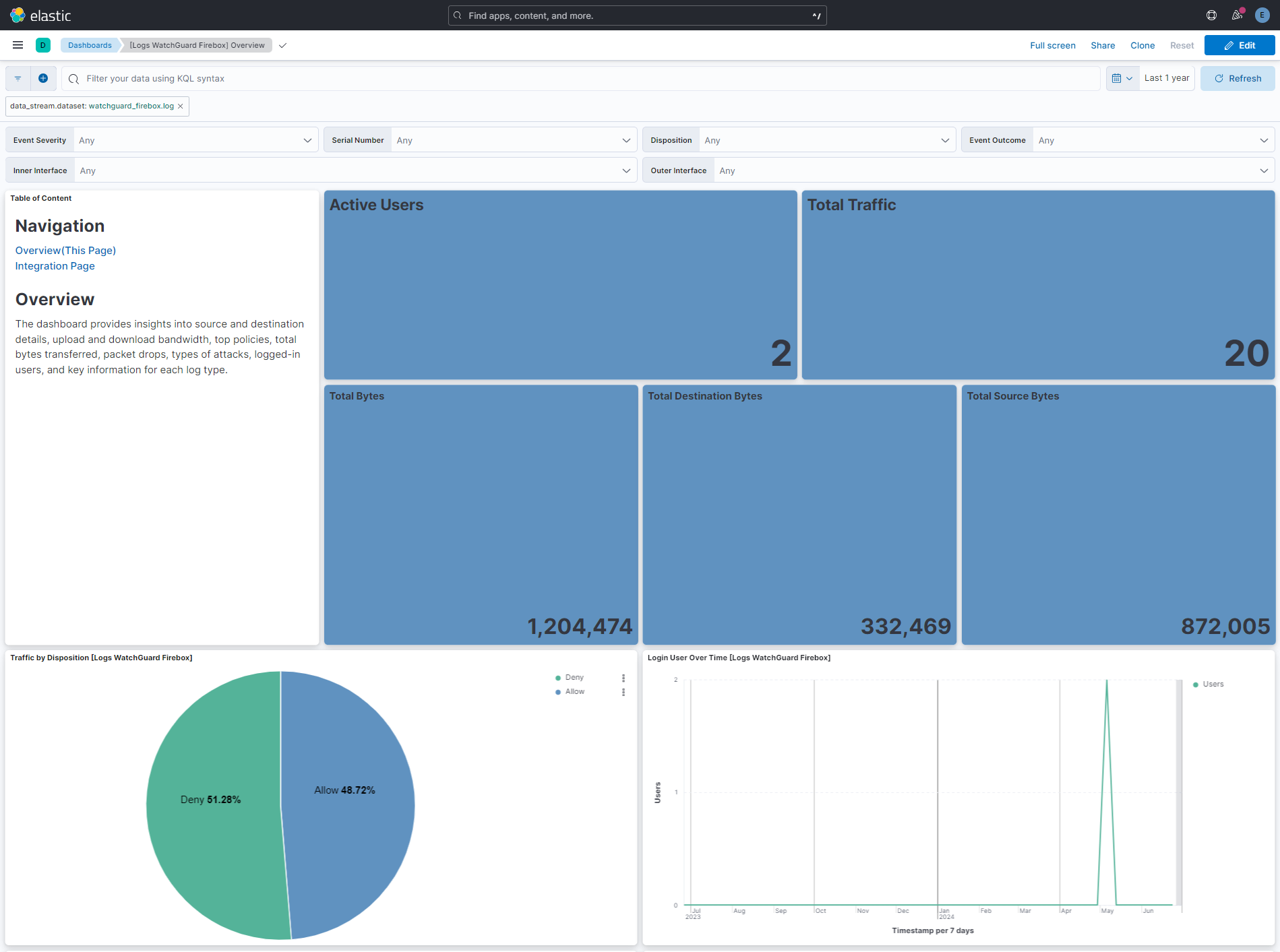
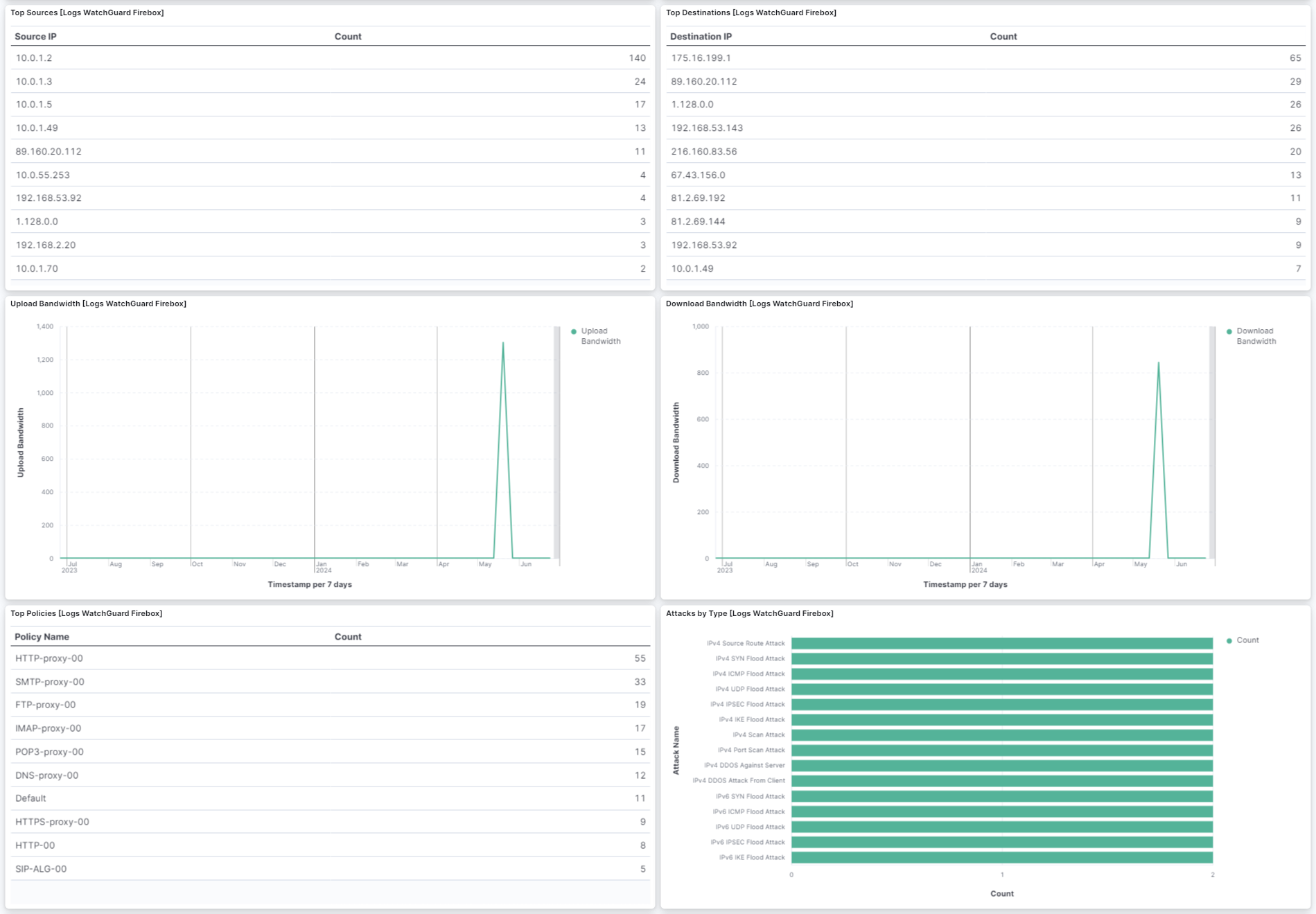
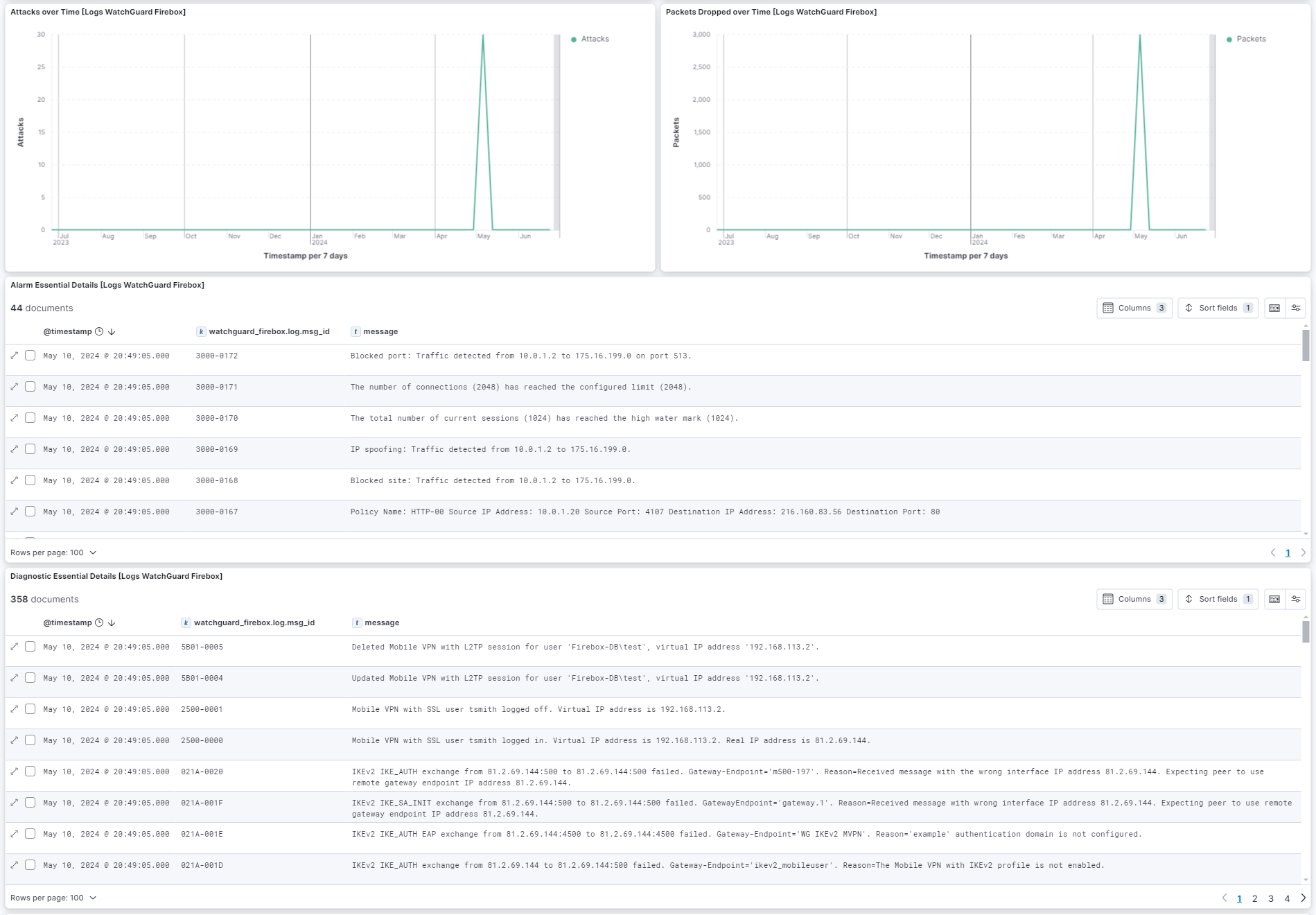
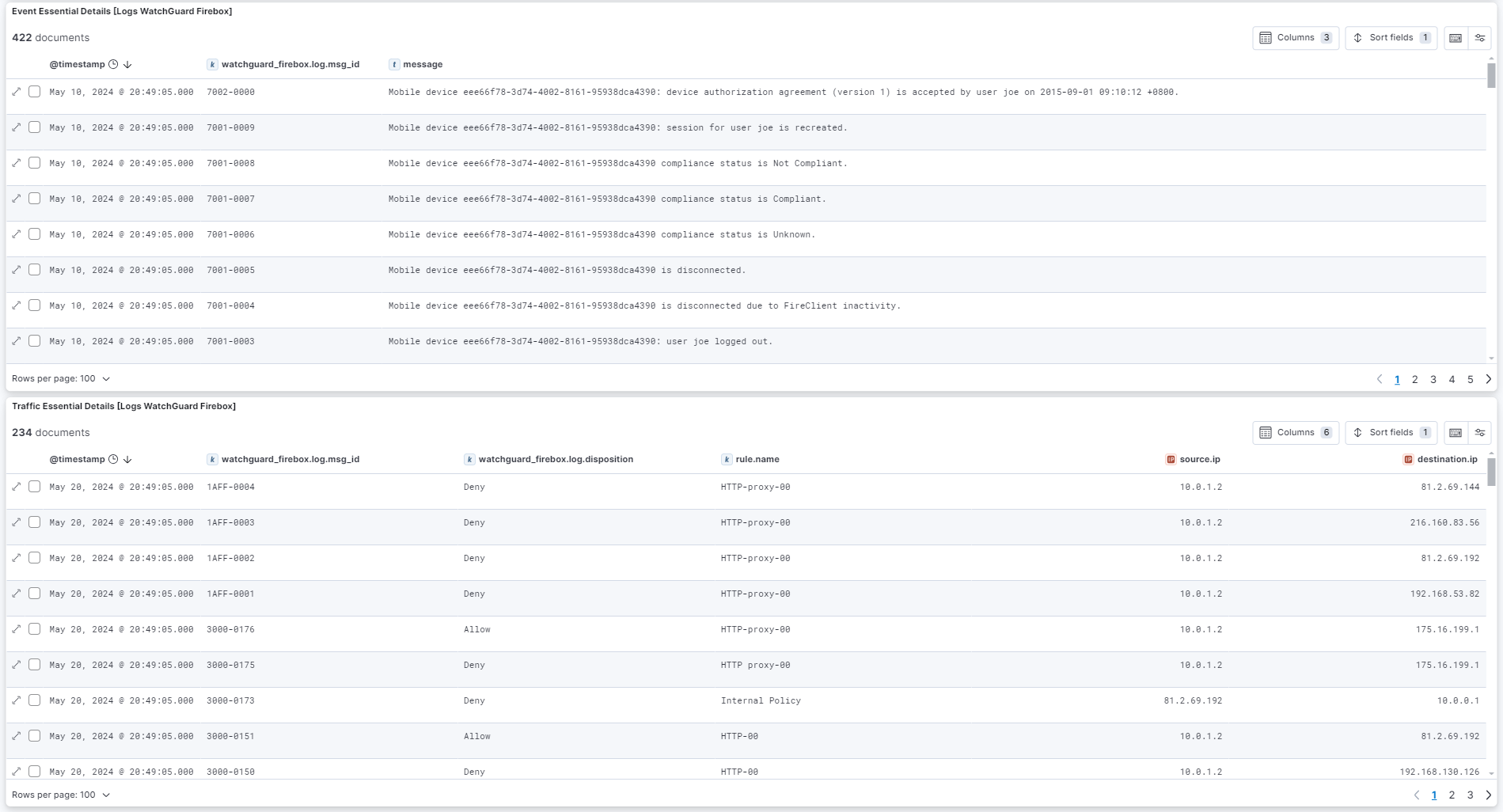
This integration includes one or more Kibana dashboards that visualizes the data collected by the integration. The screenshots below illustrate how the ingested data is displayed.
Changelog
| Version | Details | Minimum Kibana version |
|---|---|---|
| 1.6.0 | Enhancement (View pull request) Add service_info knowledge base documentation and improve README documentation. |
9.0.0 8.13.0 |
| 1.5.0 | Enhancement (View pull request) Preserve event.original on pipeline error. |
9.0.0 8.13.0 |
| 1.4.2 | Enhancement (View pull request) Generate processor tags and normalize error handler. |
9.0.0 8.13.0 |
| 1.4.1 | Enhancement (View pull request) Changed owners. |
9.0.0 8.13.0 |
| 1.4.0 | Enhancement (View pull request) Remove duplicated installation instructions from the documentation. |
9.0.0 8.13.0 |
| 1.3.1 | Bug fix (View pull request) Parse hostname with underscores and messages using port 0. |
9.0.0 8.13.0 |
| 1.3.0 | Enhancement (View pull request) Support stack version 9.0. |
9.0.0 8.13.0 |
| 1.2.0 | Enhancement (View pull request) Support email addresses in 2500-0000 and 2500-0001 events. |
8.13.0 |
| 1.1.0 | Enhancement (View pull request) ECS version updated to 8.17.0. |
8.13.0 |
| 1.0.3 | Bug fix (View pull request) Defensively copy list parameters in 'Set ECS categorization fields' script. |
8.13.0 |
| 1.0.2 | Bug fix (View pull request) Improve key/value splitting in traffic logs. |
8.13.0 |
| 1.0.1 | Enhancement (View pull request) Fix url in documentation. |
8.13.0 |
| 1.0.0 | Enhancement (View pull request) Release package as GA. |
8.13.0 |
| 0.1.2 | Bug fix (View pull request) Add optional cluster member information |
8.13.0 |
| 0.1.1 | Bug fix (View pull request) Add date format pattern to parse syslog timestamp. |
8.13.0 |
| 0.1.0 | Enhancement (View pull request) Initial release. |
8.13.0 |