HPE Aruba CX Integration for Elastic
| Version | 0.4.1
|
| Subscription level What's this? |
Basic |
| Developed by What's this? |
Elastic |
| Ingestion method(s) | File, Network Protocol |
| Minimum Kibana version(s) | 9.0.0 8.15.0 |
To use beta integrations, go to the Integrations page in Kibana, scroll down, and toggle on the Display beta integrations option.
This AI-assisted guide was validated by our engineers. You may need to adjust the steps to match your environment.
The HPE Aruba CX integration for Elastic enables you to collect logs from HPE Aruba Networking CX Switch series, providing visibility into network operations, security events, and hardware health. By ingesting these logs into the Elastic Stack, you can monitor network stability, audit configuration changes, and maintain security compliance across your infrastructure.
This integration is compatible with the following:
- Tested models: HPE Aruba Networking CX Switch series 6000, 6300, and 8360.
- AOS-CX version: Tested against AOS-CX version 10.15 and compatible with the AOS-CX 10.15 Event Log Message Reference Guide.
- Language: This integration strictly supports logs in the English language.
This integration collects logs from Aruba CX switches by acting as a syslog receiver or by reading log files. You can deploy an Elastic Agent and configure it to receive data through one of the following methods:
- TCP: The
logdata stream receives syslog messages over a TCP port. This is the recommended method for reliable delivery of system, security, and protocol logs. - UDP: The
logdata stream receives syslog messages over a UDP port. This method is designed for high-volume log ingest where minimal overhead on the source switch is required. - Filestream: The
logdata stream reads logs from files on the local host. This is typically used for ingesting audit logs or files stored on a management server.
Once the logs are received, the Elastic Agent parses and enriches the data before forwarding it to your Elastic deployment, where you can monitor it using the provided dashboards.
The HPE Aruba CX integration collects log messages of the following types:
- System and security logs: These include logs covering AAA (Authentication, Authorization, and Accounting), ACLs (Access Control Lists), port security, and user management events.
- Protocol events: These provide detailed state change and error information for networking protocols including BGP, OSPF, ARP, BFD, and LACP.
- Hardware health metrics: These are log-based health indicators for physical components such as fans, power supplies, and temperature sensors.
- Configuration and management logs: These provide audit trails of configuration changes, firmware updates, and REST API interactions.
You can use the HPE Aruba CX integration for several operational and security use cases:
- Security monitoring: You can monitor authentication and authorization events to identify unauthorized access attempts or suspicious configuration changes.
- Network troubleshooting: You'll be able to analyze protocol events and state changes to diagnose connectivity issues and network instability.
- Infrastructure health: You can track hardware-related log messages to proactively identify failing components like power supplies or fans.
- Audit and compliance: You can maintain a record of configuration changes and administrative actions for regulatory compliance and internal security audits.
To use this integration, you'll need to meet the following Elastic and vendor-specific prerequisites:
Before you begin, ensure your HPE Aruba CX switch is set up with these configurations:
- Administrative access to the HPE Aruba CX switch via the Command Line Interface (CLI) using SSH or a console connection.
- Network connectivity between the switch and the Elastic Agent host. The switch must be able to reach the IP address of the Elastic Agent on the configured syslog port, such as
1470for TCP or1024for UDP. - AOS-CX switch logging configured to forward logs in English.
- Network Time Protocol (NTP) synchronized on all switches to ensure that timestamps are accurate and synchronized.
- Sufficient privileges to enter configuration mode with
configure terminaland save the configuration withwrite memory.
You'll also need to prepare your Elastic environment with the following:
- An Elastic Agent installed and enrolled in a Fleet policy.
- The HPE Aruba CX integration added to the relevant Agent policy.
- Firewall rules on the Elastic Agent host that allow inbound traffic on the ports you specify in the integration configuration.
Elastic Agent must be installed on a host that can receive syslog data or has access to log files from your HPE Aruba CX switches. For more details, check the Elastic Agent installation instructions. You can install only one Elastic Agent per host.
Elastic Agent is required to stream data from the syslog or log file receiver and ship the data to Elastic, where the events will then be processed via the integration's ingest pipelines.
You can configure your AOS-CX switches to send logs to the Elastic Agent using either the CLI or the Web UI.
To configure remote logging via the CLI:
- Log in to the AOS-CX switch CLI via SSH or console.
- Enter global configuration mode:
switch# configure terminal - Configure the remote logging target with the transport protocol and port. Replace
<elastic_agent_ip>(replace with your actual value) with your agent's IP. For TCP (recommended for reliable delivery, default integration port1470):switch(config)# logging <elastic_agent_ip> port 1470 transport tcpFor UDP (default integration port1024):switch(config)# logging <elastic_agent_ip> port 1024 transport udp - Specify the VRF if you use a dedicated management network:
switch(config)# logging <elastic_agent_ip> vrf mgmt port 1470 transport tcp - Set the severity level to filter events sent to the agent (e.g.,
informationalornotice):switch(config)# logging <elastic_agent_ip> severity informational - Exit and save the configuration to the startup config:
switch(config)# endswitch# write memory
To configure remote logging via the Web UI:
- Log in to the AOS-CX Web UI using administrative credentials.
- Navigate to System > Logging in the sidebar.
- Locate the Logging Servers section and click the + (Add) button.
- Enter the IP Address of the Elastic Agent.
- Select the appropriate VRF (e.g.,
mgmt) that has connectivity to the agent. - Set the Severity Level to
Informationalor higher. - Click Apply to activate the settings and click the Save icon at the top of the UI to persist across reboots.
If you prefer to collect logs from a file:
- Ensure the Elastic Agent has read permissions for the directory containing the AOS-CX logs.
- Configure the switch or an intermediate collector to write AOS-CX logs to a specific directory (e.g.,
/var/log/audit/). - Ensure your log rotation mechanism allows the Elastic Agent to monitor both active and rotated files if you require historical data.
The following resources provide more information about AOS-CX configuration:
To set up the integration in Kibana:
- In Kibana, navigate to Management > Integrations.
- Search for HPE Aruba CX and select the integration.
- Click Add HPE Aruba CX.
- Configure the integration settings based on your chosen input type.
This input collects logs over a TCP socket:
- Listen Address (
listen_address): The bind address to listen for TCP connections. Set to0.0.0.0to bind to all available interfaces. Default:localhost. - Listen Port (
listen_port): The TCP port number to listen on. Default:1470. - Preserve original event (
preserve_original_event): Preserves a raw copy of the original event inevent.original. - Tags (
tags): List of tags to add to the events. - SSL Configuration (
ssl): Provide SSL certificate and key information if you use encrypted transport. - Custom TCP Options (
tcp_options): Specify options likemax_connections,framing, orline_delimiter.
This input collects logs over a UDP socket:
- Listen Address (
listen_address): The bind address to listen for UDP connections. Set to0.0.0.0to bind to all available interfaces. Default:localhost. - Listen Port (
listen_port): The UDP port number to listen on. Default:1024. - Preserve original event (
preserve_original_event): Preserves a raw copy of the original event inevent.original. - Custom UDP Options (
udp_options): Specify options such asread_buffer,max_message_size, ortimeout.
This input collects logs directly from log files. This input is disabled by default and you must explicitly enable it:
- Paths (
paths): Provide the list of paths to the log files (e.g.,/var/log/audit/*.log). - Preserve original event (
preserve_original_event): Preserves a raw copy of the original event inevent.original.
After configuring your input, assign the integration to an agent policy and click Save and continue.
To verify the integration is working and data is flowing:
- Trigger data flow on the HPE Aruba CX device using one of these actions:
- Enter and exit global configuration mode to trigger a
CONFIG_MGMTlog:configure terminalthenexit. - Log out and log back into the switch CLI via SSH to trigger AAA and SSH session logs.
- Toggle a non-critical, unused interface:
interface 1/1/1(replace with your actual value),shutdown, thenno shutdown.
- Enter and exit global configuration mode to trigger a
- In Kibana, navigate to Analytics > Discover.
- Select the
logs-*data view. - Enter the KQL filter
data_stream.dataset : "hpe_aruba_cx.log"and check for incoming documents. - Verify that logs appear with recent timestamps and that fields like
event.code,log.level, andaruba.hardware.deviceare correctly populated. - Navigate to Analytics > Dashboards and search for "HPE Aruba CX" to verify that visualizations are populated with data.
For help with Elastic ingest tools, check Common problems.
This section addresses common issues you might encounter while setting up or running the HPE Aruba CX integration:
- VRF routing mismatch: If you configure the switch to send logs but they never arrive at the destination, verify the
vrfparameter in theloggingcommand. If the Elastic Agent is on the management network, your command must includevrf mgmt. - Port conflicts: Ensure the port configured in the integration settings (for example,
1470for TCP or1024for UDP) is not being used by another process on the Elastic Agent host. You can usess -tlnp | grep <port>(replace<port>with your actual value) on Linux ornetstat -ano | findstr <port>(replace<port>with your actual value) on Windows to verify port availability. - ACL or firewall blocks: Check the outbound access control lists (ACLs) on the switch and the local firewall on the Elastic Agent host (such as
iptablesorfirewalld) to ensure traffic is allowed on the specified UDP or TCP ports. - English-only requirement: If logs appear garbled or fail to parse correctly, verify that the switch isn't configured for internationalized logging. This integration only supports the standard English log format.
- Parsing failures: If logs appear in Discover but have a
tags: [_grokparsefailure]entry, the log format might differ from the expected AOS-CX standard. You can check theerror.messagefield for specific details. - Timestamp mismatches: If logs don't appear in the default time range, check the Network Time Protocol (NTP) status on the switch. Large time drifts can cause logs to be indexed into the past or future relative to the current Kibana view.
- Field mapping mismatches: Review the
event.originalfield against the parsed fields. If critical information is missing, verify that the switch is sending the full log header according to the AOS-CX specification.
For more information on architectures that can be used for scaling this integration, check the Ingest Architectures documentation.
To ensure optimal performance in high-volume environments, consider the following settings:
- While UDP (default port
1024) is faster for syslog transmission and places less load on the switch CPU, TCP (default port1470) is recommended for environments where delivery guarantees are required. - For TCP connections, you should enable SSL if logs transit over public or untrusted networks to ensure data confidentiality.
- You can configure the HPE Aruba CX switch to forward only necessary events by setting the severity per remote server. For example, use the command
logging <elastic_agent_ip> severity informational(replace<elastic_agent_ip>with your actual value). - Don't forward
debuglevel logs in production environments as they can overwhelm the ingest pipeline and increase storage requirements.
These inputs can be used with this integration:
filestream
For more details about the Filestream input settings, check the Filebeat documentation.
To collect logs via Filestream, select Collect logs via Filestream and configure the following parameters:
- Filestream paths: The full path to the related log file.
tcp
For more details about the TCP input settings, check the Filebeat documentation.
To collect logs via TCP, select Collect logs via TCP and configure the following parameters:
Required Settings:
- Host
- Port
Common Optional Settings:
- Max Message Size - Maximum size of incoming messages
- Max Connections - Maximum number of concurrent connections
- Timeout - How long to wait for data before closing idle connections
- Line Delimiter - Character(s) that separate log messages
To enable encrypted connections, configure the following SSL settings:
SSL Settings:
- Enable SSL - Toggle to enable SSL/TLS encryption
- Certificate - Path to the SSL certificate file (
.crtor.pem) - Certificate Key - Path to the private key file (
.key) - Certificate Authorities - Path to CA certificate file for client certificate validation (optional)
- Client Authentication - Require client certificates (
none,optional, orrequired) - Supported Protocols - TLS versions to support (e.g.,
TLSv1.2,TLSv1.3)
Example SSL Configuration:
ssl.enabled: true
ssl.certificate: "/path/to/server.crt"
ssl.key: "/path/to/server.key"
ssl.certificate_authorities: ["/path/to/ca.crt"]
ssl.client_authentication: "optional"
udp
For more details about the UDP input settings, check the Filebeat documentation.
To collect logs via UDP, select Collect logs via UDP and configure the following parameters:
Required Settings:
- Host
- Port
Common Optional Settings:
- Max Message Size - Maximum size of UDP packets to accept (default: 10KB, max: 64KB)
- Read Buffer - UDP socket read buffer size for handling bursts of messages
- Read Timeout - How long to wait for incoming packets before checking for shutdown
The HPE Aruba CX integration provides a data stream for collecting event logs.
The log data stream provides events from HPE Aruba CX switches of the following types:
- System and hardware status messages
- Configuration and management activity
- Network protocol and routing events
- Security and authentication logs
Exported fields
| Field | Description | Type |
|---|---|---|
| @timestamp | Event timestamp. | date |
| agent.name | Custom name of the agent. This is a name that can be given to an agent. This can be helpful if for example two Filebeat instances are running on the same host but a human readable separation is needed on which Filebeat instance data is coming from. | keyword |
| aruba.aaa.config_event | keyword | |
| aruba.aaa.config_type | keyword | |
| aruba.aaa.radius_action | keyword | |
| aruba.aaa.radius_event | keyword | |
| aruba.aaa.radius_type | keyword | |
| aruba.aaa.tacacs_action | keyword | |
| aruba.aaa.tacacs_event | keyword | |
| aruba.aaa.tacacs_type | keyword | |
| aruba.acc_abp.client | keyword | |
| aruba.acc_abp.operation | keyword | |
| aruba.acc_abp.pac_abp_name | keyword | |
| aruba.acc_abp.result | keyword | |
| aruba.acl.ace_string | TBD for all description fields - need to be filled in | keyword |
| aruba.acl.application | keyword | |
| aruba.acl.direction | keyword | |
| aruba.acl.hit_delta | long | |
| aruba.acl.name | keyword | |
| aruba.acl.type | keyword | |
| aruba.alarm.log_and_trap | keyword | |
| aruba.alarm.name | keyword | |
| aruba.alarm.relay | keyword | |
| aruba.alarm.trigger | keyword | |
| aruba.alarm.type | keyword | |
| aruba.arc.log | keyword | |
| aruba.asic.prefix_list | keyword | |
| aruba.asic.route_prefix | keyword | |
| aruba.bfd.applied_interval | long | |
| aruba.bfd.direction | keyword | |
| aruba.bfd.from | keyword | |
| aruba.bfd.invalid_ip | ip | |
| aruba.bfd.ip_version | keyword | |
| aruba.bfd.local_diag | keyword | |
| aruba.bfd.local_state | keyword | |
| aruba.bfd.op_mode | keyword | |
| aruba.bfd.remote_diag | keyword | |
| aruba.bfd.remote_state | keyword | |
| aruba.bfd.requested_interval | long | |
| aruba.bgp.as_number | long | |
| aruba.bgp.error_subcode | keyword | |
| aruba.bgp.id | keyword | |
| aruba.bgp.peer_grp | keyword | |
| aruba.bgp.pg_name | keyword | |
| aruba.bgp.vtep_ip | ip | |
| aruba.cm.cert_name | keyword | |
| aruba.cm.days | long | |
| aruba.cm.est_name | keyword | |
| aruba.cm.profile_name | keyword | |
| aruba.component.category | keyword | |
| aruba.component.name | keyword | |
| aruba.config.from | keyword | |
| aruba.config.name | keyword | |
| aruba.config.to | keyword | |
| aruba.config.type | keyword | |
| aruba.config.value | keyword | |
| aruba.container.params | keyword | |
| aruba.copp.class | Control Plane Policing (CoPP) class | keyword |
| aruba.count | long | |
| aruba.cpu_rx.filter_description | keyword | |
| aruba.dhcp.bindings_imported | keyword | |
| aruba.dhcp.config | keyword | |
| aruba.dhcp.gateway_ip | ip | |
| aruba.dhcp.ipv6_address | keyword | |
| aruba.dhcp.lease | keyword | |
| aruba.dhcp.lease_ip_address | ip | |
| aruba.dhcp.message_type | keyword | |
| aruba.dhcp.nameserver_ip | ip | |
| aruba.dhcp.new_port | keyword | |
| aruba.dhcp.server_ip_address | ip | |
| aruba.dhcp.source_mac | keyword | |
| aruba.dhcp.volume_name | keyword | |
| aruba.distributed.active_coordinates | keyword | |
| aruba.distributed.configured_coordinates | keyword | |
| aruba.dns.type | keyword | |
| aruba.dns.vrf_name | keyword | |
| aruba.dot1x.policy | keyword | |
| aruba.dpse.linecard_name | keyword | |
| aruba.dpse.operation_name | keyword | |
| aruba.dpse.plugin_name | keyword | |
| aruba.ecmp.egressid | keyword | |
| aruba.ecmp.err | keyword | |
| aruba.ecmp.route | keyword | |
| aruba.erps.ring_id | keyword | |
| aruba.error.count | long | |
| aruba.error.description | keyword | |
| aruba.event_type | keyword | |
| aruba.evpn.esi | keyword | |
| aruba.evpn.eth_tag | keyword | |
| aruba.evpn.rd | keyword | |
| aruba.evpn.rt | keyword | |
| aruba.evpn.rtt | keyword | |
| aruba.evpn.vni | keyword | |
| aruba.evpn.vtep_ip | ip | |
| aruba.fan.air_flow_direction | keyword | |
| aruba.fan.compare_mode | keyword | |
| aruba.fan.count | long | |
| aruba.fan.en_dis | keyword | |
| aruba.fan.fan_index | long | |
| aruba.fan.fmod_num | keyword | |
| aruba.fan.ft_air_curr | keyword | |
| aruba.fan.ft_air_req | keyword | |
| aruba.fan.ft_dir | keyword | |
| aruba.fan.ft_name | keyword | |
| aruba.fan.function | keyword | |
| aruba.fan.index | long | |
| aruba.fan.minimum | long | |
| aruba.fan.module_idx | long | |
| aruba.fan.name | keyword | |
| aruba.fan.new_status | keyword | |
| aruba.fan.old_status | keyword | |
| aruba.fan.speedval | keyword | |
| aruba.fan.tray_idx | long | |
| aruba.fan.value | keyword | |
| aruba.fan.zone_idx | long | |
| aruba.fault.da_diff_count | long | |
| aruba.fault.sa_diff_count | long | |
| aruba.fault.type | keyword | |
| aruba.feature_pack.device_parameter | keyword | |
| aruba.feature_pack.device_serial | keyword | |
| aruba.feature_pack.expiry_date | keyword | |
| aruba.feature_pack.feature_name | keyword | |
| aruba.feature_pack.mode | keyword | |
| aruba.feature_pack.name | keyword | |
| aruba.feature_pack.parameter_type | keyword | |
| aruba.feature_pack.parameter_type_mismatch | keyword | |
| aruba.feature_pack.subscription_parameter | keyword | |
| aruba.feature_pack.type | keyword | |
| aruba.firmware.after | keyword | |
| aruba.firmware.before | keyword | |
| aruba.firmware.dnld_type | keyword | |
| aruba.firmware.hotpatch_name | keyword | |
| aruba.firmware.image_profile | keyword | |
| aruba.fqtss.classA_ded | keyword | |
| aruba.fqtss.classA_max | keyword | |
| aruba.fqtss.classB_ded | keyword | |
| aruba.fqtss.classB_max | keyword | |
| aruba.fqtss.dedicate_mem_status | keyword | |
| aruba.fqtss.per_port_consolidate_status | keyword | |
| aruba.fqtss.per_port_per_stream_consolidate_status | keyword | |
| aruba.fqtss.per_port_status | keyword | |
| aruba.fqtss.per_stream_consolidate_status | keyword | |
| aruba.fqtss.per_stream_status | keyword | |
| aruba.fqtss.request_type | keyword | |
| aruba.fqtss.stream_hw_status | keyword | |
| aruba.fqtss.stream_meter_id | keyword | |
| aruba.hardware.addr | keyword | |
| aruba.hardware.bus | keyword | |
| aruba.hardware.cap | keyword | |
| aruba.hardware.cecount | long | |
| aruba.hardware.channel | keyword | |
| aruba.hardware.cpus | long | |
| aruba.hardware.device | keyword | |
| aruba.hardware.function | keyword | |
| aruba.hardware.impact_statement | keyword | |
| aruba.hardware.level | keyword | |
| aruba.hardware.location | keyword | |
| aruba.hardware.mcgstatus | keyword | |
| aruba.hardware.misc | keyword | |
| aruba.hardware.offlined | long | |
| aruba.hardware.origin | keyword | |
| aruba.hardware.page | keyword | |
| aruba.hardware.seg | keyword | |
| aruba.hardware.socket | keyword | |
| aruba.hardware.test_name | keyword | |
| aruba.hardware.type | keyword | |
| aruba.hardware.vni | keyword | |
| aruba.hotpatch.ss | keyword | |
| aruba.injected_view.name | keyword | |
| aruba.insight.arp_end_ts | keyword | |
| aruba.insight.auth_latency | keyword | |
| aruba.insight.auth_type | keyword | |
| aruba.insight.dhcp_client | keyword | |
| aruba.insight.dhcp_latency | keyword | |
| aruba.insight.dhcp_server | keyword | |
| aruba.insight.dns_end_ts | keyword | |
| aruba.insight.dns_latency | keyword | |
| aruba.insight.dns_server | keyword | |
| aruba.insight.dot1x_auth_failure_reason | keyword | |
| aruba.insight.failed_vlans | keyword | |
| aruba.insight.failure_phase_id | keyword | |
| aruba.insight.l2_end_ts | keyword | |
| aruba.insight.l2_failure_reason | keyword | |
| aruba.insight.l2_ob_state | keyword | |
| aruba.insight.l3_end_ts | keyword | |
| aruba.insight.l3_failure_reason | keyword | |
| aruba.insight.l3_ob_state | keyword | |
| aruba.insight.mac_auth_failure_reason | keyword | |
| aruba.insight.ob_start_ts | keyword | |
| aruba.insight.radius_server | keyword | |
| aruba.insight.role_type | keyword | |
| aruba.insight.successfulvlan | keyword | |
| aruba.instance.id | keyword | |
| aruba.interface.id | keyword | |
| aruba.interface.name | keyword | |
| aruba.interface.port_speed | long | |
| aruba.interface.prev_id | keyword | |
| aruba.ip_ra.route | keyword | |
| aruba.ip_sla.name | keyword | |
| aruba.issu.active_bank | keyword | |
| aruba.issu.condition | keyword | |
| aruba.issu.feature | keyword | |
| aruba.issu.location | keyword | |
| aruba.issu.new_software_version | keyword | |
| aruba.issu.operation | keyword | |
| aruba.issu.previous_software_version | keyword | |
| aruba.issu.wait_time | long | |
| aruba.l3.encaps_allocated | keyword | |
| aruba.l3.encaps_free | keyword | |
| aruba.l3.nexthop | keyword | |
| aruba.l3.object | keyword | |
| aruba.l3.percent | long | |
| aruba.l3.resource | keyword | |
| aruba.l3.vtep | keyword | |
| aruba.lacp.actor_state | keyword | |
| aruba.lacp.fallback | keyword | |
| aruba.lacp.fallback_mode | keyword | |
| aruba.lacp.fsm_state | keyword | |
| aruba.lacp.lag_number | long | |
| aruba.lacp.lag_speed | long | |
| aruba.lacp.mode | keyword | |
| aruba.lacp.partner_state | keyword | |
| aruba.lacp.partner_sys_id | keyword | |
| aruba.lacp.port_speed | long | |
| aruba.lacp.rate | keyword | |
| aruba.lacp.system_id | keyword | |
| aruba.lacp.system_priority | keyword | |
| aruba.lag.mode | keyword | |
| aruba.lag.psc | keyword | |
| aruba.launchd.daemon | keyword | |
| aruba.len | long | |
| aruba.limit.read_value | long | |
| aruba.limit.threshold | keyword | |
| aruba.lldp.ninterface | keyword | |
| aruba.lldp.npvid | long | |
| aruba.lldp.pvid | long | |
| aruba.lldp.reinit_delay | long | |
| aruba.lldp.tx_delay | long | |
| aruba.lldp.tx_hold | long | |
| aruba.lldp.tx_timer | long | |
| aruba.loop.rx_port | keyword | |
| aruba.loop.tx_port | keyword | |
| aruba.mac.ckn | keyword | |
| aruba.mac.feature | keyword | |
| aruba.mac.latest_an | keyword | |
| aruba.mac.latest_kn | keyword | |
| aruba.mac.new_mode | keyword | |
| aruba.mac.old_an | keyword | |
| aruba.mac.old_kn | keyword | |
| aruba.mac.old_mode | keyword | |
| aruba.mac.sci | keyword | |
| aruba.management.config_param | keyword | |
| aruba.mgmd.l3_port | keyword | |
| aruba.mgmd.mgmd_type | keyword | |
| aruba.mgmd.pkt_type | keyword | |
| aruba.mgmd.port1 | keyword | |
| aruba.mgmd.protocol | keyword | |
| aruba.mgmd.ring_id | keyword | |
| aruba.mgmd.type | keyword | |
| aruba.mgmt.config_crit | object | |
| aruba.mgmt.config_err | object | |
| aruba.mgmt.config_param | object | |
| aruba.module.name | keyword | |
| aruba.module.new_part | keyword | |
| aruba.module.old_part | keyword | |
| aruba.module.type | keyword | |
| aruba.mpls.local_ldp_id | keyword | |
| aruba.mpls.peer_ldp_id | keyword | |
| aruba.msdp.grp_ip | ip | |
| aruba.msdp.rp_ip | ip | |
| aruba.msdp.tcp_entity | keyword | |
| aruba.msrp.decl_type | keyword | |
| aruba.mstp.config_parameter | keyword | |
| aruba.mstp.config_value | keyword | |
| aruba.mstp.new_mode | keyword | |
| aruba.mstp.old_mac | keyword | |
| aruba.mstp.old_mode | keyword | |
| aruba.mstp.old_port | keyword | |
| aruba.mstp.old_priority | keyword | |
| aruba.mstp.pkt_type | keyword | |
| aruba.mstp.priority_mac | keyword | |
| aruba.mstp.proto | keyword | |
| aruba.mstp.reconfig_parameter | keyword | |
| aruba.mtu | keyword | |
| aruba.multicast.encap_type | keyword | |
| aruba.multicast.flood_group_ip | ip | |
| aruba.multicast.flood_group_range | keyword | |
| aruba.multicast.ip_assign_method | keyword | |
| aruba.multicast.isl_rule | keyword | |
| aruba.multicast.mgmd_type | keyword | |
| aruba.multicast.override_group_ip | keyword | |
| aruba.multicast.rep_mode | keyword | |
| aruba.multicast.ulay_l2_port | keyword | |
| aruba.multicast.ulay_l3_port | keyword | |
| aruba.multicast.vni_id | keyword | |
| aruba.nae.action_type | keyword | |
| aruba.nae.condition | keyword | |
| aruba.nae.description | keyword | |
| aruba.nae.monitor_name | keyword | |
| aruba.nae.name | keyword | |
| aruba.nd.type | keyword | |
| aruba.ndm.new_mac | keyword | |
| aruba.ndm.old_mac | keyword | |
| aruba.ndm.old_role | keyword | |
| aruba.ntp.event | keyword | |
| aruba.ntp.old | keyword | |
| aruba.ntp.server_info | keyword | |
| aruba.ntp.trusted_keys | keyword | |
| aruba.ntp.untrusted_keys | keyword | |
| aruba.ospf.area | keyword | |
| aruba.ospf.event | keyword | |
| aruba.ospf.external | keyword | |
| aruba.ospf.fp_id | keyword | |
| aruba.ospf.input | keyword | |
| aruba.ospf.inter | keyword | |
| aruba.ospf.intra | keyword | |
| aruba.ospf.link_local | ip | |
| aruba.ospf.nexthops | keyword | |
| aruba.ospf.old_router_id | keyword | |
| aruba.ospf.old_state | keyword | |
| aruba.ospf.router_id | keyword | |
| aruba.ospf.stats_id | keyword | |
| aruba.pac_gbp.client | keyword | |
| aruba.pac_gbp.line_card | keyword | |
| aruba.pac_gbp.name | keyword | |
| aruba.pac_gbp.operation | keyword | |
| aruba.pac_gbp.result | keyword | |
| aruba.packet_capture.session_name | keyword | |
| aruba.packet_capture.value | keyword | |
| aruba.pim.callerid | keyword | |
| aruba.pim.capacity_type | keyword | |
| aruba.pim.dip0 | keyword | |
| aruba.pim.dip1 | keyword | |
| aruba.pim.dip2 | keyword | |
| aruba.pim.dip3 | keyword | |
| aruba.pim.ebsr_ip | ip | |
| aruba.pim.error_value | keyword | |
| aruba.pim.event | keyword | |
| aruba.pim.fd | keyword | |
| aruba.pim.flowtype | keyword | |
| aruba.pim.ip_version | keyword | |
| aruba.pim.mode | keyword | |
| aruba.pim.pkt_type | keyword | |
| aruba.pim.qsize | long | |
| aruba.pim.sip0 | keyword | |
| aruba.pim.sip1 | keyword | |
| aruba.pim.sip2 | keyword | |
| aruba.pim.sip3 | keyword | |
| aruba.pim.totalvid | long | |
| aruba.pim.type | keyword | |
| aruba.poe.assigned_class | keyword | |
| aruba.poe.assigned_class_a | keyword | |
| aruba.poe.assigned_class_b | keyword | |
| aruba.poe.available | keyword | |
| aruba.poe.cntrl_name | keyword | |
| aruba.poe.duration | keyword | |
| aruba.poe.fault_type | keyword | |
| aruba.poe.pair | keyword | |
| aruba.poe.paira_class | keyword | |
| aruba.poe.pairb_class | keyword | |
| aruba.poe.pd_class | keyword | |
| aruba.poe.pd_type | keyword | |
| aruba.poe.req_class | keyword | |
| aruba.poe.req_class_a | keyword | |
| aruba.poe.req_class_b | keyword | |
| aruba.poe.subsys_name | keyword | |
| aruba.policy.application | keyword | |
| aruba.policy.name | keyword | |
| aruba.port | keyword | |
| aruba.port_access.auth_method | keyword | |
| aruba.port_access.feature | keyword | |
| aruba.port_access.mode | keyword | |
| aruba.port_access.monitor_name | keyword | |
| aruba.port_access.name | keyword | |
| aruba.port_access.num_cached_clients | long | |
| aruba.port_access.old_limit | keyword | |
| aruba.port_access.old_mode | keyword | |
| aruba.port_access.old_name | keyword | |
| aruba.port_access.request_id | keyword | |
| aruba.port_access.request_pkt | keyword | |
| aruba.port_access.server_list | keyword | |
| aruba.power.alert | keyword | |
| aruba.power.available | keyword | |
| aruba.power.fanidx | long | |
| aruba.power.fault | keyword | |
| aruba.power.name | keyword | |
| aruba.power.redund | keyword | |
| aruba.power.sensorid | keyword | |
| aruba.power.support | keyword | |
| aruba.power.type | keyword | |
| aruba.power.value | keyword | |
| aruba.prefix | keyword | |
| aruba.priority | keyword | |
| aruba.ptp.clock_step | keyword | |
| aruba.ptp.curr_offset | keyword | |
| aruba.ptp.delay_mechanism | keyword | |
| aruba.ptp.grandsource | keyword | |
| aruba.ptp.high_limit | keyword | |
| aruba.ptp.lag_name | keyword | |
| aruba.ptp.low_limit | keyword | |
| aruba.ptp.new | keyword | |
| aruba.ptp.old | keyword | |
| aruba.ptp.parent | keyword | |
| aruba.ptp.priority1 | keyword | |
| aruba.ptp.priority2 | keyword | |
| aruba.ptp.profile | keyword | |
| aruba.ptp.quality | keyword | |
| aruba.ptp.transport | keyword | |
| aruba.ptp.type | keyword | |
| aruba.ptp.value | keyword | |
| aruba.qos.new_slot | keyword | |
| aruba.qos.queue | keyword | |
| aruba.redundant.mgmt_module | keyword | |
| aruba.rest.activate_address | keyword | |
| aruba.rest.added_user | keyword | |
| aruba.rest.autztype | keyword | |
| aruba.rest.central_location | keyword | |
| aruba.rest.central_source | keyword | |
| aruba.rest.command | keyword | |
| aruba.rest.config_from_name | keyword | |
| aruba.rest.config_name | keyword | |
| aruba.rest.config_to_name | keyword | |
| aruba.rest.deleted_user | keyword | |
| aruba.rest.dns | keyword | |
| aruba.rest.dns_nameserver | keyword | |
| aruba.rest.identity | keyword | |
| aruba.rest.match | keyword | |
| aruba.rest.mode | keyword | |
| aruba.rest.name | keyword | |
| aruba.rest.operation | keyword | |
| aruba.rest.resource | keyword | |
| aruba.rest.subscriber | keyword | |
| aruba.rest.subscription | keyword | |
| aruba.rest.type | keyword | |
| aruba.role | keyword | |
| aruba.rpvst.new_mode | keyword | |
| aruba.rpvst.npvid | keyword | |
| aruba.rpvst.old_mac | keyword | |
| aruba.rpvst.old_mode | keyword | |
| aruba.rpvst.old_port | keyword | |
| aruba.rpvst.old_priority | keyword | |
| aruba.rpvst.pkt_type | keyword | |
| aruba.rpvst.proto | keyword | |
| aruba.rpvst.pvid | keyword | |
| aruba.scheduler.datetime | keyword | |
| aruba.scheduler.details | keyword | |
| aruba.scheduler.job_name | keyword | |
| aruba.scheduler.name | keyword | |
| aruba.self_test.stack | keyword | |
| aruba.sequence | keyword | |
| aruba.server.mode | keyword | |
| aruba.server.sessions | long | |
| aruba.session.id | keyword | |
| aruba.session.name | keyword | |
| aruba.sflow.bridge | keyword | |
| aruba.sflow.chain | keyword | |
| aruba.sflow.dgramsize | long | |
| aruba.sflow.intvl | keyword | |
| aruba.sflow.mode | keyword | |
| aruba.sflow.new_rate | keyword | |
| aruba.sflow.old_rate | keyword | |
| aruba.sflow.operation | keyword | |
| aruba.slot | long | |
| aruba.snmp.truth_value | keyword | |
| aruba.ssh.key_name | keyword | |
| aruba.ssh.new_ip | keyword | |
| aruba.state | keyword | |
| aruba.status | keyword | |
| aruba.storage.name | keyword | |
| aruba.storage.usage | long | |
| aruba.subsystem | keyword | |
| aruba.supportability.alarm_index | keyword | |
| aruba.supportability.daemons | keyword | |
| aruba.supportability.log_type | keyword | |
| aruba.supportability.module | keyword | |
| aruba.supportability.oid | keyword | |
| aruba.sys.module | keyword | |
| aruba.sys.name | keyword | |
| aruba.sysmon.mem_usage | long | |
| aruba.sysmon.module_name | keyword | |
| aruba.sysmon.module_num | long | |
| aruba.sysmon.partition_name | keyword | |
| aruba.sysmon.poll | keyword | |
| aruba.sysmon.unit | keyword | |
| aruba.sysmon.unit_count | long | |
| aruba.sysmon.utilization | long | |
| aruba.system.devicespec | keyword | |
| aruba.system.line | long | |
| aruba.system.modspec | keyword | |
| aruba.system.numdevs | long | |
| aruba.system.pass | keyword | |
| aruba.system.time | long | |
| aruba.tcam.table_name | keyword | |
| aruba.temp.celsius | long | |
| aruba.temp.limit_type | keyword | |
| aruba.temp.module | keyword | |
| aruba.temp.name | keyword | |
| aruba.temp.new | keyword | |
| aruba.temp.old | keyword | |
| aruba.temp.t_high | long | |
| aruba.temp.t_low | long | |
| aruba.temp.type | keyword | |
| aruba.throttle_count | long | |
| aruba.time.new_time | keyword | |
| aruba.time.new_tz | keyword | |
| aruba.time.old_time | keyword | |
| aruba.time.old_tz | keyword | |
| aruba.time.seconds | long | |
| aruba.timeout | long | |
| aruba.tpm.reboot_num | keyword | |
| aruba.traffic.monitor_name | keyword | |
| aruba.tunnel.ecmp_id | keyword | |
| aruba.tunnel.gre_key | keyword | |
| aruba.tunnel.name | keyword | |
| aruba.tunnel.nfd_id | keyword | |
| aruba.tunnel.ttl | keyword | |
| aruba.tunnel.type | keyword | |
| aruba.tunnel.zone | keyword | |
| aruba.udld.intvl_a | keyword | |
| aruba.udld.intvl_b | keyword | |
| aruba.ufd.from_state | ||
| aruba.unit | keyword | |
| aruba.user.added_user | keyword | |
| aruba.user.deleted_user | keyword | |
| aruba.user.role | keyword | |
| aruba.vlan.from | keyword | |
| aruba.vlan.local_node | keyword | |
| aruba.vlan.orig_vlan | keyword | |
| aruba.vlan.prim_admin | keyword | |
| aruba.vlan.prim_vid | keyword | |
| aruba.vlan.remote_node | keyword | |
| aruba.vlan.sec_admin | keyword | |
| aruba.vlan.sec_type | keyword | |
| aruba.vlan.sec_vid | keyword | |
| aruba.vlan.to | keyword | |
| aruba.vlan.trans_vlan | keyword | |
| aruba.vrf.id | keyword | |
| aruba.vrf.name | keyword | |
| aruba.vrrp.delay | long | |
| aruba.vrrp.inet_type | keyword | |
| aruba.vrrp.interval | long | |
| aruba.vrrp.mode | keyword | |
| aruba.vrrp.old_state | keyword | |
| aruba.vrrp.track | keyword | |
| aruba.vrrp.type | ||
| aruba.vsf.link | keyword | |
| aruba.vsf.lowest_speed | keyword | |
| aruba.vsf.mac_addr1 | keyword | |
| aruba.vsf.mac_addr2 | keyword | |
| aruba.vsf.mbr_id | keyword | |
| aruba.vsf.member_id | keyword | |
| aruba.vsf.new_standby_id | keyword | |
| aruba.vsf.old_standby_id | keyword | |
| aruba.vsf.operation | keyword | |
| aruba.vsf.port2 | keyword | |
| aruba.vsf.product_id | keyword | |
| aruba.vsf.product_type | keyword | |
| aruba.vsf.topo_type | keyword | |
| aruba.vsx.bank_name | keyword | |
| aruba.vsx.local_device_type | keyword | |
| aruba.vsx.local_sw_ver | keyword | |
| aruba.vsx.local_vsx_role | keyword | |
| aruba.vsx.peer_device_type | keyword | |
| aruba.vsx.peer_sw_ver | keyword | |
| aruba.vsx.peer_vsx_role | keyword | |
| aruba.vsx.prev_state | keyword | |
| aruba.vsx.primary_version | keyword | |
| aruba.vsx.secondary_version | keyword | |
| aruba.vsx.sub_state | keyword | |
| aruba.vxlan.ecmp_id | keyword | |
| aruba.vxlan.tunnel_id | keyword | |
| aruba.vxlan.vni_id | keyword | |
| aruba.vxlan.vtep | keyword | |
| aruba.vxlan.vtep_peer | keyword | |
| aruba.xcvr.desc | keyword | |
| aruba.xcvr.list | keyword | |
| aruba.xcvr.path | keyword | |
| aruba.ztp.alt_aruba_central_loc | keyword | |
| aruba.ztp.central_location | keyword | |
| aruba.ztp.http_proxy_location | keyword | |
| client.as.number | Unique number allocated to the autonomous system. The autonomous system number (ASN) uniquely identifies each network on the Internet. | long |
| client.ip | IP address of the client (IPv4 or IPv6). | ip |
| client.mac | MAC address of the client. The notation format from RFC 7042 is suggested: Each octet (that is, 8-bit byte) is represented by two [uppercase] hexadecimal digits giving the value of the octet as an unsigned integer. Successive octets are separated by a hyphen. | keyword |
| container.name | Container name. | keyword |
| data_stream.dataset | Data stream dataset. | constant_keyword |
| data_stream.namespace | Data stream namespace. | constant_keyword |
| data_stream.type | Data stream type. | constant_keyword |
| destination.address | Some event destination addresses are defined ambiguously. The event will sometimes list an IP, a domain or a unix socket. You should always store the raw address in the .address field. Then it should be duplicated to .ip or .domain, depending on which one it is. |
keyword |
| destination.as.number | Unique number allocated to the autonomous system. The autonomous system number (ASN) uniquely identifies each network on the Internet. | long |
| destination.ip | IP address of the destination (IPv4 or IPv6). | ip |
| destination.mac | MAC address of the destination. The notation format from RFC 7042 is suggested: Each octet (that is, 8-bit byte) is represented by two [uppercase] hexadecimal digits giving the value of the octet as an unsigned integer. Successive octets are separated by a hyphen. | keyword |
| ecs.version | ECS version this event conforms to. ecs.version is a required field and must exist in all events. When querying across multiple indices -- which may conform to slightly different ECS versions -- this field lets integrations adjust to the schema version of the events. |
keyword |
| error.code | Error code describing the error. | keyword |
| error.message | Error message. | match_only_text |
| error.type | The type of the error, for example the class name of the exception. | keyword |
| event.action | The action captured by the event. This describes the information in the event. It is more specific than event.category. Examples are group-add, process-started, file-created. The value is normally defined by the implementer. |
keyword |
| event.category | This is one of four ECS Categorization Fields, and indicates the second level in the ECS category hierarchy. event.category represents the "big buckets" of ECS categories. For example, filtering on event.category:process yields all events relating to process activity. This field is closely related to event.type, which is used as a subcategory. This field is an array. This will allow proper categorization of some events that fall in multiple categories. |
keyword |
| event.code | Identification code for this event, if one exists. Some event sources use event codes to identify messages unambiguously, regardless of message language or wording adjustments over time. An example of this is the Windows Event ID. | keyword |
| event.end | event.end contains the date when the event ended or when the activity was last observed. |
date |
| event.id | Unique ID to describe the event. | keyword |
| event.kind | This is one of four ECS Categorization Fields, and indicates the highest level in the ECS category hierarchy. event.kind gives high-level information about what type of information the event contains, without being specific to the contents of the event. For example, values of this field distinguish alert events from metric events. The value of this field can be used to inform how these kinds of events should be handled. They may warrant different retention, different access control, it may also help understand whether the data is coming in at a regular interval or not. |
keyword |
| event.reason | Reason why this event happened, according to the source. This describes the why of a particular action or outcome captured in the event. Where event.action captures the action from the event, event.reason describes why that action was taken. For example, a web proxy with an event.action which denied the request may also populate event.reason with the reason why (e.g. blocked site). |
keyword |
| event.sequence | Sequence number of the event. The sequence number is a value published by some event sources, to make the exact ordering of events unambiguous, regardless of the timestamp precision. | long |
| event.type | This is one of four ECS Categorization Fields, and indicates the third level in the ECS category hierarchy. event.type represents a categorization "sub-bucket" that, when used along with the event.category field values, enables filtering events down to a level appropriate for single visualization. This field is an array. This will allow proper categorization of some events that fall in multiple event types. |
keyword |
| file.name | Name of the file including the extension, without the directory. | keyword |
| file.path | Full path to the file, including the file name. It should include the drive letter, when appropriate. | keyword |
| file.path.text | Multi-field of file.path. |
match_only_text |
| file.type | File type (file, dir, or symlink). | keyword |
| host.boot.id | Linux boot uuid taken from /proc/sys/kernel/random/boot_id. Note the boot_id value from /proc may or may not be the same in containers as on the host. Some container runtimes will bind mount a new boot_id value onto the proc file in each container. | keyword |
| host.ip | Host ip addresses. | ip |
| host.mac | Host MAC addresses. The notation format from RFC 7042 is suggested: Each octet (that is, 8-bit byte) is represented by two [uppercase] hexadecimal digits giving the value of the octet as an unsigned integer. Successive octets are separated by a hyphen. | keyword |
| host.name | Name of the host. It can contain what hostname returns on Unix systems, the fully qualified domain name (FQDN), or a name specified by the user. The recommended value is the lowercase FQDN of the host. | keyword |
| host.os.version | Operating system version as a raw string. | keyword |
| input.type | Input type | keyword |
| log.file.device_id | Device Id of the log file this event came from. | keyword |
| log.file.fingerprint | The sha256 fingerprint identity of the file when fingerprinting is enabled. | keyword |
| log.file.inode | Inode of the log file this event came from. | keyword |
| log.file.path | Full path to the log file this event came from, including the file name. It should include the drive letter, when appropriate. If the event wasn't read from a log file, do not populate this field. | keyword |
| log.level | Original log level of the log event. If the source of the event provides a log level or textual severity, this is the one that goes in log.level. If your source doesn't specify one, you may put your event transport's severity here (e.g. Syslog severity). Some examples are warn, err, i, informational. |
keyword |
| log.offset | Offset of the entry in the log file. | long |
| log.origin.file.line | The line number of the file containing the source code which originated the log event. | long |
| log.origin.file.name | The name of the file containing the source code which originated the log event. Note that this field is not meant to capture the log file. The correct field to capture the log file is log.file.path. |
keyword |
| log.source.address | Source address from which the log event was read / sent from. | keyword |
| log.syslog.appname | The device or application that originated the Syslog message, if available. | keyword |
| log.syslog.priority | Syslog numeric priority of the event, if available. According to RFCs 5424 and 3164, the priority is 8 * facility + severity. This number is therefore expected to contain a value between 0 and 191. | long |
| log.syslog.procid | The process name or ID that originated the Syslog message, if available. | keyword |
| log.syslog.severity.name | The Syslog numeric severity of the log event, if available. If the event source publishing via Syslog provides a different severity value (e.g. firewall, IDS), your source's text severity should go to log.level. If the event source does not specify a distinct severity, you can optionally copy the Syslog severity to log.level. |
keyword |
| message | For log events the message field contains the log message, optimized for viewing in a log viewer. For structured logs without an original message field, other fields can be concatenated to form a human-readable summary of the event. If multiple messages exist, they can be combined into one message. | match_only_text |
| network.direction | Direction of the network traffic. When mapping events from a host-based monitoring context, populate this field from the host's point of view, using the values "ingress" or "egress". When mapping events from a network or perimeter-based monitoring context, populate this field from the point of view of the network perimeter, using the values "inbound", "outbound", "internal" or "external". Note that "internal" is not crossing perimeter boundaries, and is meant to describe communication between two hosts within the perimeter. Note also that "external" is meant to describe traffic between two hosts that are external to the perimeter. This could for example be useful for ISPs or VPN service providers. | keyword |
| network.vlan.id | VLAN ID as reported by the observer. | keyword |
| observer.egress.interface.name | Interface name as reported by the system. | keyword |
| observer.ingress.interface.id | Interface ID as reported by an observer (typically SNMP interface ID). | keyword |
| observer.ingress.interface.name | Interface name as reported by the system. | keyword |
| package.installed | Time when package was installed. | date |
| package.name | Package name | keyword |
| package.version | Package version | keyword |
| process.end | The time the process ended. | date |
| process.name | Process name. Sometimes called program name or similar. | keyword |
| process.name.text | Multi-field of process.name. |
match_only_text |
| process.pid | Process id. | long |
| server.address | Some event server addresses are defined ambiguously. The event will sometimes list an IP, a domain or a unix socket. You should always store the raw address in the .address field. Then it should be duplicated to .ip or .domain, depending on which one it is. |
keyword |
| server.ip | IP address of the server (IPv4 or IPv6). | ip |
| server.mac | MAC address of the server. The notation format from RFC 7042 is suggested: Each octet (that is, 8-bit byte) is represented by two [uppercase] hexadecimal digits giving the value of the octet as an unsigned integer. Successive octets are separated by a hyphen. | keyword |
| server.port | Port of the server. | long |
| server.user.name | Short name or login of the user. | keyword |
| server.user.name.text | Multi-field of server.user.name. |
match_only_text |
| service.target.version | Version of the service the data was collected from. This allows to look at a data set only for a specific version of a service. | keyword |
| service.version | Version of the service the data was collected from. This allows to look at a data set only for a specific version of a service. | keyword |
| source.address | Some event source addresses are defined ambiguously. The event will sometimes list an IP, a domain or a unix socket. You should always store the raw address in the .address field. Then it should be duplicated to .ip or .domain, depending on which one it is. |
keyword |
| source.ip | IP address of the source (IPv4 or IPv6). | ip |
| source.mac | MAC address of the source. The notation format from RFC 7042 is suggested: Each octet (that is, 8-bit byte) is represented by two [uppercase] hexadecimal digits giving the value of the octet as an unsigned integer. Successive octets are separated by a hyphen. | keyword |
| tags | List of keywords used to tag each event. | keyword |
| url.domain | Domain of the url, such as "www.elastic.co". In some cases a URL may refer to an IP and/or port directly, without a domain name. In this case, the IP address would go to the domain field. If the URL contains a literal IPv6 address enclosed by [ and ] (IETF RFC 2732), the [ and ] characters should also be captured in the domain field. |
keyword |
| url.full | If full URLs are important to your use case, they should be stored in url.full, whether this field is reconstructed or present in the event source. |
wildcard |
| url.full.text | Multi-field of url.full. |
match_only_text |
| url.port | Port of the request, such as 443. | long |
| url.scheme | Scheme of the request, such as "https". Note: The : is not part of the scheme. |
keyword |
| user.id | Unique identifier of the user. | keyword |
| user.name | Short name or login of the user. | keyword |
| user.name.text | Multi-field of user.name. |
match_only_text |
Example
{
    "@timestamp": "2024-09-26T20:44:39.385Z",
    "agent": {
        "ephemeral_id": "15a5da12-525e-4fdb-bd1f-512fedb1363d",
        "id": "67fa41e7-b040-4f84-a354-12d4d757d731",
        "name": "elastic-agent-34773",
        "type": "filebeat",
        "version": "8.14.3"
    },
    "data_stream": {
        "dataset": "hpe_aruba_cx.log",
        "namespace": "10580",
        "type": "logs"
    },
    "ecs": {
        "version": "8.11.0"
    },
    "elastic_agent": {
        "id": "67fa41e7-b040-4f84-a354-12d4d757d731",
        "snapshot": false,
        "version": "8.14.3"
    },
    "event": {
        "agent_id_status": "verified",
        "dataset": "hpe_aruba_cx.log",
        "ingested": "2024-09-26T20:44:41Z",
        "original": "2024-07-31T15:40:13.958990-05:00 8360-Primaire lldpd[2864192]: Event|104|LOG_INFO|AMM|1/1|LLDP neighbor d4:c1:9e:55:2b:e0 added on 1/1/15"
    },
    "host": {
        "name": "elastic-agent-34773"
    },
    "input": {
        "type": "filestream"
    },
    "log": {
        "file": {
            "device_id": "36",
            "inode": "157",
            "path": "/tmp/service_logs/8360.log"
        },
        "offset": 0
    },
    "tags": [
        "preserve_original_event",
        "aruba-log",
        "forwarded"
    ]
}
Below are the fields from the different Aruba event types and their mapping into ECS supported fields or customer Aruba fields
To Be Removed
Field types are defined within fields.yml
Note: Descriptions have not been filled out
Exported fields
| Doc Fields | Schema Mapping |
|---|---|
<aaa_config_type> |
aruba.aaa.config_event |
<aaa_config_event> |
aruba.aaa.config_type |
<key_length> |
aruba.len |
<max_key_length> |
aruba.limit.threshold |
<tacacs_action> |
aruba.aaa.radius_action |
<radius_event> |
aruba.aaa.radius_event |
<server_address> |
server.address |
<server_authport> |
aruba.port |
<status> |
aruba.status |
<server_vrfid> |
aruba.vrf.id |
<radius_type> |
event.type |
<tacacs_action> |
aruba.aaa.tacacs_action |
<tacacs_event> |
aruba.aaa.tacacs_event |
<server_address> |
server.address |
<server_authport> |
aruba.port |
<server_vrfid> |
aruba.vrf.id |
<tacacs_type> |
aruba.aaa.tacacs_type |
| Doc Fields | Schema Mapping |
|---|---|
<ip_address> |
client.ip |
<user_name> |
user.name |
| Doc Fields | Schema Mapping |
|---|---|
<log> |
message |
<type> |
aruba.acl.type |
<ace_string> |
aruba.acl.ace_string |
<application> |
aruba.acl.application |
<direction> |
aruba.acl.direction |
<hit_delta> |
aruba.acl.hit_delta |
<interface_name> |
aruba.interface.name |
<name> |
aruba.acl.name |
| Doc Fields | Schema Mapping |
|---|---|
<id> |
aruba.instance.id |
<length> |
aruba.len |
<log_and_trap> |
aruba.alarm.log_and_trap |
<name> |
aruba.alarm.name |
<relay> |
aruba.alarm.relay |
<trigger> |
aruba.alarm.trigger |
<type> |
aruba.alarm.type |
| Doc Fields | Schema Mapping |
|---|---|
<log> |
aruba.arc.log |
<node_id> |
aruba.instance.id |
<status> |
aruba.status |
| Doc Fields | Schema Mapping |
|---|---|
<port_name> |
aruba.port |
<status> |
aruba.status |
<vlan_id> |
network.vlan.id |
| Doc Fields | Schema Mapping |
|---|---|
<mac> |
client.mac |
<prefix_list> |
aruba.asic.prefix_list |
<route_prefix> |
aruba.asic.route_prefix |
| Doc Fields | Schema Mapping |
|---|---|
<addr> |
aruba.bfd.invalid_ip |
<applied_interval> |
aruba.bfd.applied_interval |
<dest_ip> |
destination.ip |
<direction> |
network.direction |
<from> |
aruba.bfd.from |
<intf> |
aruba.interface.id |
<ip_version> |
aruba.bfd.ip_version |
<local_diag> |
aruba.bfd.local_diag |
<local_state> |
aruba.bfd.local_state |
<op_mode> |
aruba.bfd.op_mode |
<port_name> |
aruba.port |
<remote_addr> |
client.address |
<remote_diag> |
aruba.bfd.remote_diag |
<remote_state> |
aruba.bfd.remote_state |
<requested_interval> |
aruba.bfd.requested_interval |
<session_id> |
aruba.session.id |
<src_port> |
aruba.port |
<vrf> |
aruba.vrf.id |
<vrf> |
aruba.vrf.name |
| Doc Fields | Schema Mapping |
|---|---|
<as_number> |
aruba.bgp.as_number |
<id> |
aruba.bgp.id |
<error-code> |
error.code |
<error-subcode> |
aruba.bgp.error_subcode |
<local_as> |
client.as.number |
<pg_name> |
aruba.bgp.pg_name |
<peer-grp> |
aruba.bgp.peer_grp |
<remote-addr> |
destination.address |
<remote_as> |
destination.as.number |
<src_ipaddr> |
source.ip |
<threshold_limit> |
aruba.limit.threshold |
<vrf-name> |
aruba.vrf.name |
| Doc Fields | Schema Mapping |
|---|---|
<if_index> |
aruba.interface.id |
<if_name> |
aruba.interface.name |
<ip_address> |
client.ip |
<reason> |
event.reason |
<status> |
aruba.status |
<vrf_name> |
aruba.vrf.name |
| Doc Fields | Schema Mapping |
|---|---|
<connected_disconnected> |
event.action |
<enabled_disabled> |
event.action |
<inserted_removed> |
event.action |
<mac> |
client.mac |
| Doc Fields | Schema Mapping |
|---|---|
<interface> |
aruba.interface.name |
<mac> |
source.mac |
| Doc Fields | Schema Mapping |
|---|---|
<activate_address> |
aruba.rest.activate_address |
<central_location> |
aruba.rest.central_location |
<central_source> |
aruba.rest.central_source |
<cert_length> |
aruba.len |
<vrf> |
aruba.vrf.id |
| Doc Fields | Schema Mapping |
|---|---|
<arp_end_ts> |
aruba.insight.arp_end_ts |
<assigned-role> |
aruba.role |
<assigned-role-type> |
aruba.insight.role_type |
<auth-latency> |
aruba.insight.auth_latency |
<auth-status> |
aruba.status |
<auth-type> |
aruba.insight.auth_type |
<client-number> |
aruba.limit.threshold |
<dot1x-auth-failure-reason> |
aruba.insight.dot1x_auth_failure_reason |
<dhcpv4-client> |
aruba.insight.dhcp_client |
<dhcpv4-failure-reason> |
event.reason |
<dhcpv4-latency> |
aruba.insight.dhcp_latency |
<dhcpv4-server> |
aruba.insight.dhcp_server |
<dhcpv4-status> |
aruba.status |
<dhcpv6-client> |
aruba.insight.dhcp_client |
<dhcpv6-failure-reason> |
event.reason |
<dhcpv6-latency> |
aruba.insight.dhcp_latency |
<dhcpv6-server> |
aruba.insight.dhcp_server |
<dhcpv6-status> |
aruba.status |
<dns_end_ts> |
aruba.insight.dns_end_ts |
<dns_failure_reason> |
event.reason |
<dns-failure-reason> |
event.reason |
<dns-latency> |
aruba.insight.dns_latency |
<dns_server_ip> |
server.ip |
<dns-server> |
aruba.insight.dns_server |
<dns_status> |
aruba.status |
<dns-status> |
aruba.status |
<failed_vlans> |
aruba.insight.failed_vlans |
<failure_phase_id> |
aruba.insight.failure_phase_id |
<failure_reason> |
event.reason |
<l2_end_ts> |
aruba.insight.l2_end_ts |
<l2_failure_reason> |
aruba.insight.l2_failure_reason |
<l2_ob_state> |
aruba.insight.l2_ob_state |
<l3_end_ts> |
aruba.insight.l3_end_ts |
<l3_failure_reason> |
aruba.insight.l3_failure_reason |
<l3_ob_state> |
aruba.insight.l3_ob_state |
<mac> |
client.mac |
<mac-auth-failure-reason> |
aruba.insight.mac_auth_failure_reason |
<port> |
aruba.port |
<ob_start_ts> |
aruba.insight.ob_start_ts |
<onboarding_status> |
aruba.status |
<radius-server> |
aruba.insight.radius_server |
<successfulvlan> |
aruba.insight.successfulvlan |
<vlans> |
network.vlan.id |
| Doc Fields | Schema Mapping |
|---|---|
<cert_name> |
aruba.cm.cert_name |
<days> |
aruba.cm.days |
<error> |
event.reason |
<est_name> |
aruba.cm.est_name |
<profile_name> |
aruba.cm.profile_name |
<status> |
aruba.status |
| Doc Fields | Schema Mapping |
|---|---|
<error> |
event.reason |
<from> |
aruba.config.from |
<info> |
event.action |
<to> |
aruba.config.to |
<type> |
aruba.config.type |
<value> |
aruba.config.value |
| Doc Fields | Schema Mapping |
|---|---|
<name> |
aruba.config.name |
<reason> |
event.reason |
| Doc Fields | Schema Mapping |
|---|---|
<id> |
aruba.instance.id |
<interface> |
aruba.interface.id |
| Doc Fields | Schema Mapping |
|---|---|
<ip_address> |
client.ip |
<mgmt_intf> |
aruba.interface.id |
<user_name> |
user.name |
| Doc Fields | Schema Mapping |
|---|---|
<name> |
container.name |
<params> |
aruba.container.params |
| Doc Field | Schema Mapping |
|---|---|
<class> |
aruba.copp.class |
<slot> |
aruba.slot |
| Doc Field | Schema Mapping |
|---|---|
<action> |
event.action |
<filter_description> |
aruba.cpu_rx.filter_description |
<unit> |
aruba.instance.id |
| Doc Field | Schema Mapping |
|---|---|
<key-id> |
user.id |
<user> |
user.name |
| Doc Field | Schema Mapping |
|---|
| Doc Field | Schema Mapping |
|---|---|
<client_limit> |
aruba.limit.threshold |
<interface> |
aruba.interface.id |
| Doc Field | Schema Mapping |
|---|
| Doc Field | Schema Mapping |
|---|---|
<client_id> |
user.id |
<config> |
aruba.dhcp.config |
<expiry_time> |
event.end |
<host> |
host.name |
<ip> |
host.ip |
<mac> |
host.mac |
<vfr> |
aruba.vrf.id |
<vfr_name> |
aruba.vrf.name |
| Doc Field | Schema Mapping |
|---|---|
<bindings_imported> |
client.dhcp.bindings_imported |
<client_mac> |
client.mac |
<existing_port> |
server.port |
<file_name> |
file.name |
<file_path> |
file.path |
<gateway_ip> |
aruba.dhcp.gateway_ip |
<ip_address> |
client.ip |
<lease> |
aruba.dhcp.lease |
<lease_ip_address> |
client.ip |
<mac> |
client.mac |
<message_type> |
aruba.dhcp.message_type |
<nameserver_ip> |
client.mac |
<new_port> |
aruba.dhcp.new_port |
<port> |
aruba.port |
<server_ip> |
server.ip |
<server_ip_address> |
server.ip |
<source_mac> |
client.mac |
<vid> |
network.vlan.id |
<volume_name> |
aruba.volume_name |
| Doc Field | Schema Mapping |
|---|
| Doc Fields | Schema Mapping |
|---|---|
<bindings_imported> |
client.dhcp.bindings_imported |
<existing_port> |
aruba.port |
<file_name> |
file.name |
<file_path> |
file.path |
<ip> |
client.ip |
<ipv6_address> |
client.ip, server.ip |
<lease> |
aruba.dhcp.lease |
<mac> |
client.mac |
<message_type> |
aruba.dhcp.message_type |
<nameserver_ip> |
client.mac |
<new_port> |
aruba.dhcp.new_port |
<port> |
aruba.port |
<vid> |
network.vlan.id |
<volume_name> |
aruba.dhcp.volume_name |
| Doc Fields | Schema Mapping |
|---|---|
<intf_name> |
aruba.interface.name |
| Doc Fields | Schema Mapping |
|---|---|
<active_coordinates> |
aruba.distributed.active_coordinates |
<configured_coordinates> |
aruba.distributed.configured_coordinates |
<reason> |
event.reason |
| Docs Field | Schema Mapping |
|---|---|
<type> |
aruba.dns.type |
<vrf_name> |
aruba.vrf.name |
| Docs Field | Schema Mapping |
|---|---|
<ifname> |
aruba.interface.name |
<policy> |
aruba.dot1x.policy |
<port> |
aruba.port |
| Docs Field | Schema Mapping |
|---|---|
<desc> |
aruba.error.description |
<error> |
error.code |
<url> |
aruba.port |
| Docs Field | Schema Mapping |
|---|---|
<linecard_name> |
aruba.dpse.linecard_name |
<operation_name> |
aruba.dpse.operation_name |
<plugin_name> |
aruba.dpse.plugin_name |
| Field | Schema Mapping |
|---|---|
<egressid> |
aruba.ecmp.egressid |
<err> |
aruba.ecmp.err |
<route> |
aruba.ecmp.route |
| Field | Description | Type | Common |
|---|---|---|---|
<ccvlan> |
network.vlan.id | ||
<dataVlan> |
network.vlan.id | ||
<ifID> |
aruba.interface.id | ||
<instanceID> |
aruba.instance.id | ||
<interfaceName> |
aruba.interface.name | ||
<node> |
client.mac | ||
<portName> |
aruba.port | ||
<reason> |
event.reason | ||
<ringID> |
aruba.erps.ring_id | ||
<state> |
aruba.status | ||
<vlandID> |
network.vlan.id |
| Doc Field | Schema Mapping |
|---|---|
<action> |
event.action |
<bundle_name> |
package.name |
<esi> |
aruba.evpn.esi |
<eth_tag> |
aruba.evpn.eth_tag |
<evi> |
network.vlan.id |
<ip_addr> |
client.ip |
<mac_addr> |
client.mac |
<rd> |
aruba.evpn.rd |
<rt> |
aruba.evpn.rt |
<rtt> |
aruba.evpn.rtt |
<vni> |
aruba.evpn.vni |
<vrf> |
aruba.vrf.id |
<vtep_ip> |
aruba.evpn.vtep_ip |
| Doc Field | Schema Mapping |
|---|---|
<name> |
aruba.storage.name |
<status> |
aruba.status |
| Doc Field | Schema Mapping |
|---|---|
<count> |
aruba.fan.count |
<subsystem> |
aruba.subsystem |
<speedval> |
aruba.fan.speedval |
<value> |
aruba.fan.value |
<FT_Num> |
aruba.fan.ft_name |
<FT_Name> |
aruba.fan.ft_name |
<FMod_Num> |
aruba.fan.fmod_num |
<num_of_failure> |
aruba.error.count |
<failure_type> |
error.type |
<compare_mode> |
aruba.fan.compare_mode |
<num_of_failure_limit> |
aruba.limit.threshold |
<seconds> |
aruba.time.seconds |
<reason> |
event.reason |
<function> |
aruba.fan.function |
<tray_index> |
aruba.fan.tray_idx |
<fan_index> |
aruba.fan.index |
<FanName> |
aruba.fan.name |
<FanStatus> |
aruba.status |
<FanModuleIdx> |
aruba.fan.module_idx |
<FanTrayIdx> |
aruba.fan.tray_idx |
<OldStatus> |
aruba.fan.old_status |
<NewStatus> |
aruba.status |
<FanCount> |
aruba.fan.count |
<FanMinimum> |
aruba.fan.minimum |
<ZoneIdx> |
aruba.fan.zone_idx |
<FanSpdIdxStatus> |
aruba.status |
<Status> |
aruba.status |
<FT_Dir> |
aruba.fan.ft_dir |
<FT_air_curr> |
aruba.fan.ft_air_curr |
<FT_air_req> |
aruba.fan.ft_air_req |
<En_Dis> |
aruba.status |
| Doc Fields | Schema Mapping |
|---|---|
<fault> |
aruba.fault.type |
<interface> |
aruba.interface.name |
<mac> |
client.mac |
<sa_diff_count> |
aruba.fault.sa_diff_count |
<da_diff_count> |
aruba.fault.da_diff_count |
| Doc Fields | Schema Mapping |
|---|---|
<connection_state> |
aruba.state |
<device_parameter> |
aruba.feature_pack.device_parameter |
<device_serial> |
aruba.feature_pack.device_serial |
<expiry_date> |
aruba.feature_pack.expiry_date |
<feature_name> |
aruba.feature_pack.feature_name |
<feature_pack_mode> |
aruba.feature_pack.mode |
<feature_pack_name> |
aruba.feature_pack.name |
<feature_pack_type> |
aruba.feature_pack.type |
<parameter_type> |
aruba.feature_pack.parameter_type |
<parameter_type> |
aruba.feature_pack.parameter_type_mismatch |
<subscription_parameter> |
aruba.feature_pack.subscription_parameter |
| Doc Fields | Schema Mapping |
|---|---|
<after> |
aruba.firmware.after |
<before> |
aruba.firmware.before |
<dnld_type> |
aruba.firmware.dnld_type |
<host> |
source.address |
<hotpatch_name> |
aruba.firmware.hotpatch_name |
<image_profile> |
aruba.firmware.image_profile |
<user> |
user.name |
| Doc Fields | Schema Mapping |
|---|---|
<classA_ded> |
aruba.fqtss.classA_ded |
<classA_max> |
aruba.fqtss.classA_max |
<classB_ded> |
aruba.fqtss.classB_ded |
<classB_max> |
aruba.fqtss.classB_max |
<dedicate_mem_status> |
aruba.fqtss.dedicate_mem_status |
<individual_status_of_all> |
aruba.status |
<per_port_consolidate_status> |
aruba.fqtss.per_port_consolidate_status |
<per_port_per_stream_consolidate_status> |
aruba.fqtss.per_port_per_stream_consolidate_status |
<per_port_status> |
aruba.fqtss.per_port_status |
<per_stream_consolidate_status> |
aruba.fqtss.per_stream_consolidate_status |
<per_stream_status> |
aruba.fqtss.per_stream_status |
<port_name> |
aruba.port |
<req_type> |
aruba.fqtss.request_type |
<request_type> |
aruba.fqtss.request_type |
<stream_hw_status> |
aruba.fqtss.stream_hw_status |
<stream_meter_id> |
aruba.fqtss.stream_meter_id |
<streamid> |
aruba.instance.id |
| Doc Fields | Schema Mapping |
|---|---|
<addr> |
aruba.hardware.addr |
<bus> |
aruba.hardware.bus |
<cap> |
aruba.hardware.cap |
<cecount> |
aruba.hardware.cecount |
<channel> |
aruba.hardware.channel |
<cpus> |
aruba.hardware.cpus |
<device> |
aruba.hardware.device |
<error_code> |
error.code |
<function> |
aruba.hardware.function |
<impact_statement> |
aruba.hardware.impact_statement |
<level> |
aruba.hardware.level |
<location> |
aruba.hardware.location |
<mcgstatus> |
aruba.hardware.mcgstatus |
<misc> |
aruba.hardware.misc |
<offlined> |
aruba.hardware.offlined |
<origin> |
aruba.hardware.origin |
<page> |
aruba.hardware.page |
<seg> |
aruba.hardware.seg |
<slot> |
aruba.slot |
<socket> |
aruba.hardware.socket |
<status> |
aruba.status |
<test_name> |
aruba.hardware.test_name |
<threshold> |
aruba.limit.threshold |
<type> |
aruba.hardware.type |
| Doc Fields | Schema Mapping |
|---|---|
<ip> |
server.ip |
<mac> |
server.mac |
<mac> |
destination.mac |
<port> |
aruba.port |
<vni> |
network.vlan.id |
| Doc Fields | Schema Mapping |
|---|---|
<patch_name> |
package.name |
<ss_type_ss_name> |
aruba.hotpatch.ss |
<status> |
aruba.status |
| Doc Fields | Schema Mapping |
|---|---|
<mode> |
aruba.server.mode |
<sessions> |
aruba.server.sessions |
<status> |
aruba.status |
<timeout> |
aruba.timeout |
<user> |
server.user.name |
<vrf> |
aruba.vrf.id |
| Doc Fields | Schema Mapping |
|---|---|
<name> |
aruba.injected_view.name |
| Doc Fields | Schema Mapping |
|---|---|
<devicespec> |
aruba.system.devicespec |
<file> |
file.name |
<fromver> |
service.version |
<line> |
aruba.system.line |
<modspec> |
aruba.system.modspec |
<numdevs> |
aruba.system.numdevs |
<pass> |
event.action |
<time> |
aruba.system.time |
<tover> |
service.target.version |
| Doc Fields | Schema Mapping |
|---|---|
<count> |
aruba.count |
<interface> |
aruba.interface.id |
<port_speed> |
aruba.interface.port_speed |
<state> |
aruba.state |
| Doc Fields | Schema Mapping |
|---|---|
<error> |
event.reason |
<module_num> |
aruba.slot |
<name> |
aruba.storage.name |
<usage> |
aruba.storage.usage |
| Doc Fields | Schema Mapping |
|---|
| Doc Fields | Schema Mapping |
|---|---|
<node_id> |
aruba.instance.id |
<status> |
aruba.status |
| Docs Field | Schema Mapping |
|---|---|
<interface> |
aruba.interface.id |
<max_supported_limit> |
aruba.limit.threshold |
| Doc Fields | Schema Mapping |
|---|---|
<dst_ip> |
destination.ip |
<ip_mtu> |
aruba.mtu |
<tunnel_name> |
aruba.tunnel.name |
<src_ip> |
source.ip |
<ttl> |
aruba.tunnel.ttl |
<type> |
aruba.tunnel.type |
<vrf> |
aruba.vrf.id |
| Doc Fields | Schema Mapping |
|---|---|
<interface> |
aruba.interface.id |
<name> |
aruba.ip_sla.name |
<operation> |
event.action |
<reason> |
event.reason |
<state> |
aruba.state |
| Doc Fields | Schema Mapping |
|---|---|
<tunnel_id> |
aruba.instance.id |
| Doc Fields | Schema Mapping |
|---|---|
<intf> |
aruba.interface.id |
<ipv6_addr> |
server.ip |
<prefix> |
aruba.prefix |
<prefixlen> |
aruba.len |
<route> |
aruba.ip_ra.route |
| Docs Field | Schema Mapping |
|---|---|
<interface> |
aruba.interface.id |
| Docs Field | Schema Mapping |
|---|---|
<action> |
event.action |
<active_bank> |
aruba.issu.active_bank |
<condition> |
aruba.issu.condition |
<error_type> |
error.type |
<feature> |
aruba.issu.feature |
<location> |
aruba.issu.location |
<new_software_version> |
aruba.issu.new_software_version |
<not_ready_reason> |
event.reason |
<operation> |
aruba.issu.operation |
<previous_software_version> |
aruba.issu.previous_software_version |
<reason_message> |
event.reason |
<version> |
host.os.version |
<wait_time> |
aruba.issu.wait_time |
| Docs Field | Schema Mapping |
|---|---|
<details> |
aruba.scheduler.details |
<job_name> |
aruba.scheduler.job_name |
<name> |
aruba.scheduler.name |
<schedule_name> |
aruba.scheduler.name |
<start_datetime> |
aruba.scheduler.datetime |
<trigger_count> |
aruba.count |
| Docs Field | Schema Mapping |
|---|---|
<encaps_allocated> |
aruba.l3.encaps_allocated |
<encaps_free> |
aruba.l3.encaps_free |
| Docs Field | Schema Mapping |
|---|---|
<nexthop> |
aruba.l3.nexthop |
<object> |
aruba.l3.object |
<percent> |
aruba.l3.percent |
<prefix> |
aruba.prefix |
<resource> |
aruba.l3.resource |
<vtep> |
aruba.l3.vtep |
| Docs Field | Schema Mapping |
|---|---|
<actor_state> |
aruba.lacp.actor_state |
<fallback> |
aruba.lacp.fallback |
<fsm_state> |
aruba.lacp.fsm_state |
<intf_id> |
aruba.interface.id |
<intf_id> |
aruba.interface.prev_id |
<intf_name> |
aruba.interface.name |
<lacp_fallback_mode> |
aruba.lacp.fallback_mode |
<lacp_fallback_timeout> |
aruba.timeout |
<mode> |
aruba.lacp.mode |
<lacp_rate> |
aruba.lacp.rate |
<lag_id> |
aruba.instance.id |
<lag_number> |
aruba.lacp.lag_number |
<lag_speed> |
aruba.lacp.lag_speed |
<lacp_mode> |
aruba.lacp.lacp_mode |
<partner_state> |
aruba.lacp.partner_state |
<partner_sys_id> |
aruba.lacp.partner_sys_id |
<port_speed> |
aruba.lacp.port_speed |
<system_id> |
aruba.lacp.system_id |
<system_priority> |
aruba.lacp.system_priority |
| Docs Field | Schema Mapping |
|---|---|
<error> |
event.reason |
<hw_port> |
aruba.port |
<interface> |
aruba.interface.id |
<lag_id> |
aruba.instance.id |
<mode> |
aruba.lag.mode |
<port> |
aruba.port |
<psc> |
aruba.lag.psc |
<rc> |
error.code |
<tid> |
process.thread.id |
<unit> |
aruba.unit |
<vlan> |
network.vlan.id |
| Docs Field | Schema Mapping |
|---|---|
<daemon> |
aruba.launchd.daemon |
| Docs Field | Schema Mapping |
|---|---|
<addr> |
server.address |
<addr_status> |
aruba.status |
<egress_id> |
observer.egress.interface.id |
<err> |
event.reason |
<ifname> |
aruba.interface.name |
<interface> |
aruba.interface.id |
<intf> |
aruba.interface.id |
<ip-address> |
host.ip |
<ipaddr> |
host.ip |
<lender_port_name> |
aruba.port |
<mtu> |
aruba.mtu |
<nexthop> |
aruba.l3.nexthop |
<port> |
aruba.port |
<prefix> |
aruba.prefix |
<state> |
aruba.state |
<value> |
server.ip |
<vlanid> |
network.vlan.id |
| Docs Field | Schema Mapping |
|---|---|
<count> |
aruba.count |
<subsystem> |
aruba.subsystem |
| Docs Field | Schema Mapping |
|---|---|
<chassisid> |
aruba.instance.id |
<interface> |
aruba.interface.id |
<ninterface> |
aruba.lldp.ninterface |
<npvid> |
aruba.lldp.npvid |
<pvid> |
aruba.lldp.pvid |
<hold> |
aruba.lldp.tx_hold |
<value> |
aruba.lldp.tx_delay |
<value> |
aruba.lldp.reinit_delay |
<value> |
aruba.lldp.tx_timer |
<value> |
server.ip |
| Docs Field | Schema Mapping |
|---|---|
<currvportCount> |
aruba.limit.read_value |
<portName> |
aruba.port |
<rxportName> |
aruba.loop.rx_port |
<txportName> |
aruba.loop.tx_port |
<vlan> |
network.vlan.id |
<vportLimit> |
aruba.limit.threshold |
| Docs Field | Schema Mapping |
|---|---|
<interface> |
aruba.interface.id |
<state> |
aruba.state |
| Docs Field | Schema Mapping |
|---|---|
<from-intf> |
aruba.interface.prev_id |
<intf> |
aruba.interface.id |
<mac> |
server.mac |
<to-intf> |
aruba.mac.interface.id |
<vlan> |
network.vlan.id |
| Docs Field | Schema Mapping |
|---|---|
<current> |
aruba.limit.read_value |
<mac> |
server.mac |
<max> |
aruba.limit.threshold |
<new_mode> |
aruba.mac.new_mode |
<old_mode> |
aruba.mac.old_mode |
<vlan> |
network.vlan.id |
| Docs Field | Schema Mapping |
|---|---|
<from-intf> |
aruba.interface.prev_id |
<intf> |
aruba.interface.id |
<mac> |
server.mac |
<to-intf> |
aruba.mac.interface.id |
<vlan> |
network.vlan.id |
| Docs Field | Schema Mapping |
|---|---|
<ckn> |
aruba.mac.ckn |
<feature> |
aruba.mac.feature |
<ifname> |
aruba.interface.name |
<id> |
aruba.instance.id |
<latest_an> |
aruba.mac.latest_an |
<latest_kn> |
aruba.mac.latest_kn |
<name> |
aruba.port |
<old_an> |
aruba.mac.old_an |
<old_kn> |
aruba.mac.old_kn |
<reason> |
event.reason |
<sci> |
aruba.mac.sci |
| Docs Field | Schema Mapping |
|---|---|
<mgmt_intf_config_crit> |
aruba.mgmt.config_crit |
<mgmt_intf_config_err> |
aruba.mgmt.config_err |
<mgmt_intf_config_param> |
aruba.mgmt.config_param |
| Docs Field | Schema Mapping |
|---|
| Docs Field | Schema Mapping |
|---|---|
<acl_name> |
aruba.acl.name |
<if_name> |
aruba.interface.name |
<ip_address> |
client.ip |
<l3Port> |
aruba.mgmd.l3_port |
<mgmd_type> |
aruba.mgmd.mgmd_type |
<pkt_type> |
aruba.mgmd.pkt_type |
<port> |
aruba.port |
<port_name> |
aruba.port |
<port0> |
aruba.port |
<port1> |
aruba.mgmd.port1 |
<protocol> |
aruba.mgmd.protocol |
<ring_id> |
aruba.mgmd.ring_id |
<size_value> |
aruba.len |
<state> |
aruba.state |
<status> |
aruba.status |
<sub_system> |
aruba.subsystem |
<type> |
aruba.mgmd.type |
<vlan> |
network.vlan.id |
| Docs Field | Schema Mapping |
|---|---|
<number> |
aruba.session.id |
| Docs Field | Schema Mapping |
|---|---|
<name> |
aruba.module.name |
<new_part> |
aruba.module.new_part |
<old_part> |
aruba.module.old_part |
<part_number> |
aruba.unit |
<priority> |
aruba.priority |
<reason> |
event.reason |
<type> |
aruba.module.type |
| Docs Field | Schema Mapping |
|---|---|
<local_ldp_id> |
aruba.mpls.local_ldp_id |
<peer_ldp_id> |
aruba.mpls.peer_ldp_id |
| Docs Field | Schema Mapping |
|---|---|
<grp_ip> |
aruba.msdp.grp_ip |
<if_name> |
aruba.interface.name |
<peer_ip> |
client.ip |
<port> |
aruba.port |
<rp_ip> |
aruba.msdp.rp_ip |
<src_ip> |
source.ip |
<state> |
aruba.state |
<status> |
aruba.status |
<tcp_entity> |
aruba.msdp.tcp_entity |
<vrf_name> |
aruba.vrf.name |
| Docs Field | Schema Mapping |
|---|---|
<decl_type> |
aruba.msrp.decl_type |
<name> |
aruba.port |
<port> |
aruba.port |
<reason> |
event.reason |
<status> |
aruba.status |
<streamid> |
aruba.instance.id |
| Docs Field | Schema Mapping |
|---|---|
<encap_type> |
aruba.multicast.encap_type |
<flood_group_ip> |
aruba.multicast.flood_group_ip |
<flood_group_range> |
aruba.multicast.flood_group_range |
<hw_status> |
aruba.state |
<ip_assign_method> |
aruba.multicast.ip_assign_method |
<isl_rule> |
aruba.multicast.isl_rule |
<oper_state> |
aruba.state |
<override_group_ip> |
aruba.multicast.override_group_ip |
<rep_mode> |
aruba.multicast.rep_mode |
<state> |
aruba.state |
<status> |
aruba.status |
<ulay_l2_port> |
aruba.multicast.ulay_l2_port |
<ulay_l3_port> |
aruba.multicast.ulay_l3_port |
<vni_id> |
aruba.multicast.vni_id |
| Docs Field | Schema Mapping |
|---|---|
<limit> |
aruba.limit.threshold |
<mgmd_type> |
aruba.multicast.mgmd_type |
<status> |
aruba.status |
| Docs Field | Schema Mapping |
|---|---|
<config_parameter> |
aruba.mstp.config_parameter |
<instance> |
aruba.instance.id |
<mac> |
source.mac |
<new_mac> |
source.mac |
<new_mode> |
aruba.mstp.new_mode |
<new_port> |
aruba.port |
<new_priority> |
aruba.priority |
<old_mac> |
aruba.mstp.old_mac |
<old_mode> |
aruba.mstp.old_mode |
<old_port> |
aruba.mstp.old_port |
<old_priority> |
aruba.mstp.old_priority |
<pkt_type> |
aruba.mstp.pkt_type |
<port> |
aruba.port |
<priority_mac> |
aruba.mstp.priority_mac |
<proto> |
aruba.mstp.proto |
<reconfig_parameter> |
aruba.mstp.reconfig_parameter |
<state> |
aruba.state |
<value> |
aruba.mstp.config_value |
| Docs Field | Schema Mapping |
|---|---|
<port> |
aruba.port |
<vlan> |
network.vlan.id |
<vlan_max> |
aruba.limit.threshold |
| Docs Field | Schema Mapping |
|---|---|
<name> |
aruba.nae.name |
| Docs Field | Schema Mapping |
|---|---|
<condition> |
aruba.nae.condition |
<monitorName> |
aruba.nae.monitor_name |
<name> |
aruba.nae.name |
<uri> |
url.original |
<user> |
user.name |
| Docs Field | Schema Mapping |
|---|---|
<agent> |
aruba.nae.name |
<reason> |
event.reason |
| Docs Field | Schema Mapping |
|---|---|
<action_type> |
aruba.nae.action_type |
<agent> |
aruba.nae.name |
<condition> |
aruba.nae.condition |
<description> |
aruba.nae.description |
<msg> |
message |
<name> |
aruba.nae.name |
| Docs Field | Schema Mapping |
|---|---|
<count> |
aruba.count |
<ip> |
server.ip |
<src_mac> |
source.mac |
<port> |
aruba.port |
<status> |
aruba.status |
<type> |
aruba.nd.type |
<vid> |
network.vlan.id |
<vlan> |
network.vlan.id |
| Docs Field | Schema Mapping |
|---|---|
<ip> |
client.ip |
<mac> |
client.mac |
<new_mac> |
client.mac |
<old_mac> |
aruba.ndm.old_mac |
<port> |
aruba.port |
<role> |
aruba.role |
<role1> |
aruba.ndm.old_role |
<role2> |
aruba.role |
<time> |
aruba.time.seconds |
<throttle_count> |
aruba.throttle_count |
<vrf> |
aruba.vrf.id |
| Docs Field | Schema Mapping |
|---|---|
<event> |
aruba.ntp.event |
<new> |
aruba.state |
<old> |
aruba.ntp.old |
<server> |
server.address |
<server_info> |
aruba.ntp.server_info |
<trusted_keys> |
aruba.ntp.trusted_keys |
<untrusted_keys> |
aruba.ntp.untrusted_keys |
| Docs Field | Schema Mapping |
|---|---|
<action> |
event.action |
<area> |
aruba.ospf.area |
<destination> |
destination.address |
<err> |
event.reason |
<event> |
aruba.ospf.event |
<external> |
aruba.ospf.external |
<fp_id> |
aruba.ospf.fp_id |
<group_id> |
group.id |
<input> |
aruba.ospf.input |
<inter> |
aruba.ospf.inter |
<interface> |
aruba.interface.id |
<intra> |
aruba.ospf.intra |
<new> |
aruba.ospf.router_id |
<new_state> |
aruba.state |
<next_state> |
aruba.state |
<nexthops> |
aruba.ospf.nexthops |
<old> |
aruba.ospf.old_router_id |
<old_state> |
aruba.ospf.old_state |
<ospf-interface> |
aruba.interface.id |
<process-id> |
process.pid |
<reason> |
event.reason |
<router-id> |
aruba.ospf.router_id |
<rule> |
rule.name |
<source-ip> |
source.ip |
<state> |
aruba.state / aruba.ospf.old_state |
<stats_id> |
aruba.ospf.stats_id |
<vrf> |
aruba.vrf.id |
| Docs Field | Schema Mapping |
|---|---|
<action> |
event.action |
<area> |
aruba.ospf.area |
<err> |
event.reason |
<external> |
aruba.ospf.external |
<fp_id> |
aruba.ospf.fp_id |
<group_id> |
group.id |
<input> |
aruba.ospf.input |
<inter> |
aruba.ospf.inter |
<interface> |
aruba.interface.id |
<intra> |
aruba.ospf.intra |
<link-local> |
aruba.ospf.link_local |
<new_state> |
aruba.state |
<old_state> |
aruba.ospf.old_state |
<process-id> |
process.pid |
<reason> |
event.reason |
<router-id> |
aruba.ospf.router_id |
<rule> |
rule.name |
<stats_id> |
aruba.ospf.stats_id |
<vrf> |
aruba.vrf.id |
| Docs Field | Schema Mapping |
|---|---|
<reason> |
event.reason |
<session_name> |
aruba.packet_capture.session_name |
<value> |
aruba.packet_capture.value |
| Docs Field | Schema Mapping |
|---|
| Docs Field | Schema Mapping |
|---|---|
<action_str> |
event.action |
<callerid> |
aruba.pim.callerid |
<capacity_type> |
aruba.pim.capacity_type |
<dip0> |
aruba.pim.dip0 |
<dip1> |
aruba.pim.dip1 |
<dip2> |
aruba.pim.dip2 |
<dip3> |
aruba.pim.dip3 |
<ebsr_ip> |
aruba.pim.ebsr_ip |
<err> |
aruba.error.description |
<error> |
event.reason |
<error_value> |
aruba.pim.error_value |
<event> |
aruba.pim.event |
<fd> |
aruba.pim.fd |
<flowtype> |
aruba.pim.flowtype |
<group> |
group.name |
<ifname> |
aruba.interface.name |
<InterfaceName> |
aruba.interface.name |
<ip_address> |
server.ip |
<ip_version> |
aruba.pim.ip_version |
<isl_status> |
aruba.status |
<limit> |
aruba.limit.threshold |
<mode> |
aruba.pim.mode |
<neighbor_ip> |
client.ip |
<pim_version> |
package.version |
<pkt> |
network.packets |
<pkt_type> |
aruba.pim.pkt_type |
<port> |
aruba.port |
<priority> |
aruba.priority |
<qsize> |
aruba.pim.qsize |
<reason> |
event.reason |
<sip0> |
aruba.pim.sip0 |
<sip1> |
aruba.pim.sip1 |
<sip2> |
aruba.pim.sip2 |
<sip3> |
aruba.pim.sip3 |
<source> |
source.ip |
<srcport> |
aruba.port |
<srcvid> |
network.vlan.id |
<state> |
aruba.state |
<status> |
aruba.status |
<totalvid> |
aruba.pim.totalvid |
<type> |
aruba.pim.type |
<val> |
aruba.limit.read_value |
<value> |
aruba.pim.error_value |
<vrf_name> / <vrfname> |
aruba.vrf.name |
| Docs Field | Schema Mapping |
|---|---|
<application> |
aruba.policy.application |
<policy_name> |
aruba.policy.name |
| Docs Field | Schema Mapping |
|---|---|
<address> |
client.address |
<auth-method> |
aruba.port_access.auth_method |
<error_cause> |
event.action |
<failure-reason> |
event.reason |
<feature> |
aruba.port_access.feature |
<if_name> |
aruba.interface.name |
<ip> |
url.domain |
<limit> |
aruba.limit.threshold |
<mac_address> |
client.mac |
<mac_addr> |
client.mac |
<mode> |
aruba.port_access.mode |
<monitor_name> |
aruba.port_access.monitor_name |
<new_limit> |
aruba.limit.threshold |
<new_name> |
aruba.port_access.name |
<new_mode> |
aruba.port_access.mode |
<new_limit> |
aruba.limit.threshold |
<num-cached-clients> |
aruba.port_access.num_cached_clients |
<old_mode> |
aruba.port_access.old_mode |
<old_name> |
aruba.port_access.old_name |
<policy_name> |
aruba.policy.name |
<port> |
aruba.port |
<port> |
url.port |
<port-name> |
aruba.port |
<port_name> |
aruba.port |
<proto> |
url.scheme |
<request_id> |
aruba.port_access.request_id |
<request-id> |
aruba.port_access.request_id |
<request_pkt> |
aruba.port_access.request_pkt |
<response> |
event.reason |
<server_list> |
aruba.port_access.server_list |
<role-name> |
aruba.role |
<role_name> |
aruba.role |
<vlan_id> |
network.vlan.id |
<vrf-name> |
aruba.vrf.name |
| Docs Field | Schema Mapping |
|---|---|
<client> |
aruba.pac_abp.client |
<line_card> |
aruba.pac_abp.line_card |
<operation> |
aruba.pac_abp.operation |
<pac_abp_name> |
aruba.pac_abp.name |
<result> |
aruba.pac_abp.result |
| Docs Field | Schema Mapping |
|---|---|
<action> |
event.action |
<client> |
aruba.pac_gbp.client |
<line_card> |
aruba.pac_gbp.line_card |
<pac_gbp_name> |
aruba.pac_gbp.name |
<operation> |
aruba.pac_gbp.operation |
<result> |
aruba.pac_gbp.result |
| Docs Field | Schema Mapping |
|---|---|
<cprole_error_string> |
event.reason |
<role_name> |
aruba.role |
| Docs Field | Schema Mapping |
|---|---|
<error> |
event.reason |
<interface> |
aruba.interface.id |
<ip_address> |
client.ip |
<mtu> |
aruba.mtu |
<policy> |
aruba.policy.name |
<port> |
aruba.port |
<status> |
aruba.status |
<vlan> |
network.vlan.id |
| Docs Field | Schema Mapping |
|---|---|
<if_name> |
aruba.interface.name |
<mac_addr> |
client.mac |
<port> |
aruba.port |
| Docs Field | Schema Mapping |
|---|---|
<name> |
aruba.port |
| Docs Field | Schema Mapping |
|---|---|
<alert> |
aruba.power.alert |
<failures> |
aruba.count |
<fanidx> |
aruba.power.fanidx |
<fault> |
aruba.power.fault |
<name> |
aruba.power.name |
<redund> |
aruba.power.redund |
<sensorid> |
aruba.power.sensorid |
<state> |
aruba.state |
<status> |
aruba.status |
<Support> |
aruba.power.support |
<Type> |
aruba.power.type |
<warnings> |
aruba.count |
| Docs Field | Schema Mapping |
|---|---|
<assigned_class> |
aruba.poe.assigned_class |
<assigned_class_A> |
aruba.poe.assigned_class_a |
<assigned_class_B> |
aruba.poe.assigned_class_b |
<cntrl_name> |
aruba.poe.cntrl_name |
<duration> |
aruba.poe.duration |
<fault_type> |
aruba.poe.fault_type |
<interface_name> |
aruba.interface.name |
<threshold_limit> |
aruba.limit.threshold |
<pair> |
aruba.poe.pair |
<paira_class> |
aruba.poe.paira_class |
<pairb_class> |
aruba.poe.pairb_class |
<pd_class> |
aruba.poe.pd_class |
<pd_type> |
aruba.poe.pd_type |
<power> |
aruba.power.value |
<power_available> |
aruba.power.available |
<power_drawn> |
aruba.power.value |
<req_class> |
aruba.poe.req_class |
<req_class_a> |
aruba.poe.req_class_a |
<req_class_b> |
aruba.poe.req_class_b |
<subsys_name> |
aruba.poe.subsys_name |
| Docs Field | Schema Mapping |
|---|---|
<action> |
event.action |
<clock_step> |
aruba.ptp.clock_step |
<curr_offset> |
aruba.ptp.curr_offset |
<delay_mechanism> |
aruba.ptp.delay_mechanism |
<grandsource> |
aruba.ptp.grandsource |
<high_limit> |
aruba.ptp.high_limit |
<int_name> |
aruba.interface.name |
<lag_name> |
aruba.ptp.lag_name |
<low_limit> |
aruba.ptp.low_limit |
<name> |
aruba.interface.name |
<new> |
aruba.ptp.new |
<old> |
aruba.ptp.old |
<parent> |
aruba.ptp.parent |
<port> |
aruba.port |
<priority1> |
aruba.ptp.priority1 |
<priority2> |
aruba.ptp.priority2 |
<profile> |
aruba.ptp.profile |
<quality> |
aruba.ptp.quality |
<reason> |
event.reason |
<state> |
aruba.state |
<transport> |
aruba.ptp.transport |
<type> |
aruba.ptp.type |
<value> |
aruba.ptp.value / aruba.port / source.ip |
| Docs Field | Schema Mapping |
|---|---|
<port> |
aruba.port |
<vrf> |
aruba.vrf.id |
| Docs Field | Schema Mapping |
|---|---|
<error_string> |
event.reason |
<existing_slot> |
aruba.slot |
<local_slot> |
aruba.slot |
<new_slot> |
aruba.qos.new_slot |
<port_name> |
aruba.port |
<pri> |
aruba.priority |
<queue> |
aruba.qos.queue |
<val> |
error.code |
| Docs Field | Schema Mapping |
|---|---|
<error> |
event.reason |
<error_string> |
event.reason |
<ifname> |
aruba.interface.name |
<limit> |
aruba.limit.threshold |
<warning_string> |
event.reason |
| Docs Field | Schema Mapping |
|---|
| Docs Field | Schema Mapping |
|---|---|
<Current_Virtual_Ports> |
aruba.limit.read_value |
<interface> |
aruba.interface.id |
<lvlan> |
aruba.limit.threshold |
<mac> |
client.mac |
<Maximum_Virtual_Ports> |
aruba.limit.threshold |
<new_mac> |
client.mac |
<new_mode> |
aruba.rpvst.new_mode |
<new_port> |
aruba.port |
<new_priority> |
aruba.priority |
<npvid> |
aruba.rpvst.npvid |
<old_mac> |
aruba.rpvst.old_mac |
<old_mode> |
aruba.rpvst.old_mode |
<old_port> |
aruba.rpvst.old_port |
<old_priority> |
aruba.rpvst.old_priority |
<port> |
aruba.port |
<pkt_type> |
aruba.rpvst.pkt_type |
<priority_mac> |
client.mac |
<proto> |
aruba.rpvst.proto |
<pvid> |
aruba.rpvst.pvid |
<instance> |
aruba.instance.id |
<vlan> |
network.vlan.id |
| Docs Field | Schema Mapping |
|---|---|
<tac_status> |
aruba.status |
| Docs Field | Schema Mapping |
|---|---|
<mgmt_module> |
aruba.redundant.mgmt_module |
<reason> |
event.reason |
| Docs Field | Schema Mapping |
|---|---|
<uuid_str> |
aruba.instance.id |
| Docs Field | Schema Mapping |
|---|---|
<action> |
event.action |
<added_user> |
aruba.rest.added_user |
<added_user_role> |
aruba.role |
<autztype> |
aruba.rest.autztype |
<central_location> |
aruba.rest.central_location |
<central_source> |
aruba.rest.central_source |
<command> |
aruba.rest.command |
<config_name> |
aruba.rest.config_name |
<deleted_user> |
aruba.rest.deleted_user |
<dns> |
aruba.rest.ip |
<dns_nameserver> |
aruba.rest.dns_nameserver |
<error> |
event.reason |
<from_name> |
aruba.rest.config_from_name |
<identity> |
aruba.rest.identity |
<ip_address> |
client.ip |
<match> |
aruba.rest.match |
<mgmt_intf> |
aruba.interface.id |
<mode> |
aruba.rest.mode |
<name> |
aruba.rest.name |
<resource> |
aruba.rest.resource |
<rest_operation> |
aruba.rest.operation |
<sessionid> |
aruba.session.id |
<source_ip> |
source.ip |
<subscriber> |
aruba.rest.subscriber |
<subscription> |
aruba.rest.subscription |
<to_name> |
aruba.rest.config_to_name |
<uri> |
url.original |
<url> |
url.original |
<user> |
user.name |
<vrf> |
aruba.vrf.id |
<vrf_name> |
aruba.vrf.name |
<value> |
aruba.rest.type |
| Docs Field | Schema Mapping |
|---|---|
<interface> |
aruba.interface.id |
<slot> |
aruba.slot |
<stack> |
aruba.self_test.stack |
<subsystem> |
aruba.subsystem |
<value> |
event.reason |
| Docs Field | Schema Mapping |
|---|
| Docs Field | Schema Mapping |
|---|---|
<bridge> |
aruba.sflow.bridge |
<chain> |
aruba.sflow.chain |
<desc> |
aruba.error.description |
<dgramsize> |
aruba.sflow.dgramsize |
<error> |
event.reason |
<file> |
file.name |
<hdrlen> |
aruba.len |
<ifIndex> |
aruba.interface.id |
<interface> |
aruba.interface.id |
<intvl> |
aruba.sflow.intvl |
<ip_addr> |
client.ip |
<ip_address> |
client.ip |
<mode> |
aruba.sflow.mode |
<new_rate> |
aruba.sflow.new_rate |
<old_rate> |
aruba.sflow.old_rate |
<operation> |
aruba.sflow.operation |
<port> |
aruba.port |
<port_name> |
aruba.port |
<unit> |
aruba.unit |
| Docs Field | Schema Mapping |
|---|---|
<from> |
source.address |
<status> |
aruba.status |
<to> |
destination.address |
| Docs Field | Schema Mapping |
|---|---|
<id> |
group.id |
<id> |
network.vlan.id |
<ifName> |
aruba.interface.name |
| Docs Field | Schema Mapping |
|---|---|
<truth_value> |
aruba.snmp.truth_value |
<vrf> |
aruba.vrf.id |
| Docs Field | Schema Mapping |
|---|---|
<ipaddr> |
server.ip |
<port_num> |
server.port |
<username> |
user.name |
<vrf_name> |
aruba.vrf.name |
| Docs Field | Schema Mapping |
|---|---|
<ip_address> |
client.ip |
<key_name> |
aruba.ssh.key_name |
<mgmt_intf> |
aruba.interface.id |
<new_ip> |
aruba.ssh.new_ip |
<original_ip> |
client.ip |
<username> |
user.name |
<vrf_name> |
aruba.vrf.name |
| Docs Field | Schema Mapping |
|---|---|
<boot_id> |
host.boot.id |
<boot_count_status> |
aruba.status |
<daemons> |
aruba.supportability.daemons |
<err_desc> |
aruba.error.description |
<index> |
aruba.supportability.alarm_index |
<log_type> |
aruba.supportability.log_type |
<module> |
aruba.supportability.module |
<name> |
file.name |
<oid> |
aruba.supportability.oid |
<process> |
process.name |
<reason> |
event.reason |
<remote_host> |
client.address |
<signal> |
process.exit_code |
<state> |
aruba.state |
<threshold> |
aruba.limit.threshold |
<timestamp> |
process.end |
<type> |
file.type |
<vrf> |
aruba.vrf.id |
| Docs Field | Schema Mapping |
|---|---|
<error_sbe> |
aruba.error.description |
<module> |
aruba.sys.module |
<value> |
aruba.sys.name |
| Docs Field | Schema Mapping |
|---|---|
<mem_usage> |
aruba.sysmon.mem_usage |
<module_name> |
aruba.sysmon.module_name |
<module_num> |
aruba.sysmon.module_num |
<partition_name> |
aruba.sysmon.partition_name |
<poll> |
aruba.sysmon.poll |
<unit> |
aruba.sysmon.unit |
<unit_count> |
aruba.sysmon.unit_count |
<utilization> |
aruba.sysmon.utilization |
| Docs Field | Schema Mapping |
|---|---|
<table_name> |
aruba.tcam.table_name |
| Docs Field | Schema Mapping |
|---|---|
<ip_address> |
client.ip |
<mgmt_intf> |
aruba.interface.id |
<user_name> |
user.name |
<vrf_name> |
aruba.vrf.name |
| Docs Field | Schema Mapping |
|---|---|
<name> |
aruba.temp.name |
<new> |
aruba.temp.new |
<limit_high> |
aruba.limit.threshold |
<limit_low> |
aruba.limit.threshold |
<limit_type> |
aruba.temp.limit_type |
<module> |
aruba.temp.module |
<old> |
aruba.temp.old |
<status> |
aruba.status |
<temp> |
aruba.temp.celsius |
<type> |
aruba.temp.type |
<t_high> |
aruba.temp.t_high |
<t_low> |
aruba.temp.t_low |
| Docs Field | Schema Mapping |
|---|---|
<new_time> |
aruba.time.new_time |
<newtz> |
aruba.time.new_tz |
<old_time> |
aruba.time.old_time |
<oldtz> |
aruba.time.old_tz |
| Docs Field | Schema Mapping |
|---|---|
<process_name> |
process.name |
<reason> |
event.reason |
<reboot_num> |
aruba.tpm.reboot_num |
| Docs Field | Schema Mapping |
|---|---|
<instance_name> |
aruba.instance.id |
<monitor_name> |
aruba.traffic.monitor_name |
| Docs Field | Schema Mapping |
|---|---|
<adapter_desc> |
aruba.xcvr.desc |
<count> |
aruba.count |
<disabled_reason> |
event.reason |
<interface> |
aruba.interface.id |
<list> |
aruba.xcvr.list |
<path> |
aruba.xcvr.path |
<reason> |
event.reason |
<status> |
aruba.status |
<xcvr_desc> |
aruba.xcvr.desc |
| Docs Field | Schema Mapping |
|---|---|
<intf> |
aruba.interface.id |
<intvl_a> |
aruba.udld.intvl_a |
<intvl_b> |
aruba.udld.intvl_b |
| Docs Field | Schema Mapping |
|---|
| Docs Field | Schema Mapping |
|---|---|
<from_state> |
aruba.ufd.from_state |
<id> |
aruba.instance.id |
<to_state> |
aruba.state |
| Docs Field | Schema Mapping |
|---|---|
<added_user> |
aruba.user.added_user |
<deleted_user> |
aruba.user.deleted_user |
<user> |
user.name |
<user_role> |
aruba.user.role |
<username> |
user.name |
| Docs Field | Schema Mapping |
|---|---|
<client_mac> |
client.mac |
<dst_ip> |
destination.ip |
<ecmp_id> |
aruba.tunnel.ecmp_id |
<gre_key> |
aruba.tunnel.gre_key |
<mac_addr> |
client.mac |
<nfd_id> |
aruba.tunnel.nfd_id |
<port> |
aruba.port |
<reason> |
event.reason |
<sac_ip> |
server.ip |
<src_ip> |
source.ip |
<state> |
aruba.state |
<tunnel_id> |
aruba.instance.id |
<uac_ip> |
client.ip |
<version> |
service.version |
<vlan_id> |
network.vlan.id |
<vrf> |
aruba.vrf.id |
<zone> |
aruba.tunnel.zone |
| Docs Field | Schema Mapping |
|---|---|
<bank_name> |
aruba.vsx.bank_name |
<ifname> |
aruba.interface.name |
<local_device_type> |
aruba.vsx.local_device_type |
<local_sw_ver> |
aruba.vsx.local_sw_ver |
<local_vsx_role> |
aruba.vsx.local_vsx_role |
<peer_device_type> |
aruba.vsx.peer_device_type |
<peer_sw_ver> |
aruba.vsx.peer_sw_ver |
<peer_vsx_role> |
aruba.vsx.peer_vsx_role |
<port> |
aruba.port |
<prev_state> |
aruba.vsx.prev_state |
<primary_version> |
aruba.vsx.primary_version |
<reason> |
event.reason |
<secondary_version> |
aruba.vsx.secondary_version |
<state> |
aruba.state |
<sub_state> |
aruba.vsx.sub_state |
<value> |
server.ip |
<vsx_id> |
aruba.instance.id |
<vsx_role> |
aruba.role |
| Docs Field | Schema Mapping |
|---|---|
<id> |
aruba.instance.id |
<if_name> |
aruba.interface.name |
<link> |
aruba.vsf.link |
<link_id> |
aruba.vsf.link |
<lowest_speed> |
aruba.vsf.lowest_speed |
<mac_add> |
aruba.vsf.mac_addr1 / aruba.vsf.mac_addr2 |
<mac_addr> |
aruba.vsf.mac_addr1 / aruba.vsf.mac_addr2 |
<mac_addr1> |
aruba.vsf.mac_addr1 |
<mac_addr2> |
aruba.vsf.mac_addr2 |
<mac_address> |
aruba.vsf.mac_addr1 / aruba.vsf.mac_addr2 |
<mbr_id> |
aruba.vsf.mbr_id |
<member_id> |
aruba.vsf.member_id |
<new_standby_id> |
aruba.vsf.new_standby_id |
<old_standby_id> |
aruba.vsf.old_standby_id |
<operation> |
aruba.vsf.operation |
<port> |
aruba.port |
<port_id> |
aruba.port |
<port_id> |
aruba.vsf.port2 |
<product_id> |
aruba.vsf.product_id |
<prod_type> |
aruba.vsf.product_type |
<product_type> |
aruba.vsf.product_type |
<reason> |
event.reason |
<status> |
aruba.status |
<topo_type> |
aruba.vsf.topo_type |
<type> |
aruba.vsf.product_type |
| Docs Field | Schema Mapping |
|---|---|
<from> |
aruba.vlan.from |
<intf_name> |
aruba.interface.name |
<local_node> |
aruba.vlan.local_node |
<mac> |
server.mac |
<orig_vlan> |
aruba.vlan.orig_vlan |
<port> |
aruba.port |
<port_name> |
aruba.port |
<prim_admin> |
aruba.vlan.prim_admin |
<prim_vid> |
aruba.vlan.prim_vid |
<reason> |
event.reason |
<rst> |
event.reason |
<remote_node> |
aruba.vlan.remote_node |
<sec_admin> |
aruba.vlan.sec_admin |
<sec_type> |
aruba.vlan.sec_type |
<sec_vid> |
aruba.vlan.sec_vid |
<to> |
aruba.vlan.to |
<trans_vlan> |
aruba.vlan.trans_vlan |
<vlan> |
network.vlan.id |
<vid> |
network.vlan.id |
| Docs Field | Schema Mapping |
|---|---|
<error> |
event.reason |
<interface> |
aruba.interface.id |
<vlan> |
network.vlan.id |
| Docs Field | Schema Mapping |
|---|---|
<vrf_name> |
aruba.vrf.name |
| Docs Field | Schema Mapping |
|---|---|
<vrf_entity> |
aruba.vrf.name |
| Docs Field | Schema Mapping |
|---|---|
<address> |
service.address |
<interface> |
aruba.interface.id |
<inet_type> |
aruba.vrrp.inet_type |
<new_state> |
aruba.state |
<old_state> |
aruba.vrrp.old_state |
<track> |
aruba.vrrp.track |
<type> |
aruba.vrrp.type |
<value> |
service.version |
<value> |
aruba.vrrp.delay |
<value> |
aruba.vrrp.interval |
<value> |
aruba.priority |
<value> |
aruba.vrrp.mode |
<vrid> |
aruba.instance.id |
| Docs Field | Schema Mapping |
|---|---|
<id> |
aruba.instance.id |
| Docs Field | Schema Mapping |
|---|---|
<ecmp_id> |
aruba.vxlan.ecmp_id |
<tunnel_id> |
aruba.vxlan.tunnel_id |
<vlan> |
network.vlan.id |
<vni_id> |
aruba.vxlan.vni_id |
| Docs Field | Schema Mapping |
|---|---|
<action> |
event.action |
<port> |
aruba.port |
<port_name> |
aruba.port |
<remote_ip> |
client.ip |
<state> |
aruba.state |
<vlan_id> |
network.vlan.id |
<vni_id> |
aruba.vxlan.vni_id |
<vtep> |
aruba.vxlan.vtep |
<vtep_peer> |
aruba.vxlan.vtep_peer |
| Docs Field | Schema Mapping |
|---|---|
<alt_aruba_central_loc> |
aruba.ztp.alt_aruba_central_loc |
<central_location> |
aruba.ztp.central_location |
<config_file> |
file.name |
<filename> |
file.name |
<http_proxy_location> |
aruba.ztp.http_proxy_location |
<image_file> |
file.name |
<reason> |
event.reason |
<tftp_ip> |
server.ip |
For more information about HPE Aruba CX logs and event mnemonics, refer to the following vendor documentation:
This integration includes one or more Kibana dashboards that visualizes the data collected by the integration. The screenshots below illustrate how the ingested data is displayed.
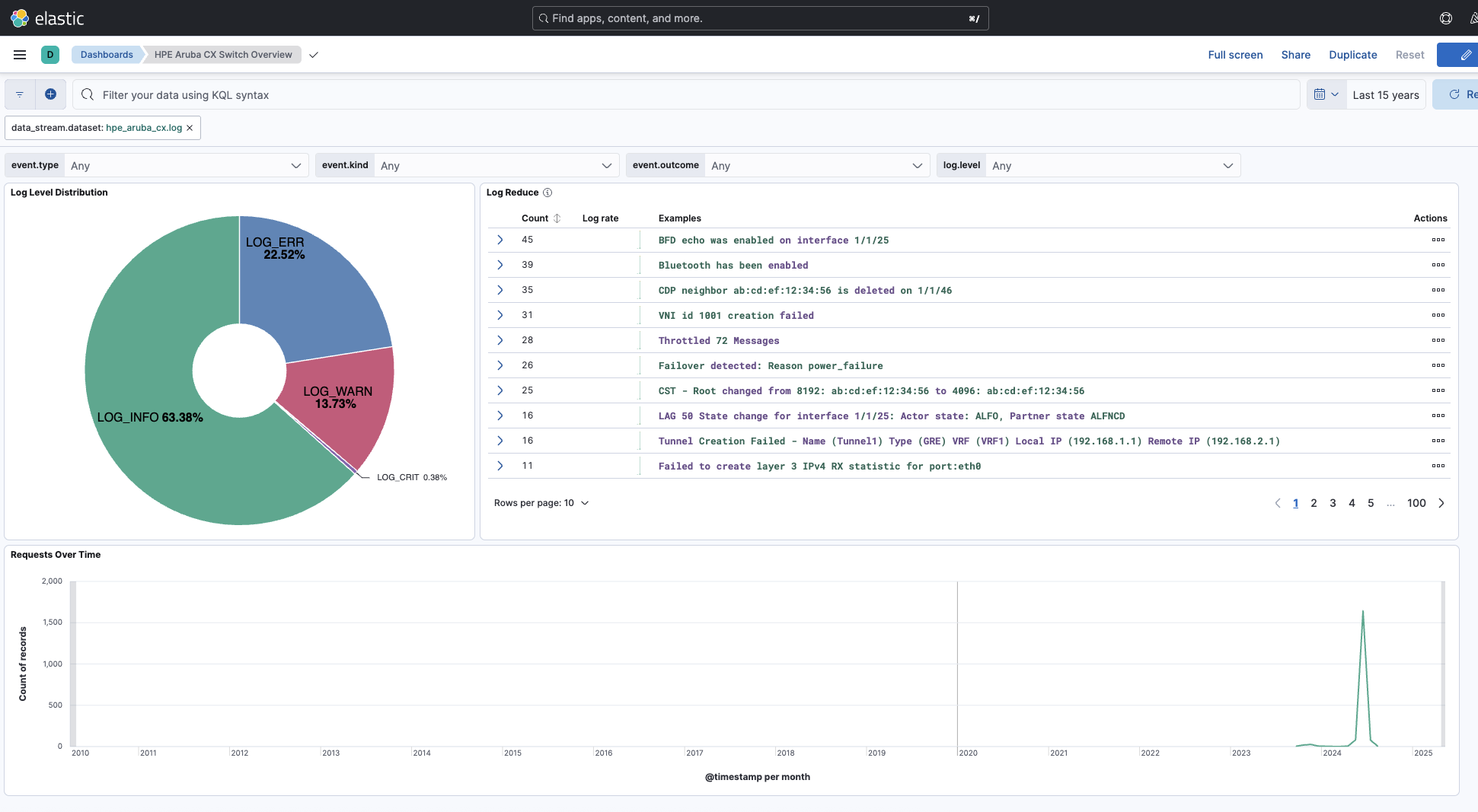
Changelog
| Version | Details | Minimum Kibana version |
|---|---|---|
| 0.4.1 | Enhancement (View pull request) Update documentation. |
9.0.0 8.15.0 |
| 0.4.0 | Enhancement (View pull request) Update documentation, add service info, consistent default tags. |
— |
| 0.3.0 | Enhancement (View pull request) Handle optional syslog priority and format variations in procid fields. |
9.0.0 8.15.0 |
| 0.2.0 | Enhancement (View pull request) Preserve event.original on pipeline error. |
9.0.0 8.15.0 |
| 0.1.4 | Enhancement (View pull request) Generate processor tags and normalize error handler. |
9.0.0 8.15.0 |
| 0.1.3 | Bug fix (View pull request) Fixing system tests for missing log.file.fingerprint field |
9.0.0 8.15.0 |
| 0.1.2 | Bug fix (View pull request) Fix for licensing and the redact processor |
9.0.0 8.15.0 |
| 0.1.1 | Enhancement (View pull request) Changed owners. |
9.0.0 8.15.0 |
| 0.1.0 | Enhancement (View pull request) Official support for HPE Aruba CX |
9.0.0 8.15.0 |