Bring your own key to existing Elastic Cloud deployments
Add a customer-managed encryption key to a running deployment, in place, without recreating it.


 Share on Twitter
Share on Twitter

 Share on LinkedIn
Share on LinkedIn

 Share on Facebook
Share on Facebook

 Share by Email
Share by Email

 Print this page
Print
Bring your own key (BYOK) for existing deployments is now generally available on Elastic Cloud Hosted. You can add a customer-managed encryption key to a deployment that is already running, from the Elastic Cloud console or the API, with the deployment staying accessible throughout. Until now, the key could only be set when the deployment was created, which meant a key management requirement arriving later turned into a deployment migration.
Earlier in this series, we covered the foundational concepts of encryption at rest and walked through how to bring your own key to Elastic Cloud Hosted deployments with AWS KMS, Azure Key Vault, and Google Cloud KMS. The scope was limited to new deployments. We have now expanded the scope to improve usability by including existing ones. This blog covers what changed, how the in-place transition works, and what to weigh before you encrypt a production deployment.
Why BYOK required a new deployment until now
Customer-managed keys matter most to organizations with large, established footprints and with compliance obligations that specify who holds the key and how quickly it can be revoked. Financial services and the public sector are the clearest examples.
Those are also the organizations for which "recreate your deployment" was a significant hurdle. That works, and plenty of customers did it. But it turns a security decision into a migration, with new endpoints to repoint and a cutover to coordinate.
So BYOK was effective but with a limited impact.
How BYOK works on an existing deployment
You can now enable BYOK on a running Elastic Cloud Hosted deployment. Elastic Cloud applies a plan change that replaces each instance with an encrypted one, moving your data across with native Elasticsearch shard allocation before the old instance is removed. Your deployment stays accessible during re-encryption. It is the same plan change mechanism as any other configuration change, so there is no separate maintenance window to book.
The key management services supported for new deployments all work here, too: AWS KMS, Azure Key Vault, and Google Cloud KMS. Once the transition finishes, the deployment behaves exactly like one created with BYOK on day one. Key rotations you perform in your KMS are picked up automatically, and revoking the key is still your break-glass control. Revoke it, and Elastic Cloud locks the deployment's data directories within 30 minutes at most. While it is locked, the deployment retains all of its data but is neither readable nor writable, and restoring key access in your KMS brings it back online. If access is never restored, the data is effectively crypto-shredded as expected.
After the transition, the deployment's found-snapshots repository points at a new bucket encrypted with your key, and every snapshot taken from then on lands there. Snapshots taken before the transition stay in the original bucket and are no longer available through that repository. Whether that bucket is retained or reclaimed afterward depends on your data tiers, but either way your snapshot history starts fresh. Read the considerations below before you start.
Prerequisites
A key you control in your cloud provider's KMS, configured with the access policy that lets Elastic Cloud use it. The earlier blogs in this series walk through this step by step for AWS KMS, Azure Key Vault, and Google Cloud KMS. Nothing about key creation changes for existing deployments.
An Enterprise subscription — the same eligibility that applies to BYOK on new deployments. If the option does not appear for your deployment, contact Elastic Support.
A key in the same cloud provider as your deployment, available in every region the deployment runs in. An AWS deployment needs an AWS KMS key, an Azure deployment needs an Azure Key Vault key, and a Google Cloud deployment needs a Cloud KMS key on a single-region key ring in the deployment's region. Multi-region key rings are rejected.
No index lifecycle management policy that names found-snapshots as the snapshot repository in a cold or frozen phase. If one exists, the migration is rejected before it starts, and since found-snapshots is the repository every Elastic Cloud Hosted cluster gets by default, this catches more deployments than you might expect. The check reads the policies themselves rather than the indices using them, so a policy that is defined but unused will still block you. Run GET _ilm/policy and look for phases.cold.actions.searchable_snapshot.snapshot_repository, or the frozen equivalent, to see where you stand.
Encrypting an existing deployment with your key
Once your key is in place, the transition takes three steps in the Elastic Cloud console:
Go to your deployment's Security page.
Under Encryption at rest, select Manage encryption key.
Enter your key identifier, which is the ARN for AWS, the key identifier for Azure, or the resource ID for Google Cloud, and save your changes.
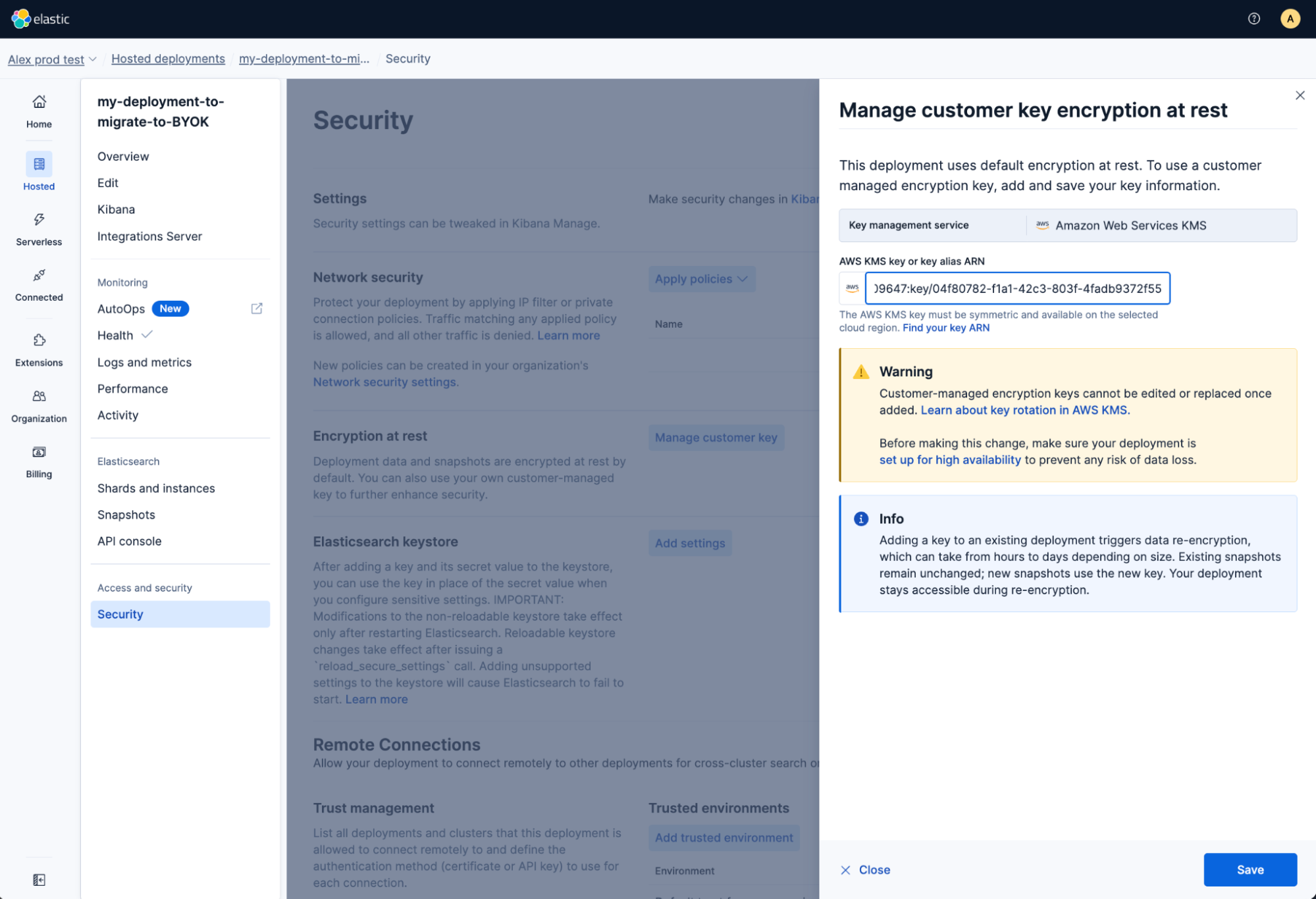
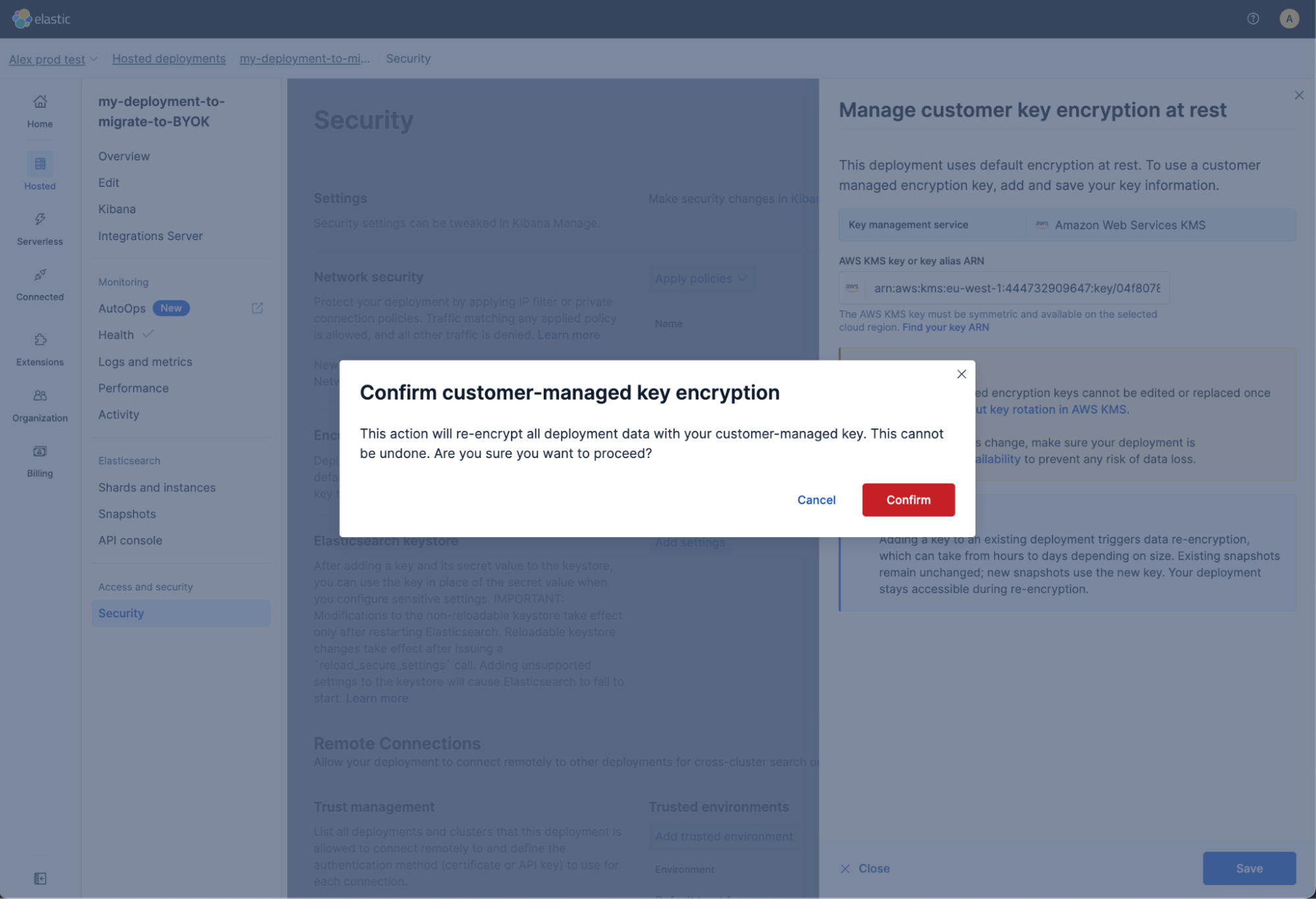
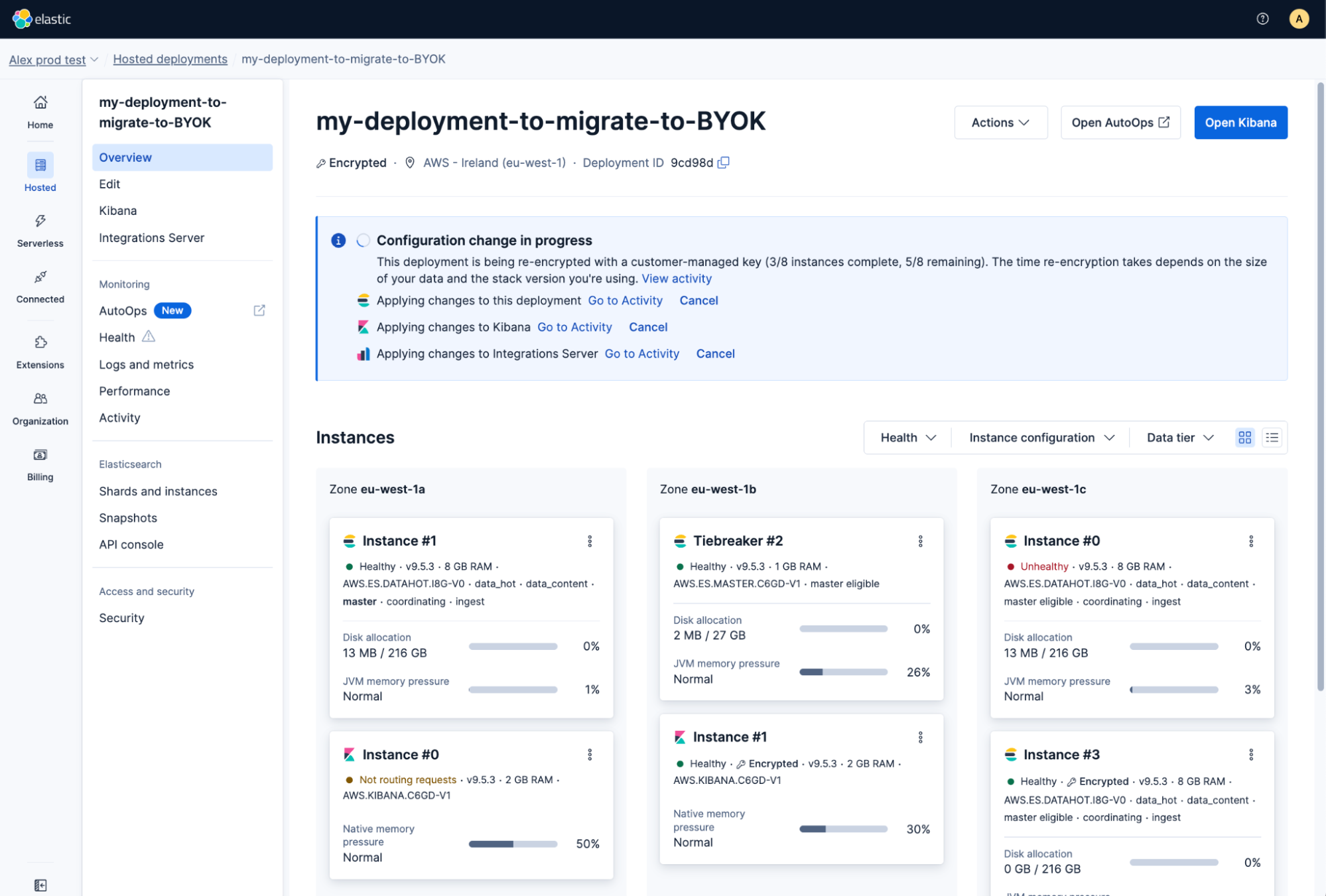
Elastic Cloud then applies the plan change to encrypt your data and snapshots. Your deployment's Overview page tracks it while it runs, reporting how many instances have been re-encrypted so far, and individual instances pick up an Encrypted marker as they complete. If you want the underlying plan steps, the banner links through to the Activity page.
You can also do this through the Elastic Cloud API, which is the better path if you are rolling BYOK out across a fleet. Existing deployments use a dedicated endpoint, POST /api/v1/deployments/{deployment_id}/byok-migration, with your key identifier in the request body. The product documentation covers the roles it needs, the errors it returns, and how to poll for completion.
Once you set a customer-managed key on a deployment, you cannot edit or remove it. That holds for every BYOK deployment, whether it was created with a key or transitioned to one. Changing or removing a key is planned for a future release.
Considerations before you start
Run this on a deployment configured for high availability, meaning two or more availability zones with replicas. High availability is not enforced as a requirement, but the migration removes each original instance once its encrypted replacement has taken over, so on a deployment without replicas every shard exists in only one copy while it relocates. On a single-availability-zone deployment the sole Elasticsearch node, and therefore the elected master, also has to be replaced, so brief interruptions are possible.
Your snapshot history does not carry over. Once the transition completes, found-snapshots points at the new encrypted bucket, and snapshots taken before it are no longer available through that repository. The plan takes a fresh snapshot onto the encrypted bucket automatically as its final step, so you do not need to take one yourself. If you have retention or compliance obligations that depend on pre-migration snapshots, deal with those before you start, because this is the part of the process you cannot undo afterwards.
Try the process on a smaller deployment first and confirm the cluster is healthy afterward, before you touch anything business-critical.
Let encryption run to completion. Canceling the change partway leaves the deployment partly encrypted, and you will need to contact Elastic Support to finish it.
Expect very large deployments to take time, from a few hours to more than a full day, especially above roughly 1 TB of data.
Budget for data transfer costs in your cloud provider account. These are expected to be low for Elasticsearch 8.x and later deployments.
Verification and troubleshooting
You can confirm the encryption state on the deployment's Security page. Select Manage encryption key under Encryption at rest and your key identifier should be listed.
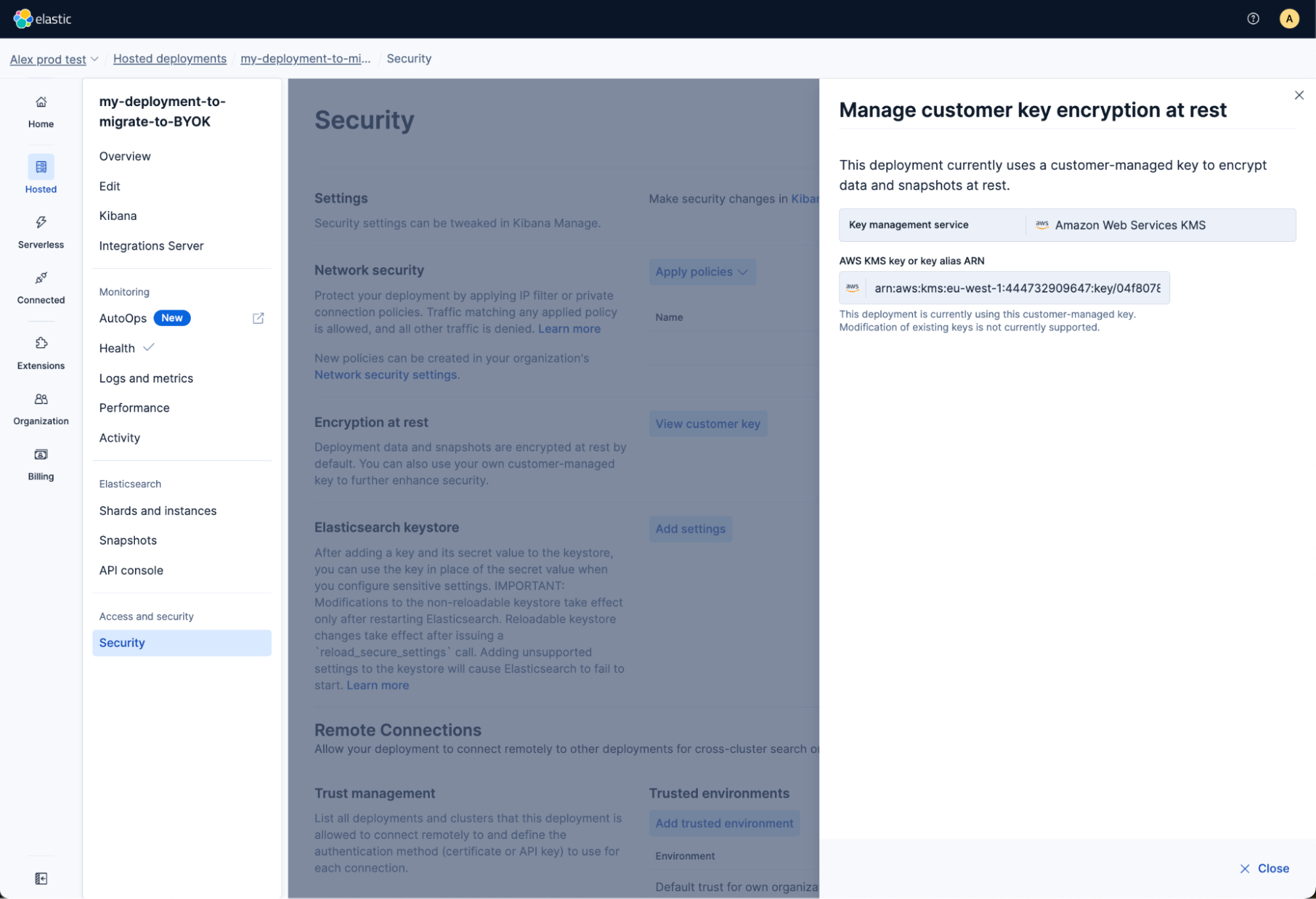
If the deployment ever becomes inaccessible because Elastic Cloud cannot reach your key, the troubleshooting steps from the earlier blogs apply unchanged. Restore the key or its access policy and the deployment resumes operation.
Get started with BYOK on your deployments
BYOK is no longer a day-one decision. If you have Elastic Cloud Hosted deployments on an Enterprise subscription, you can encrypt them with your own key today, in place, without recreating anything.
Start from your deployment's Security page, and see the product documentation for the full details. If you are setting up a key for the first time, the earlier blogs in this series cover AWS KMS, Azure Key Vault, and Google Cloud KMS end to end.
Frequently asked questions
Can I enable BYOK on an existing Elastic Cloud deployment?
Yes. You can add a customer-managed encryption key to a running Elastic Cloud Hosted deployment from the deployment's Security page or through the Elastic Cloud API. Previously, BYOK could only be configured when creating a new deployment. The capability is generally available and requires an Enterprise subscription.
Does enabling BYOK on an existing deployment cause downtime?
Your deployment stays accessible during re-encryption. Elastic Cloud replaces each instance one at a time, moving data onto the encrypted replacement before removing the original, so there is no bulk outage even though the process can run for hours or days on a large deployment. Run this on a deployment configured for high availability: On a single-availability-zone deployment the only Elasticsearch node has to be replaced, so brief interruptions are possible.
Which key management services are supported?
AWS KMS, Azure Key Vault, and Google Cloud KMS. The KMS must match the cloud provider your deployment runs on, and the key must be available in every region the deployment uses. An AWS-hosted deployment, for example, requires an AWS KMS key.
What happens to existing snapshots when I enable BYOK?
New snapshots are encrypted with your key. Existing snapshots are not transferred: After the transition, found-snapshots points at the new encrypted bucket, and snapshots taken before it are no longer available through that repository. The plan takes a fresh snapshot onto the encrypted bucket automatically when it finishes. If you have retention or compliance obligations against pre-migration snapshots, address them before you start.
Can I change or remove the customer-managed key later?
Not currently. Once a customer-managed key is set on a deployment it cannot be edited or removed, and that applies whether the deployment was created with a key or transitioned to one. Key rotation within your KMS is fully supported. Changing to a different key is planned for a future release.
The release and timing of any features or functionality described in this post remain at Elastic's sole discretion. Any features or functionality not currently available may not be delivered on time or at all.
Share
- Share on Twitter
Share on Twitter
- Share on LinkedIn
Share on LinkedIn
- Share on Facebook
Share on Facebook
- Share by Email
Share by Email
- Print this page
Print